$(selector, context) method.Given a jQuery object that represents a set of DOM elements, the .add() method constructs a new jQuery object from the union of those elements and the ones passed into the method. The argument to .add() can be pretty much anything that $() accepts, including a jQuery selector expression, references to DOM elements, or an HTML snippet.
Do not assume that this method appends the elements to the existing collection in the order they are passed to the .add() method. When all elements are members of the same document, the resulting collection from .add() will be sorted in document order; that is, in order of each element's appearance in the document. If the collection consists of elements from different documents or ones not in any document, the sort order is undefined. To create a jQuery object with elements in a well-defined order and without sorting overhead, use the $(array_of_DOM_elements) signature.
The updated set of elements can be used in a following (chained) method, or assigned to a variable for later use. For example:
$( "p" ).add( "div" ).addClass( "widget" );
var pdiv = $( "p" ).add( "div" );
The following will not save the added elements, because the .add() method creates a new set and leaves the original set in pdiv unchanged:
var pdiv = $( "p" );
pdiv.add( "div" ); // WRONG, pdiv will not change
Consider a page with a simple list and a paragraph following it:
<ul>
  <li>list item 1</li>
  <li>list item 2</li>
  <li>list item 3</li>
</ul>
<p>a paragraph</p>
We can select the list items and then the paragraph by using either a selector or a reference to the DOM element itself as the .add() method's argument:
$( "li" ).add( "p" ).css( "background-color", "red" );
Or:
$( "li" ).add( document.getElementsByTagName( "p" )[ 0 ] )
  .css( "background-color", "red" );
The result of this call is a red background behind all four elements.
Using an HTML snippet as the .add() method's argument (as in the third version), we can create additional elements on the fly and add those elements to the matched set of elements. Let's say, for example, that we want to alter the background of the list items along with a newly created paragraph:
$( "li" ).add( "<p id='new'>new paragraph</p>" )
  .css( "background-color", "red" );
Although the new paragraph has been created and its background color changed, it still does not appear on the page. To place it on the page, we could add one of the insertion methods to the chain.
As of jQuery 1.4 the results from .add() will always be returned in document order (rather than a simple concatenation).
Note: To reverse the .add() you can use .not( elements | selector ) to remove elements from the jQuery results, or .end() to return to the selection before you added.
$( "div" ).css( "border", "2px solid red" )
  .add( "p" )
  .css( "background", "yellow" );
$( "p" ).add( "span" ).css( "background", "yellow" );
<p>Hello</p>
<span>Hello Again</span>
$( "p" ).clone().add( "<span>Again</span>" ).appendTo( document.body );
<p>Hello</p>
$( "p" ).add( document.getElementById( "a" ) ).css( "background", "yellow" );
<p>Hello</p>
<span id="a">Hello Again</span>
var collection = $( "p" );
// Capture the new collection
collection = collection.add( document.getElementById( "a" ) );
collection.css( "background", "yellow" );
<p>Hello</p>
<span id="a">Hello Again</span>
As described in the discussion for .end(), jQuery objects maintain an internal stack that keeps track of changes to the matched set of elements. When one of the DOM traversal methods is called, the new set of elements is pushed onto the stack. If the previous set of elements is desired as well, .addBack() can help.
Consider a page with a simple list on it:
<ul>
  <li>list item 1</li>
  <li>list item 2</li>
  <li class="third-item">list item 3</li>
  <li>list item 4</li>
  <li>list item 5</li>
</ul>
The result of the following code is a red background behind items 3, 4 and 5:
$( "li.third-item" ).nextAll().addBack()
  .css( "background-color", "red" );
First, the initial selector locates item 3, initializing the stack with the set containing just this item. The call to .nextAll() then pushes the set of items 4 and 5 onto the stack. Finally, the .addBack() invocation merges these two sets together, creating a jQuery object that points to all three items in document order: {[<li.third-item>,<li>,<li> ]}.
.addBack() method causes the previous set of DOM elements in the traversal stack to be added to the current set. In the first example, the top stack contains the set resulting from .find("p"). In the second example, .addBack() adds the previous set of elements on the stack — in this case $("div.after-addback") — to the current set, selecting both the div and its enclosed paragraphs.
$( "div.left, div.right" ).find( "div, div > p" ).addClass( "border" );

// First Example
$( "div.before-addback" ).find( "p" ).addClass( "background" );

// Second Example
$( "div.after-addback" ).find( "p" ).addBack().addClass( "background" );
this refers to the current element in the set.this refers to the current element in the set.It's important to note that this method does not replace a class. It simply adds the class, appending it to any which may already be assigned to the elements.
Before jQuery version 1.12/2.2, the .addClass() method manipulated the className property of the selected elements, not the class attribute. Once the property was changed, it was the browser that updated the attribute accordingly. An implication of this behavior was that this method only worked for documents with HTML DOM semantics (e.g., not pure XML documents).
As of jQuery 1.12/2.2, this behavior is changed to improve the support for XML documents, including SVG. Starting from this version, the class attribute is used instead. So, .addClass() can be used on XML or SVG documents.
More than one class may be added at a time, separated by a space, to the set of matched elements, like so:
$( "p" ).addClass( "myClass yourClass" );
This method is often used with .removeClass() to switch elements' classes from one to another, like so:
$( "p" ).removeClass( "myClass noClass" ).addClass( "yourClass" );
Here, the myClass and noClass classes are removed from all paragraphs, while yourClass is added.
As of jQuery 1.4, the .addClass() method's argument can receive a function.
$( "ul li" ).addClass(function( index ) {
  return "item-" + index;
});
Given an unordered list with two <li> elements, this example adds the class "item-0" to the first <li> and "item-1" to the second.
$( "p" ).last().addClass( "selected" );
$( "p" ).last().addClass( "selected highlight" );
$( "p" ).last().addClass( [ "selected", "highlight" ] );
.addClass() to add the "green" class to a div that already has a "red" class.
$( "div" ).addClass(function( index, currentClass ) {
  var addedClass;

  if ( currentClass === "red" ) {
    addedClass = "green";
    $( "p" ).text( "There is one green div" );
  }

  return addedClass;
});
this refers to the current element in the set.this refers to the current element in the set.The .after() and .insertAfter() methods perform the same task. The major difference is in the syntax—specifically, in the placement of the content and target. With .after(), the content to be inserted comes from the method's argument: $(target).after(contentToBeInserted). With .insertAfter(), on the other hand, the content precedes the method and is inserted after the target, which in turn is passed as the .insertAfter() method's argument: $(contentToBeInserted).insertAfter(target).
Using the following HTML:
<div class="container">
  <h2>Greetings</h2>
  <div class="inner">Hello</div>
  <div class="inner">Goodbye</div>
</div>
Content can be created and then inserted after several elements at once:
$( ".inner" ).after( "<p>Test</p>" );
Each inner <div> element gets this new content:
<div class="container">
  <h2>Greetings</h2>
  <div class="inner">Hello</div>
  <p>Test</p>
  <div class="inner">Goodbye</div>
  <p>Test</p>
</div>
An element in the DOM can also be selected and inserted after another element:
$( ".container" ).after( $( "h2" ) );
If an element selected this way is inserted into a single location elsewhere in the DOM, it will be moved rather than cloned:
<div class="container">
  <div class="inner">Hello</div>
  <div class="inner">Goodbye</div>
</div>
<h2>Greetings</h2>
Important: If there is more than one target element, however, cloned copies of the inserted element will be created for each target except for the last one.
Passing a Function
As of jQuery 1.4, .after() supports passing a function that returns the elements to insert.
$( "p" ).after(function() {
  return "<div>" + this.className + "</div>";
});
This example inserts a <div> after each paragraph, with each new <div> containing the class name(s) of its preceding paragraph.
Additional Arguments
Similar to other content-adding methods such as .prepend() and .before(), .after() also supports passing in multiple arguments as input. Supported input includes DOM elements, jQuery objects, HTML strings, and arrays of DOM elements.
For example, the following will insert two new <div>s and an existing <div> after the first paragraph:
var $newdiv1 = $( "<div id='object1'></div>" ),
  newdiv2 = document.createElement( "div" ),
  existingdiv1 = document.getElementById( "foo" );

$( "p" ).first().after( $newdiv1, [ newdiv2, existingdiv1 ] );
Since .after() can accept any number of additional arguments, the same result can be achieved by passing in the three <div>s as three separate arguments, like so: $( "p" ).first().after( $newdiv1, newdiv2, existingdiv1 ). The type and number of arguments will largely depend on the elements that are collected in the code.
.after() would attempt to add or change nodes in the current jQuery set if the first node in the set was not connected to a document, and in those cases return a new jQuery set rather than the original set. The method might or might not have returned a new result depending on the number or connectedness of its arguments! As of jQuery 1.9, .after(), .before(), and .replaceWith() always return the original unmodified set. Attempting to use these methods on a node without a parent has no effect—that is, neither the set nor the nodes it contains are changed.
<img onload="">). Do not use these methods to insert strings obtained from untrusted sources such as URL query parameters, cookies, or form inputs. Doing so can introduce cross-site-scripting (XSS) vulnerabilities. Remove or escape any user input before adding content to the document.
$( "p" ).after( "<b>Hello</b>" );
$( "p" ).after( document.createTextNode( "Hello" ) );
$( "p" ).after( $( "b" ) );
This API is deprecated. Use .on( "ajaxComplete", handler ) instead.
"ajaxComplete".This page describes the ajaxComplete event. For the deprecated .ajaxComplete() method, see .ajaxComplete().
Whenever an Ajax request completes, jQuery triggers the ajaxComplete event. Any and all registered ajaxComplete handlers are executed at this time.
To observe this method in action, set up a basic Ajax load request:
<div class="trigger">Trigger</div>
<div class="result"></div>
<div class="log"></div>
Attach the event handler to the document:
$( document ).on( "ajaxComplete", function() {
  $( ".log" ).text( "Triggered ajaxComplete handler." );
} );
Now, make an Ajax request using any jQuery method:
$( ".trigger" ).on( "click", function() {
  $( ".result" ).load( "ajax/test.html" );
} );
When the user clicks the element with class trigger and the Ajax request completes, the log message is displayed.
All ajaxComplete handlers are invoked, regardless of what Ajax request was completed. If you must differentiate between the requests, use the parameters passed to the handler. Each time an ajaxComplete handler is executed, it is passed the event object, the XMLHttpRequest object, and the settings object that was used in the creation of the request. For example, you can restrict the callback to only handling events dealing with a particular URL:
$( document ).on( "ajaxComplete", function( event, xhr, settings ) {
  if ( settings.url === "ajax/test.html" ) {
    $( ".log" ).text( "Triggered ajaxComplete handler. The result is " +
      xhr.responseText );
  }
} );
Note: You can get the returned Ajax contents by looking at xhr.responseText.
.on( "ajaxComplete", ... ), must be attached to document.
$.ajax() or $.ajaxSetup() is called with the global option set to false, the ajaxComplete event will not fire.
$( document ).on( "ajaxComplete", function( event, request, settings ) {
  $( "#msg" ).append( "<li>Request Complete.</li>" );
} );
This API is deprecated. Use .on( "ajaxError", handler ) instead.
"ajaxError".This page describes the ajaxError event. For the deprecated .ajaxError() method, see .ajaxError().
Whenever an Ajax request completes with an error, jQuery triggers the ajaxError event. Any and all registered ajaxError handlers are executed at this time. Note: This handler is not called for cross-domain script and cross-domain JSONP requests.
To observe this method in action, set up a basic Ajax load request.
<button class="trigger">Trigger</button>
<div class="result"></div>
<div class="log"></div>
Attach the event handler to the document:
$( document ).on( "ajaxError", function() {
  $( ".log" ).text( "Triggered ajaxError handler." );
} );
Now, make an Ajax request using any jQuery method:
$( "button.trigger" ).on( "click", function() {
  $( "div.result" ).load( "ajax/missing.html" );
} );
When the user clicks the button and the Ajax request fails, because the requested file is missing, the log message is displayed.
All ajaxError handlers are invoked, regardless of what Ajax request was completed. To differentiate between the requests, use the parameters passed to the handler. Each time an ajaxError handler is executed, it is passed the event object, the jqXHR object (prior to jQuery 1.5, the XHR object), and the settings object that was used in the creation of the request. When an HTTP error occurs, the fourth argument (thrownError) receives the textual portion of the HTTP status, such as "Not Found" or "Internal Server Error." For example, to restrict the error callback to only handling events dealing with a particular URL:
$( document ).on( "ajaxError", function( event, jqxhr, settings, thrownError ) {
  if ( settings.url == "ajax/missing.html" ) {
    $( "div.log" ).text( "Triggered ajaxError handler." );
  }
} );
.on( "ajaxError", ... ), must be attached to document.
$.ajax() or $.ajaxSetup() is called with the global option set to false, the ajaxError event will not fire.
$( document ).on( "ajaxError", function( event, request, settings ) {
  $( "#msg" ).append( "<li>Error requesting page " + settings.url + "</li>" );
} );
This API is deprecated. Use .on( "ajaxSend", handler ) instead.
"ajaxSend".This page describes the ajaxSend event. For the deprecated .ajaxSend() method, see .ajaxSend().
Whenever an Ajax request is about to be sent, jQuery triggers the ajaxSend event. Any and all registerd ajaxSend handlers are executed at this time.
To observe this method in action, set up a basic Ajax load request:
<div class="trigger">Trigger</div>
<div class="result"></div>
<div class="log"></div>
Attach the event handler to the document:
$( document ).on( "ajaxSend", function() {
  $( ".log" ).text( "Triggered ajaxSend handler." );
} );
Now, make an Ajax request using any jQuery method:
$( ".trigger" ).on( "click", function() {
  $( ".result" ).load( "ajax/test.html" );
} );
When the user clicks the element with class trigger and the Ajax request is about to begin, the log message is displayed.
All ajaxSend handlers are invoked, regardless of what Ajax request is to be sent. If you must differentiate between the requests, use the parameters passed to the handler. Each time an ajaxSend handler is executed, it is passed the event object, the jqXHR object (in version 1.4, XMLHttpRequestobject), and the settings object that was used in the creation of the Ajax request. For example, you can restrict the callback to only handling events dealing with a particular URL:
$( document ).on( "ajaxSend", function( event, jqxhr, settings ) {
  if ( settings.url == "ajax/test.html" ) {
    $( ".log" ).text( "Triggered ajaxSend handler." );
  }
} );
.on( "ajaxSend", ... ), must be attached to document.
$.ajax() or $.ajaxSetup() is called with the global option set to false, the ajaxSend event will not fire.
$( document ).on( "ajaxSend", function( event, request, settings ) {
  $( "#msg" ).append( "<li>Starting request at " + settings.url + "</li>" );
} );
This API is deprecated. Use .on( "ajaxStart", handler ) instead.
"ajaxStart".This page describes the ajaxStart event. For the deprecated .ajaxStart() method, see .ajaxStart().
Whenever an Ajax request is about to be sent, jQuery checks whether there are any other outstanding Ajax requests. If none are in progress, jQuery triggers the ajaxStart event. Any and all handlers that have been registered with .on( "ajaxStart", ... ) are executed at this time.
To observe this method in action, set up a basic Ajax load request:
<div class="trigger">Trigger</div>
<div class="result"></div>
<div class="log"></div>
Attach the event handler to any element:
$( document ).on( "ajaxStart", function() {
  $( ".log" ).text( "Triggered ajaxStart handler." );
} );
Now, make an Ajax request using any jQuery method:
$( ".trigger" ).on( "click", function() {
  $( ".result" ).load( "ajax/test.html" );
} );
When the user clicks the element with class trigger and the Ajax request is sent, the log message is displayed.
.on( "ajaxStart", ... ), must be attached to document.
$.ajax() or $.ajaxSetup() is called with the global option set to false, the ajaxStart event will not fire.
$( document ).on( "ajaxStart", function() {
  $( "#loading" ).show();
} );
This API is deprecated. Use .on( "ajaxStop", handler ) instead.
"ajaxStop".This page describes the ajaxStop event. For the deprecated .ajaxStop() method, see .ajaxStop().
Whenever an Ajax request completes, jQuery checks whether there are any other outstanding Ajax requests. If none remain, jQuery triggers the ajaxStop event. Any and all registered ajaxStop handlers are executed at this time. The ajaxStop event is also triggered if the last outstanding Ajax request is cancelled by returning false within the beforeSend callback function.
To observe this method in action, set up a basic Ajax load request:
<div class="trigger">Trigger</div>
<div class="result"></div>
<div class="log"></div>
Attach the event handler to the document:
$( document ).on( "ajaxStop", function() {
  $( ".log" ).text( "Triggered ajaxStop handler." );
} );
Now, make an Ajax request using any jQuery method:
$( ".trigger" ).on( "click", function() {
  $( ".result" ).load( "ajax/test.html" );
} );
When the user clicks the element with class trigger and the Ajax request completes, the log message is displayed.
.on( "ajaxStop", ... ), must be attached to document.
$.ajax() or $.ajaxSetup() is called with the global option set to false, the ajaxStop event will not fire.
$( document ).on( "ajaxStop", function() {
  $( "#loading" ).hide();
} );
This API is deprecated. Use .on( "ajaxSuccess", handler ) instead.
"ajaxSuccess".This page describes the ajaxSuccess event. For the deprecated .ajaxSuccess() method, see .ajaxSuccess().
Whenever an Ajax request completes successfully, jQuery triggers the ajaxSuccess event. Any and all registered ajaxSuccess handlers are executed at this time.
To observe this method in action, set up a basic Ajax load request:
<div class="trigger">Trigger</div>
<div class="result"></div>
<div class="log"></div>
Attach the event handler to any element:
$( document ).on( "ajaxSuccess", function() {
  $( ".log" ).text( "Triggered ajaxSuccess handler." );
} );
Now, make an Ajax request using any jQuery method:
$( ".trigger" ).on( "click", function() {
  $( ".result" ).load( "ajax/test.html" );
} );
When the user clicks the element with class trigger and the Ajax request completes successfully, the log message is displayed.
All ajaxSuccess handlers are invoked, regardless of what Ajax request was completed. If you must differentiate between the requests, you can use the parameters passed to the handler. Each time an ajaxSuccess handler is executed, it is passed the event object, the XMLHttpRequest object, and the settings object that was used in the creation of the request. For example, you can restrict the callback to only handling events dealing with a particular URL:
$( document ).on( "ajaxSuccess", function( event, xhr, settings ) {
  if ( settings.url == "ajax/test.html" ) {
    $( ".log" ).text( "Triggered ajaxSuccess handler. The Ajax response was: " +
      xhr.responseText );
  }
} );
Note: You can get the returned Ajax contents by looking at xhr.responseXML or xhr.responseText for xml and html respectively.
.on( "ajaxSuccess", ... ), must be attached to document.
$.ajax() or $.ajaxSetup() is called with the global option set to false, the ajaxSuccess event will not fire.
$( document ).on( "ajaxSuccess", function( event, request, settings ) {
  $( "#msg" ).append( "<li>Successful Request!</li>" );
} );
Caution: The all, or universal, selector is extremely slow, except when used by itself.
<script> or <link> element into the DOM, that element will be counted as well.
var elementCount = $( "*" ).css( "border", "3px solid red" ).length;
$( "body" ).prepend( "<h3>" + elementCount + " elements found</h3>" );
<div>DIV</div>
<span>SPAN</span>
<p>P <button>Button</button></p>
var elementCount = $( "#test" ).find( "*" ).css( "border", "3px solid red" ).length;
$( "body" ).prepend( "<h3>" + elementCount + " elements found</h3>" );
<div id="test">
<div>DIV</div>
<span>SPAN</span>
<p>P <button>Button</button></p>
</div>
Note: This API has been removed in jQuery 3.0; use .addBack() instead, which should work identically.
.dequeue("queuename") to start it.The .animate() method allows us to create animation effects on any numeric CSS property. The only required parameter is a plain object of CSS properties. This object is similar to the one that can be sent to the .css() method, except that the range of properties is more restrictive.
Animation Properties and Values
All animated properties should be animated to a single numeric value, except as noted below; most properties that are non-numeric cannot be animated using basic jQuery functionality (For example, width, height, or left can be animated but background-color cannot be, unless the jQuery.Color plugin is used). Property values are treated as a number of pixels unless otherwise specified. The units em and % can be specified where applicable.
In addition to style properties, some non-style properties such as scrollTop and scrollLeft, as well as custom properties, can be animated.
Shorthand CSS properties (e.g. font, background, border) are not fully supported. For example, if you want to animate the rendered border width, at least a border style and border width other than "auto" must be set in advance. Or, if you want to animate font size, you would use fontSize or the CSS equivalent 'font-size' rather than simply 'font'.
In addition to numeric values, each property can take the strings 'show', 'hide', and 'toggle'. These shortcuts allow for custom hiding and showing animations that take into account the display type of the element. In order to use jQuery's built-in toggle state tracking, the 'toggle' keyword must be consistently given as the value of the property being animated.
Animated properties can also be relative. If a value is supplied with a leading += or -= sequence of characters, then the target value is computed by adding or subtracting the given number from the current value of the property.
Note: Unlike shorthand animation methods such as .slideDown() and .fadeIn(), the .animate() method does not make hidden elements visible as part of the effect. For example, given $( "someElement" ).hide().animate({height: "20px"}, 500), the animation will run, but the element will remain hidden.
Duration
Durations are given in milliseconds; higher values indicate slower animations, not faster ones. The default duration is 400 milliseconds. The strings 'fast' and 'slow' can be supplied to indicate durations of 200 and 600 milliseconds, respectively.
Callback Functions
If supplied, the start, step, progress, complete, done, fail, and always callbacks are called on a per-element basis; this is set to the DOM element being animated. If no elements are in the set, no callbacks are called. If multiple elements are animated, the callback is executed once per matched element, not once for the animation as a whole. Use the .promise() method to obtain a promise to which you can attach callbacks that fire once for an animated set of any size, including zero elements.
Basic Usage
To animate any element, such as a simple image:
<div id="clickme">
  Click here
</div>
<img id="book" src="book.png" alt="" width="100" height="123"
  style="position: relative; left: 10px;">
To animate the opacity, left offset, and height of the image simultaneously:
$( "#clickme" ).on( "click", function() {
  $( "#book" ).animate({
    opacity: 0.25,
    left: "+=50",
    height: "toggle"
  }, 5000, function() {
    // Animation complete.
  });
});
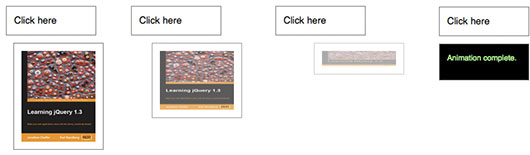
Note that the target value of the height property is 'toggle'. Since the image was visible before, the animation shrinks the height to 0 to hide it. A second click then reverses this transition:
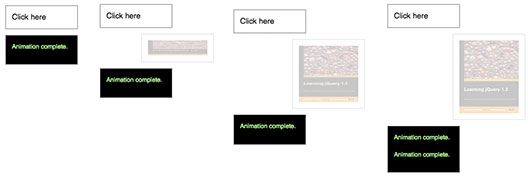
The opacity of the image is already at its target value, so this property is not animated by the second click. Since the target value for left is a relative value, the image moves even farther to the right during this second animation.
Directional properties (top, right, bottom, left) have no discernible effect on elements if their position style property is static, which it is by default.
Note: The jQuery UI project extends the .animate() method by allowing some non-numeric styles such as colors to be animated. The project also includes mechanisms for specifying animations through CSS classes rather than individual attributes.
Note: if attempting to animate an element with a height or width of 0px, where contents of the element are visible due to overflow, jQuery may clip this overflow during animation. By fixing the dimensions of the original element being hidden however, it is possible to ensure that the animation runs smoothly. A clearfix can be used to automatically fix the dimensions of your main element without the need to set this manually.
Step Function
The second version of .animate() provides a step option — a callback function that is fired at each step of the animation. This function is useful for enabling custom animation types or altering the animation as it is occurring. It accepts two arguments (now and fx), and this is set to the DOM element being animated.
now: the numeric value of the property being animated at each stepfx: a reference to thejQuery.fxprototype object, which contains a number of properties such aselemfor the animated element,startandendfor the first and last value of the animated property, respectively, andpropfor the property being animated.
Note that the step function is called for each animated property on each animated element. For example, given two list items, the step function fires four times at each step of the animation:
$( "li" ).animate({
  opacity: .5,
  height: "50%"
}, {
  step: function( now, fx ) {
    var data = fx.elem.id + " " + fx.prop + ": " + now;
    $( "body" ).append( "<div>" + data + "</div>" );
  }
});
Easing
The remaining parameter of .animate() is a string naming an easing function to use. An easing function specifies the speed at which the animation progresses at different points within the animation. The only easing implementations in the jQuery library are the default, called swing, and one that progresses at a constant pace, called linear. More easing functions are available with the use of plug-ins, most notably the jQuery UI suite.
Per-property Easing
As of jQuery version 1.4, you can set per-property easing functions within a single .animate() call. In the first version of .animate(), each property can take an array as its value: The first member of the array is the CSS property and the second member is an easing function. If a per-property easing function is not defined for a particular property, it uses the value of the .animate() method's optional easing argument. If the easing argument is not defined, the default swing function is used.
For example, to simultaneously animate the width and height with the swing easing function and the opacity with the linear easing function:
$( "#clickme" ).on( "click", function() {
  $( "#book" ).animate({
    width: [ "toggle", "swing" ],
    height: [ "toggle", "swing" ],
    opacity: "toggle"
  }, 5000, "linear", function() {
    $( this ).after( "<div>Animation complete.</div>" );
  });
});
In the second version of .animate(), the options object can include the specialEasing property, which is itself an object of CSS properties and their corresponding easing functions. For example, to simultaneously animate the width using the linear easing function and the height using the easeOutBounce easing function:
$( "#clickme" ).on( "click", function() {
  $( "#book" ).animate({
    width: "toggle",
    height: "toggle"
  }, {
    duration: 5000,
    specialEasing: {
      width: "linear",
      height: "easeOutBounce"
    },
    complete: function() {
      $( this ).after( "<div>Animation complete.</div>" );
    }
  });
});
As previously noted, a plugin is required for the easeOutBounce function.
.animate(), can be turned off globally by setting jQuery.fx.off = true, which effectively sets the duration to 0. For more information, see jQuery.fx.off.
// Using multiple unit types within one animation.

$( "#go" ).on( "click", function() {
  $( "#block" ).animate({
    width: "70%",
    opacity: 0.4,
    marginLeft: "0.6in",
    fontSize: "3em",
    borderWidth: "10px"
  }, 1500 );
});
<button id="go">» Run</button>
<div id="block">Hello!</div>
$( "#right" ).on( "click", function() {
  $( ".block" ).animate({ "left": "+=50px" }, "slow" );
});

$( "#left" ).on( "click", function(){
  $( ".block" ).animate({ "left": "-=50px" }, "slow" );
});
<button id="left">«</button>
<button id="right">»</button>
<div class="block"></div>
$( "#go1" ).on( "click", function() {
  $( "#block1" )
    .animate({
      width: "90%"
    }, {
      queue: false,
      duration: 3000
    })
    .animate({ fontSize: "24px" }, 1500 )
    .animate({ borderRightWidth: "15px" }, 1500 );
});

$( "#go2" ).on( "click", function() {
  $( "#block2" )
    .animate({ width: "90%" }, 1000 )
    .animate({ fontSize: "24px" }, 1000 )
    .animate({ borderLeftWidth: "15px" }, 1000 );
});

$( "#go3" ).on( "click", function() {
  $( "#go1" ).add( "#go2" ).trigger( "click" );
});

$( "#go4" ).on( "click", function() {
  $( "div" ).css({
    width: "",
    fontSize: "",
    borderWidth: ""
  });
});
<button id="go1">» Animate Block1</button>
<button id="go2">» Animate Block2</button>
<button id="go3">» Animate Both</button>
<button id="go4">» Reset</button>
<div id="block1">Block1</div>
<div id="block2">Block2</div>
$( "#go" ).on( "click", function() {
  $( ".block" ).first().animate({
    left: 100
  }, {
    duration: 1000,
    step: function( now, fx ){
      $( ".block" ).slice( 1 ).css( "left", now );
    }
  });
});
$( "p" ).animate({
  height: "toggle",
  opacity: "toggle"
}, "slow" );
$( "p" ).animate({
  left: 50,
  opacity: 1
}, 500 );
$( "p" ).animate({
  left: "50px",
  opacity: 1
}, {
  duration: 500,
  queue: false
});
$( "p" ).animate({
  opacity: "show"
}, "slow", "easein" );
$( "p" ).animate({
  height: "toggle",
  opacity: "toggle"
}, {
  duration: "slow"
});
$( "p" ).animate({
  opacity: "show"
}, {
  duration: "slow",
  easing: "easein"
});
$( "p" ).animate({
  height: 200,
  width: 400,
  opacity: 0.5
}, 1000, "linear", function() {
  alert( "all done" );
});
Note: If you use a custom jQuery build without the effects module, the :animated selector will throw an error.
:animated is a jQuery extension and not part of the CSS specification, queries using :animated cannot take advantage of the performance boost provided by the native DOM querySelectorAll() method. To achieve the best performance when using :animated to select elements, first select the elements using a pure CSS selector, then use .filter(":animated").
$( "#run" ).on( "click", function() {
  $( "div:animated" ).toggleClass( "colored" );
});

function animateIt() {
  $( "#mover" ).slideToggle( "slow", animateIt );
}

animateIt();
<button id="run">Run</button>
<div></div>
<div id="mover"></div>
<div></div>
this refers to the current element in the set.The .append() method inserts the specified content as the last child of each element in the jQuery collection (To insert it as the first child, use .prepend()).
The .append() and .appendTo() methods perform the same task. The major difference is in the syntax-specifically, in the placement of the content and target. With .append(), the selector expression preceding the method is the container into which the content is inserted. With .appendTo(), on the other hand, the content precedes the method, either as a selector expression or as markup created on the fly, and it is inserted into the target container.
Consider the following HTML:
<h2>Greetings</h2>
<div class="container">
  <div class="inner">Hello</div>
  <div class="inner">Goodbye</div>
</div>
You can create content and insert it into several elements at once:
$( ".inner" ).append( "<p>Test</p>" );
Each inner <div> element gets this new content:
<h2>Greetings</h2>
<div class="container">
  <div class="inner">
    Hello
    <p>Test</p>
  </div>
  <div class="inner">
    Goodbye
    <p>Test</p>
  </div>
</div>
You can also select an element on the page and insert it into another:
$( ".container" ).append( $( "h2" ) );
If an element selected this way is inserted into a single location elsewhere in the DOM, it will be moved into the target (not cloned):
<div class="container">
  <div class="inner">Hello</div>
  <div class="inner">Goodbye</div>
  <h2>Greetings</h2>
</div>
Important: If there is more than one target element, however, cloned copies of the inserted element will be created for each target except for the last one.
Additional Arguments
Similar to other content-adding methods such as .prepend() and .before(), .append() also supports passing in multiple arguments as input. Supported input includes DOM elements, jQuery objects, HTML strings, and arrays of DOM elements.
For example, the following will insert two new <div>s and an existing <div> as the last three child nodes of the body:
var $newdiv1 = $( "<div id='object1'></div>" ),
  newdiv2 = document.createElement( "div" ),
  existingdiv1 = document.getElementById( "foo" );

$( "body" ).append( $newdiv1, [ newdiv2, existingdiv1 ] );
Since .append() can accept any number of additional arguments, the same result can be achieved by passing in the three <div>s as three separate arguments, like so: $('body').append( $newdiv1, newdiv2, existingdiv1 ). The type and number of arguments will largely depend on how you collect the elements in your code.
<img onload="">). Do not use these methods to insert strings obtained from untrusted sources such as URL query parameters, cookies, or form inputs. Doing so can introduce cross-site-scripting (XSS) vulnerabilities. Remove or escape any user input before adding content to the document.
addClass and removeClass.
$( "p" ).append( "<strong>Hello</strong>" );
$( "p" ).append( document.createTextNode( "Hello" ) );
$( "p" ).append( $( "strong" ) );
The .append() and .appendTo() methods perform the same task. The major difference is in the syntax-specifically, in the placement of the content and target. With .append(), the selector expression preceding the method is the container into which the content is inserted. With .appendTo(), on the other hand, the content precedes the method, either as a selector expression or as markup created on the fly, and it is inserted into the target container.
Consider the following HTML:
<h2>Greetings</h2>
<div class="container">
  <div class="inner">Hello</div>
  <div class="inner">Goodbye</div>
</div>
We can create content and insert it into several elements at once:
$( "<p>Test</p>" ).appendTo( ".inner" );
Each inner <div> element gets this new content:
<h2>Greetings</h2>
<div class="container">
  <div class="inner">
    Hello
    <p>Test</p>
  </div>
  <div class="inner">
    Goodbye
    <p>Test</p>
  </div>
</div>
We can also select an element on the page and insert it into another:
$( "h2" ).appendTo( $( ".container" ) );
If an element selected this way is inserted into a single location elsewhere in the DOM, it will be moved into the target (not cloned) and a new set consisting of the inserted element is returned:
<div class="container">
  <div class="inner">Hello</div>
  <div class="inner">Goodbye</div>
  <h2>Greetings</h2>
</div>
If there is more than one target element, however, cloned copies of the inserted element will be created for each target except the last, and that new set (the original element plus clones) is returned.
Before jQuery 1.9, the append-to-single-element case did not create a new set, but instead returned the original set which made it difficult to use the .end() method reliably when being used with an unknown number of elements.
<img onload="">). Do not use these methods to insert strings obtained from untrusted sources such as URL query parameters, cookies, or form inputs. Doing so can introduce cross-site-scripting (XSS) vulnerabilities. Remove or escape any user input before adding content to the document.
addClass and removeClass.
$( "span" ).appendTo( "#foo" );
The .attr() method gets the attribute value for only the first element in the matched set. To get the value for each element individually, use a looping construct such as jQuery's .each() or .map() method.
Using jQuery's .attr() method to get the value of an element's attribute has two main benefits:
- Convenience: It can be called directly on a jQuery object and chained to other jQuery methods.
- Cross-browser consistency: The values of some attributes are reported inconsistently across browsers, and even across versions of a single browser. The
.attr()method reduces such inconsistencies.
Note: Attribute values are strings with the exception of a few attributes such as value and tabindex.
As of jQuery 1.6, the .attr() method returns undefined for attributes that have not been set. To retrieve and change DOM properties such as the checked, selected, or disabled state of form elements, use the .prop() method.
addClass and removeClass.
Attributes vs. Properties
The difference between attributes and properties can be important in specific situations. Before jQuery 1.6, the .attr() method sometimes took property values into account when retrieving some attributes, which could cause inconsistent behavior. As of jQuery 1.6, the .prop() method provides a way to explicitly retrieve property values, while .attr() retrieves attributes.
For example, selectedIndex, tagName, nodeName, nodeType, ownerDocument, defaultChecked, and defaultSelected should be retrieved and set with the .prop() method. Prior to jQuery 1.6, these properties were retrievable with the .attr() method, but this was not within the scope of attr. These do not have corresponding attributes and are only properties.
Concerning boolean attributes, consider a DOM element defined by the HTML markup <input type="checkbox" checked="" />, and assume it is in a JavaScript variable named elem:
elem.checked
|
true (Boolean) Will change with checkbox state |
|---|---|
$( elem ).prop( "checked" )
|
true (Boolean) Will change with checkbox state |
elem.getAttribute( "checked" )
|
"" (String) Initial state of the checkbox; does not change |
$( elem ).attr( "checked" )
(4.0+)
|
"" (String) Initial state of the checkbox; does not change |
$( elem ).attr( "checked" )
(1.6-3.x)
|
"checked" (String) Initial state of the checkbox; does not change |
$( elem ).attr( "checked" )
(pre-1.6)
|
true (Boolean) Changed with checkbox state |
According to the W3C forms specification, the checked attribute is a boolean attribute, which means the corresponding property is true if the attribute is present at all—even if, for example, the attribute has no value or is set to empty string value or even "false". This is true of all boolean attributes.
Nevertheless, the most important concept to remember about the checked attribute is that it does not correspond to the checked property. The attribute actually corresponds to the defaultChecked property and should be used only to set the initial value of the checkbox. The checked attribute value does not change with the state of the checkbox, while the checked property does. Therefore, the cross-browser-compatible way to determine if a checkbox is checked is to use the property:
-
if ( elem.checked ) -
if ( $( elem ).prop( "checked" ) ) -
if ( $( elem ).is( ":checked" ) )
The same is true for other dynamic attributes, such as selected and value.
.prop() to set a DOM element property to anything other than a simple primitive value (number, string, or boolean) can cause memory leaks if the property is not removed (using .removeProp()) before the DOM element is removed from the document. To safely set values on DOM objects without memory leaks, use .data().
$( "input" )
  .on( "change", function() {
    var $input = $( this );
    $( "p" ).html( ".attr( 'checked' ): <b>" + $input.attr( "checked" ) + "</b><br>" +
      ".prop( 'checked' ): <b>" + $input.prop( "checked" ) + "</b><br>" +
      ".is( ':checked' ): <b>" + $input.is( ":checked" ) + "</b>" );
  } )
  .trigger( "change" );
var title = $( "em" ).attr( "title" );
$( "div" ).text( title );
null, the specified attribute will be removed (as in .removeAttr()). Non-ARIA attributes can also be removed by passing false.this is the current element. Receives the index position of the element in the set and the old attribute value as arguments.The .attr() method is a convenient way to set the value of attributes—especially when setting multiple attributes or using values returned by a function. Consider the following image:
<img id="greatphoto" src="brush-seller.jpg" alt="brush seller">Setting a simple attribute
To change the alt attribute, simply pass the name of the attribute and its new value to the .attr() method:
$( "#greatphoto" ).attr( "alt", "Beijing Brush Seller" );
Add an attribute the same way:
$( "#greatphoto" ).attr( "title", "Photo by Kelly Clark" );
Setting several attributes at once
To change the alt attribute and add the title attribute at the same time, pass both sets of names and values into the method at once using a plain JavaScript object. Each key-value pair in the object adds or modifies an attribute:
$( "#greatphoto" ).attr({
  alt: "Beijing Brush Seller",
  title: "photo by Kelly Clark"
});
When setting multiple attributes, the quotes around attribute names are optional.
Removing an attribute
To remove an attribute, either call .attr( name, null ) or use .removeAttr( name ). For non-ARIA attributes, in jQuery 4.0+ you can also call .attr( name, false ).
Note: Because ARIA attributes frequently associate behavior with "false" values that differs from attribute absence, passing false as the value for an attribute whose name starts with "aria-…" will stringify that value to "false" rather than remove the attribute. To guarantee removal of an attribute, use the .removeAttr() method or provide null as the value to the .attr() setter.
WARNING: When setting the 'class' attribute, you must always use quotes!
Note: Attempting to change the type attribute on an input or button element created via document.createElement() will throw an exception on Internet Explorer 8 or older.
Computed attribute values
By using a function to set attributes, you can compute the value based on other properties of the element. For example, to concatenate a new value with an existing value:
$( "#greatphoto" ).attr( "title", function( i, val ) {
  return val + " - photo by Kelly Clark";
});
This use of a function to compute attribute values can be particularly useful when modifying the attributes of multiple elements at once.
Note: If nothing is returned in the setter function (ie. function(index, attr){}), or if undefined is returned, the current value is not changed. This is useful for selectively setting values only when certain criteria are met.
$( "img" ).attr({
  src: "/resources/hat.gif",
  title: "jQuery",
  alt: "jQuery Logo"
});
$( "div" ).text( $( "img" ).attr( "alt" ) );
$( "div" )
  .attr( "id", function( arr ) {
    return "div-id" + arr;
  })
  .each(function() {
    $( "span", this ).html( "(id = '<b>" + this.id + "</b>')" );
});
$( "img" ).attr( "src", function() {
  return "/resources/" + this.title;
});
<img title="hat.gif">
This selector was introduced into the CSS specification to handle language attributes.
$( "a[hreflang|='en']" ).css( "border", "3px dotted green" );
<a href="example.html" hreflang="en">Some text</a>
<a href="example.html" hreflang="en-UK">Some other text</a>
<a href="example.html" hreflang="english">will not be outlined</a>
This is the most generous of the jQuery attribute selectors that match against a value. It will select an element if the selector's string appears anywhere within the element's attribute value. Compare this selector with the Attribute Contains Word selector (e.g. [attr~="word"]), which is more appropriate in many cases.
$( "input[name*='man']" ).val( "has man in it!" );
<input name="man-news">
<input name="milkman">
<input name="letterman2">
<input name="newmilk">
This selector matches the test string against each word in the attribute value, where a "word" is defined as a string delimited by whitespace. The selector matches if the test string is exactly equal to any of the words.
$( "input[name~='man']" ).val( "mr. man is in it!" );
<input name="man-news">
<input name="milk man">
<input name="letterman2">
<input name="newmilk">
$( "input[name$='letter']" ).val( "a letter" );
<input name="newsletter">
<input name="milkman">
<input name="jobletter">
$( "input[value='Hot Fuzz']" ).next().text( "Hot Fuzz" );
<div>
<label>
<input type="radio" name="newsletter" value="Hot Fuzz">
<span>name?</span>
</label>
</div>
<div>
<label>
<input type="radio" name="newsletter" value="Cold Fusion">
<span>value?</span>
</label>
</div>
<div>
<label>
<input type="radio" name="newsletter" value="Evil Plans">
<span>value?</span>
</label>
</div>
This selector is equivalent to :not([attr='value']).
[name!="value"] is a jQuery extension and not part of the CSS specification, queries using [name!="value"] cannot take advantage of the performance boost provided by the native DOM querySelectorAll() method. For better performance in modern browsers, use $( "your-pure-css-selector" ).not( "[name='value']" ) instead.
$( "input[name!='newsletter']" ).next().append( "<b>; not newsletter</b>" );
<div>
<input type="radio" name="newsletter" value="Hot Fuzz">
<span>name is newsletter</span>
</div>
<div>
<input type="radio" value="Cold Fusion">
<span>no name</span>
</div>
<div>
<input type="radio" name="accept" value="Evil Plans">
<span>name is accept</span>
</div>
This selector can be useful for identifying elements in pages produced by server-side frameworks that produce HTML with systematic element IDs. However it will be slower than using a class selector so leverage classes, if you can, to group like elements.
$( "input[name^='news']" ).val( "news here!" );
<input name="newsletter">
<input name="milkman">
<input name="newsboy">
this refers to the current element in the set.
this refers to the current element in the set.
The .before() and .insertBefore() methods perform the same task. The major difference is in the syntax—specifically, in the placement of the content and target. With .before(), the content to be inserted comes from the method's argument: $(target).before(contentToBeInserted). With .insertBefore(), on the other hand, the content precedes the method and is inserted before the target, which in turn is passed as the .insertBefore() method's argument: $(contentToBeInserted).insertBefore(target).
Consider the following HTML:
<div class="container">
  <h2>Greetings</h2>
  <div class="inner">Hello</div>
  <div class="inner">Goodbye</div>
</div>
You can create content and insert it before several elements at once:
$( ".inner" ).before( "<p>Test</p>" );
Each inner <div> element gets this new content:
<div class="container">
  <h2>Greetings</h2>
  <p>Test</p>
  <div class="inner">Hello</div>
  <p>Test</p>
  <div class="inner">Goodbye</div>
</div>
You can also select an element on the page and insert it before another:
$( ".container" ).before( $( "h2" ) );
If an element selected this way is inserted into a single location elsewhere in the DOM, it will be moved before the target (not cloned):
<h2>Greetings</h2>
<div class="container">
  <div class="inner">Hello</div>
  <div class="inner">Goodbye</div>
</div>
Important: If there is more than one target element, however, cloned copies of the inserted element will be created for each target except for the last one.
Additional Arguments
Similar to other content-adding methods such as .prepend() and .after(), .before() also supports passing in multiple arguments as input. Supported input includes DOM elements, jQuery objects, HTML strings, and arrays of DOM elements.
For example, the following will insert two new <div>s and an existing <div> before the first paragraph:
var newdiv1 = $( "<div id='object1'></div>" ),
  newdiv2 = document.createElement( "div" ),
  existingdiv1 = document.getElementById( "foo" );

$( "p" ).first().before( newdiv1, [ newdiv2, existingdiv1 ] );
Since .before() can accept any number of additional arguments, the same result can be achieved by passing in the three <div>s as three separate arguments, like so: $( "p" ).first().before( $newdiv1, newdiv2, existingdiv1 ). The type and number of arguments will largely depend on how you collect the elements in your code.
.before() would attempt to add or change nodes in the current jQuery set if the first node in the set was not connected to a document, and in those cases return a new jQuery set rather than the original set. The method might or might not have returned a new result depending on the number or connectedness of its arguments! As of jQuery 1.9, .after(), .before(), and .replaceWith() always return the original unmodified set. Attempting to use these methods on a node without a parent has no effect—that is, neither the set nor the nodes it contains are changed.
<img onload="">). Do not use these methods to insert strings obtained from untrusted sources such as URL query parameters, cookies, or form inputs. Doing so can introduce cross-site-scripting (XSS) vulnerabilities. Remove or escape any user input before adding content to the document.
$( "p" ).before( "<b>Hello</b>" );
$( "p" ).before( document.createTextNode( "Hello" ) );
$( "p" ).before( $( "b" ) );
As of jQuery 3.0, .bind() has been deprecated. It was superseded by the .on() method for attaching event handlers to a document since jQuery 1.7, so its use was already discouraged. For earlier versions, the .bind() method is used for attaching an event handler directly to elements. Handlers are attached to the currently selected elements in the jQuery object, so those elements must exist at the point the call to .bind() occurs. For more flexible event binding, see the discussion of event delegation in .on().
Any string is legal for eventType; if the string is not the name of a native DOM event, then the handler is bound to a custom event. These events are never called by the browser, but may be triggered manually from other JavaScript code using .trigger() or .triggerHandler().
If the eventType string contains a period (.) character, then the event is namespaced. The period character separates the event from its namespace. For example, in the call .bind( "click.name", handler ), the string click is the event type, and the string name is the namespace. Namespacing allows us to unbind or trigger some events of a type without affecting others. See the discussion of .unbind() for more information.
Some events have dedicated pages, describing specifics of their usage. For a complete list of those events, see the events category.
When an event reaches an element, all handlers bound to that event type for the element are fired. If there are multiple handlers registered, they will always execute in the order in which they were bound. After all handlers have executed, the event continues along the normal event propagation path.
A basic usage of .bind() is:
$( "#foo" ).bind( "click", function() {
  alert( "User clicked on 'foo.'" );
});
This code will cause the element with an ID of foo to respond to the click event. When a user clicks inside this element thereafter, the alert will be shown.
Multiple Events
Multiple event types can be bound at once by including each one separated by a space:
$( "#foo" ).bind( "mouseenter mouseleave", function() {
  $( this ).toggleClass( "entered" );
});
The effect of this on <div id="foo"> (when it does not initially have the "entered" class) is to add the "entered" class when the mouse enters the <div> and remove the class when the mouse leaves.
As of jQuery 1.4 we can bind multiple event handlers simultaneously by passing an object of event type/handler pairs:
$( "#foo" ).bind({
  click: function() {
    // Do something on click
  },
  mouseenter: function() {
    // Do something on mouseenter
  }
});
Event Handlers
The handler parameter takes a callback function, as shown above. Within the handler, the keyword this refers to the DOM element to which the handler is bound. To make use of the element in jQuery, it can be passed to the normal $() function. For example:
$( "#foo" ).bind( "click", function() {
  alert( $( this ).text() );
});
After this code is executed, when the user clicks inside the element with an ID of foo, its text contents will be shown as an alert.
As of jQuery 1.4.2 duplicate event handlers can be bound to an element instead of being discarded. This is useful when the event data feature is being used, or when other unique data resides in a closure around the event handler function.
In jQuery 1.4.3 you can now pass in false in place of an event handler. This will bind an event handler equivalent to: function(){ return false; }. This function can be removed at a later time by calling: .unbind( eventName, false ).
The Event object
The handler callback function can also take parameters. When the function is called, the event object will be passed to the first parameter.
The event object is often unnecessary and the parameter omitted, as sufficient context is usually available when the handler is bound to know exactly what needs to be done when the handler is triggered. However, at times it becomes necessary to gather more information about the user's environment at the time the event was initiated. View the full Event Object.
Returning false from a handler is equivalent to calling both .preventDefault() and .stopPropagation() on the event object.
Using the event object in a handler looks like this:
$( document ).ready(function() {
  $( "#foo" ).bind( "click", function( event ) {
    alert( "The mouse cursor is at (" +
      event.pageX + ", " + event.pageY +
      ")" );
  });
});
Note the parameter added to the anonymous function. This code will cause a click on the element with ID foo to report the page coordinates of the mouse cursor at the time of the click.
Passing Event Data
The optional eventData parameter is not commonly used. When provided, this argument allows us to pass additional information to the handler. One handy use of this parameter is to work around issues caused by closures. For example, suppose we have two event handlers that both refer to the same external variable:
var message = "Spoon!";
$( "#foo" ).bind( "click", function() {
  alert( message );
});
message = "Not in the face!";
$( "#bar" ).bind( "click", function() {
  alert( message );
});
Because the handlers are closures that both have message in their environment, both will display the message Not in the face! when triggered. The variable's value has changed. To sidestep this, we can pass the message in using eventData:
var message = "Spoon!";
$( "#foo" ).bind( "click", {
  msg: message
}, function( event ) {
  alert( event.data.msg );
});
message = "Not in the face!";
$( "#bar" ).bind( "click", {
  msg: message
}, function( event ) {
  alert( event.data.msg );
});
This time the variable is not referred to directly within the handlers; instead, the variable is passed in by value through eventData, which fixes the value at the time the event is bound. The first handler will now display Spoon! while the second will alert Not in the face!
Note that objects are passed to functions by reference, which further complicates this scenario.
If eventData is present, it is the second argument to the .bind() method; if no additional data needs to be sent to the handler, then the callback is passed as the second and final argument.
See the .trigger() method reference for a way to pass data to a handler at the time the event happens rather than when the handler is bound.
As of jQuery 1.4 we can no longer attach data (and thus, events) to object, embed, or applet elements because critical errors occur when attaching data to Java applets.
Note: Although demonstrated in the next example, it is inadvisable to bind handlers to both the click and dblclick events for the same element. The sequence of events triggered varies from browser to browser, with some receiving two click events before the dblclick and others only one. Double-click sensitivity (maximum time between clicks that is detected as a double click) can vary by operating system and browser, and is often user-configurable.
$( "p" ).bind( "click", function( event ) {
  var str = "( " + event.pageX + ", " + event.pageY + " )";
  $( "span" ).text( "Click happened! " + str );
});
$( "p" ).bind( "dblclick", function() {
  $( "span" ).text( "Double-click happened in " + this.nodeName );
});
$( "p" ).bind( "mouseenter mouseleave", function( event ) {
  $( this ).toggleClass( "over" );
});
$( "p" ).bind( "click", function() {
  alert( $( this ).text() );
});
function handler( event ) {
  alert( event.data.foo );
}
$( "p" ).bind( "click", {
  foo: "bar"
}, handler );
false:
$( "form" ).bind( "submit", function() {
  return false;
})
$( "form" ).bind( "submit", function( event ) {
  event.preventDefault();
});
$( "form" ).bind( "submit", function( event ) {
  event.stopPropagation();
});
$( "p" ).bind( "myCustomEvent", function( e, myName, myValue ) {
  $( this ).text( myName + ", hi there!" );
  $( "span" )
    .stop()
    .css( "opacity", 1 )
    .text( "myName = " + myName )
    .fadeIn( 30 )
    .fadeOut( 1000 );
  });
$( "button" ).on( "click", function() {
  $( "p" ).trigger( "myCustomEvent", [ "John" ] );
});
$( "div.test" ).bind({
  click: function() {
    $( this ).addClass( "active" );
  },
  mouseenter: function() {
    $( this ).addClass( "inside" );
  },
  mouseleave: function() {
    $( this ).removeClass( "inside" );
  }
});
This API is deprecated.
Instead of .blur( handler ) or .blur( eventData, handler ), use .on( "blur", handler ) or .on( "blur", eventData, handler ), respectively.
Instead of .blur(), use .trigger( "blur" ).
"blur".This page describes the blur event. For the deprecated .blur() method, see .blur().
The blur event is sent to an element when it loses focus. Originally, this event was only applicable to form elements, such as <input>. In recent browsers, the domain of the event has been extended to include all element types. An element can lose focus via keyboard commands, such as the Tab key, or by mouse clicks elsewhere on the page.
For example, consider the HTML:
<form>
  <input id="target" type="text" value="Field 1">
  <input type="text" value="Field 2">
</form>
<div id="other">
  Trigger the handler
</div>
The event handler can be bound to the first input field:
$( "#target" ).on( "blur", function() {
  alert( "Handler for `blur` called." );
} );
Now if the first field has the focus, clicking elsewhere or tabbing away from it displays the alert:
Handler for `blur` called.
To trigger the event programmatically, call .trigger( "blur" ):
$( "#other" ).on( "click", function() {
  $( "#target" ).trigger( "blur" );
} );
After this code executes, clicks on Trigger the handler will also alert the message.
The blur event does not bubble. As of version 1.4.2, jQuery works around this limitation by mapping blur to the focusout event in its event delegation methods.
The native blur event is asynchronous in all versions of IE, contrary to other browsers. To avoid issues related to this discrepancy, as of jQuery 3.7.0, jQuery uses focusout as the native backing event for blur in IE.
$( "p" ).trigger( "blur" );
"blur".See the description for .on( "blur", ... ).
An equivalent selector to $( ":button" ) using valid CSS is $( "button, input[type='button']" ).
:button is a jQuery extension and not part of the CSS specification, queries using :button cannot take advantage of the performance boost provided by the native DOM querySelectorAll() method. To achieve the best performance when using :button to select elements, first select the elements using a pure CSS selector, then use .filter(":button").
var input = $( ":button" ).addClass( "marked" );
$( "div" ).text( "For this type jQuery found " + input.length + "." );
// Prevent the form from submitting
$( "form" ).on( "submit", function( event ) {
  event.preventDefault();
} );
This method returns the Callbacks object onto which it is attached (this).
callbacks.add() to add new callbacks to a callback list:
// A sample logging function to be added to a callbacks list
var foo = function( value ) {
  console.log( "foo: " + value );
};

// Another function to also be added to the list
var bar = function( value ) {
  console.log( "bar: " + value );
};

var callbacks = $.Callbacks();

// Add the function "foo" to the list
callbacks.add( foo );

// Fire the items on the list
callbacks.fire( "hello" );
// Outputs: "foo: hello"

// Add the function "bar" to the list
callbacks.add( bar );

// Fire the items on the list again
callbacks.fire( "world" );

// Outputs:
// "foo: world"
// "bar: world"
This method returns the Callbacks object onto which it is attached (this).
callbacks.disable() to disable further calls to a callback list:
// A sample logging function to be added to a callbacks list
var foo = function( value ) {
  console.log( value );
};

var callbacks = $.Callbacks();

// Add the above function to the list
callbacks.add( foo );

// Fire the items on the list
callbacks.fire( "foo" );
// Outputs: foo

// Disable further calls being possible
callbacks.disable();

// Attempt to fire with "foobar" as an argument
callbacks.fire( "foobar" );
// foobar isn't output
callbacks.disabled() to determine if the callbacks list has been disabled:
// A sample logging function to be added to a callbacks list
var foo = function( value ) {
  console.log( "foo:" + value );
};

var callbacks = $.Callbacks();

// Add the logging function to the callback list
callbacks.add( foo );

// Fire the items on the list, passing an argument
callbacks.fire( "hello" );
// Outputs "foo: hello"

// Disable the callbacks list
callbacks.disable();

// Test the disabled state of the list
console.log ( callbacks.disabled() );
// Outputs: true
This method returns the Callbacks object onto which it is attached (this).
callbacks.empty() to empty a list of callbacks:
// A sample logging function to be added to a callbacks list
var foo = function( value1, value2 ) {
  console.log( "foo: " + value1 + "," + value2 );
};

// Another function to also be added to the list
var bar = function( value1, value2 ) {
  console.log( "bar: " + value1 + "," + value2 );
};

var callbacks = $.Callbacks();

// Add the two functions
callbacks.add( foo );
callbacks.add( bar );

// Empty the callbacks list
callbacks.empty();

// Check to ensure all callbacks have been removed
console.log( callbacks.has( foo ) );
// false
console.log( callbacks.has( bar ) );
// false
This method returns the Callbacks object onto which it is attached (this).
callbacks.fire() to invoke the callbacks in a list with any arguments that have been passed:
// A sample logging function to be added to a callbacks list
var foo = function( value ) {
  console.log( "foo:" + value );
};

var callbacks = $.Callbacks();

// Add the function "foo" to the list
callbacks.add( foo );

// Fire the items on the list
callbacks.fire( "hello" ); // Outputs: "foo: hello"
callbacks.fire( "world" ); // Outputs: "foo: world"

// Add another function to the list
var bar = function( value ){
  console.log( "bar:" + value );
};

// Add this function to the list
callbacks.add( bar );

// Fire the items on the list again
callbacks.fire( "hello again" );
// Outputs:
// "foo: hello again"
// "bar: hello again"
callbacks.fired() to determine if the callbacks in a list have been called at least once:
// A sample logging function to be added to a callbacks list
var foo = function( value ) {
  console.log( "foo:" + value );
};

var callbacks = $.Callbacks();

// Add the function "foo" to the list
callbacks.add( foo );

// Fire the items on the list
callbacks.fire( "hello" ); // Outputs: "foo: hello"
callbacks.fire( "world" ); // Outputs: "foo: world"

// Test to establish if the callbacks have been called
console.log( callbacks.fired() );
This method returns the Callbacks object onto which it is attached (this).
callbacks.fireWith() to fire a list of callbacks with a specific context and an array of arguments:
// A sample logging function to be added to a callbacks list
var log = function( value1, value2 ) {
  console.log( "Received: " + value1 + "," + value2 );
};

var callbacks = $.Callbacks();

// Add the log method to the callbacks list
callbacks.add( log );

// Fire the callbacks on the list using the context "window"
// and an arguments array

callbacks.fireWith( window, [ "foo","bar" ] );
// Outputs: "Received: foo, bar"
callbacks.has() to check if a callback list contains a specific callback:
// A sample logging function to be added to a callbacks list
var foo = function( value1, value2 ) {
  console.log( "Received: " + value1 + "," + value2 );
};

// A second function which will not be added to the list
var bar = function( value1, value2 ) {
  console.log( "foobar" );
};

var callbacks = $.Callbacks();

// Add the log method to the callbacks list
callbacks.add( foo );

// Determine which callbacks are in the list
console.log( callbacks.has( foo ) );
// true
console.log( callbacks.has( bar ) );
// false
This method returns the Callbacks object onto which it is attached (this).
If the Callbacks object is created with the "memory" flag as its argument, additional functions may be added and fired after the callback list is locked.
callbacks.lock() to lock a callback list to avoid further changes being made to the list state:
// A sample logging function to be added to a callbacks list
var foo = function( value ) {
  console.log( "foo:" + value );
};

var callbacks = $.Callbacks();

// Add the logging function to the callback list
callbacks.add( foo );

// Fire the items on the list, passing an argument
callbacks.fire( "hello" );
// Outputs "foo: hello"

// Lock the callbacks list
callbacks.lock();

// Try firing the items again
callbacks.fire( "world" );

// As the list was locked, no items were called,
// so "world" isn't logged
callbacks.lock() to lock a callback list with "memory," and then resume using the list:
// Simple function for logging results
var log = function( value ) {
  $( "#log" ).append( "<p>" + value + "</p>" );
};

// Two sample functions to be added to a callbacks list
var foo = function( value ) {
  log( "foo: " + value );
};
var bar = function( value ) {
  log( "bar: " + value );
};

// Create the callbacks object with the "memory" flag
var callbacks = $.Callbacks( "memory" );

// Add the foo logging function to the callback list
callbacks.add( foo );

// Fire the items on the list, passing an argument
callbacks.fire( "hello" );
// Outputs "foo: hello"

// Lock the callbacks list
callbacks.lock();

// Try firing the items again
callbacks.fire( "world" );
// As the list was locked, no items were called,
// so "foo: world" isn't logged

// Add the foo function to the callback list again
callbacks.add( foo );

// Try firing the items again
callbacks.fire( "silentArgument" );
// Outputs "foo: hello" because the argument value was stored in memory

// Add the bar function to the callback list
callbacks.add( bar );

callbacks.fire( "youHadMeAtHello" );
// Outputs "bar: hello" because the list is still locked,
// and the argument value is still stored in memory
callbacks.locked() to determine the lock-state of a callback list:
// A sample logging function to be added to a callbacks list
var foo = function( value ) {
  console.log( "foo: " + value );
};

var callbacks = $.Callbacks();

// Add the logging function to the callback list
callbacks.add( foo );

// Fire the items on the list, passing an argument
callbacks.fire( "hello" );
// Outputs "foo: hello"

// Lock the callbacks list
callbacks.lock();

// Test the lock-state of the list
console.log ( callbacks.locked() );
// true
This method returns the Callbacks object onto which it is attached (this).
callbacks.remove() to remove callbacks from a callback list:
// A sample logging function to be added to a callbacks list
var foo = function( value ) {
  console.log( "foo: " + value );
};

var callbacks = $.Callbacks();

// Add the function "foo" to the list
callbacks.add( foo );

// Fire the items on the list
callbacks.fire( "hello" );
// Outputs: "foo: hello"

// Remove "foo" from the callback list
callbacks.remove( foo );

// Fire the items on the list again
callbacks.fire( "world" );

// Nothing output as "foo" is no longer in the list
This API is deprecated.
Instead of .change( handler ) or .change( eventData, handler ), use .on( "change", handler ) or .on( "change", eventData, handler ), respectively.
Instead of .change(), use .trigger( "change" ).
"change".This page describes the change event. For the deprecated .change() method, see .change().
The change event is sent to an element when its value changes. This event is limited to <input> elements, <textarea> boxes and <select> elements. For select boxes, checkboxes, and radio buttons, the event is fired immediately when the user makes a selection with the mouse, but for the other element types the event is deferred until the element loses focus.
For example, consider the HTML:
<form>
  <input class="target" type="text" value="Field 1">
  <select class="target">
    <option value="option1" selected="selected">Option 1</option>
    <option value="option2">Option 2</option>
  </select>
</form>
<div id="other">
  Trigger the handler
</div>
The event handler can be bound to the text input and the select box:
$( ".target" ).on( "change", function() {
  alert( "Handler for `change` called." );
} );
Now when the second option is selected from the dropdown, the alert is displayed. It is also displayed if you change the text in the field and then click away. If the field loses focus without the contents having changed, though, the event is not triggered. To trigger the event manually, use .trigger( "change" ):
$( "#other" ).on( "click", function() {
  $( ".target" ).trigger( "change" );
} );
After this code executes, clicks on Trigger the handler will also alert the message. The message will display twice, because the handler has been bound to the change event on both of the form elements.
As of jQuery 1.4, the change event bubbles in Internet Explorer, behaving consistently with the event in other modern browsers.
Note: Changing the value of an input element using JavaScript, using .val() for example, won't fire the event.
$( "select" )
  .on( "change", function() {
    var str = "";
    $( "select option:selected" ).each( function() {
      str += $( this ).text() + " ";
    } );
    $( "div" ).text( str );
  } )
  .trigger( "change" );
$( "input[type='text']" ).on( "change", function() {
  // Check input( $( this ).val() ) for validity here
} );
"change".See the description for .on( "change", ... ).
$( ":checkbox" ) is equivalent to $( "[type=checkbox]" ). As with other pseudo-class selectors (those that begin with a ":") it is recommended to precede it with a tag name or some other selector; otherwise, the universal selector ("*") is implied. In other words, the bare $(':checkbox') is equivalent to $( "*:checkbox" ), so $( "input:checkbox" ) should be used instead.
:checkbox is a jQuery extension and not part of the CSS specification, queries using :checkbox cannot take advantage of the performance boost provided by the native DOM querySelectorAll() method. For better performance in modern browsers, use [type="checkbox"] instead.
var input = $( "form input:checkbox" )
  .wrap( "<span></span>" )
  .parent()
  .css({
    background: "yellow",
    border: "3px red solid"
  });

$( "div" )
  .text( "For this type jQuery found " + input.length + "." )
  .css( "color", "red" );

// Prevent the form from submitting
$( "form" ).on( "submit", function( event ) {
    event.preventDefault();
} );
The :checked selector works for checkboxes, radio buttons, and options of select elements.
To retrieve only the selected options of select elements, use the :selected selector.
var countChecked = function() {
  var n = $( "input:checked" ).length;
  $( "div" ).text( n + (n === 1 ? " is" : " are") + " checked!" );
};
countChecked();

$( "input[type=checkbox]" ).on( "click", countChecked );
$( "input" ).on( "click", function() {
  $( "#log" ).html( $( "input:checked" ).val() + " is checked!" );
});
The child combinator (E > F) can be thought of as a more specific form of the descendant combinator (E F) in that it selects only first-level descendants.
$( "ul.topnav > li" ).css( "border", "3px double red" );
Given a jQuery object that represents a set of DOM elements, the .children() method allows us to search through the children of these elements in the DOM tree and construct a new jQuery object from the matching elements. The .children() method differs from .find() in that .children() only travels a single level down the DOM tree while .find() can traverse down multiple levels to select descendant elements (grandchildren, etc.) as well. Note also that like most jQuery methods, .children() does not return text nodes; to get all children including text and comment nodes, use .contents().
The .children() method optionally accepts a selector expression of the same type that we can pass to the $() function. If the selector is supplied, the elements will be filtered by testing whether they match it.
Consider a page with a basic nested list on it:
<ul class="level-1">
  <li class="item-i">I</li>
  <li class="item-ii">II
    <ul class="level-2">
      <li class="item-a">A</li>
      <li class="item-b">B
        <ul class="level-3">
          <li class="item-1">1</li>
          <li class="item-2">2</li>
          <li class="item-3">3</li>
        </ul>
      </li>
      <li class="item-c">C</li>
    </ul>
  </li>
  <li class="item-iii">III</li>
</ul>
If we begin at the level-2 list, we can find its children:
$( "ul.level-2" ).children().css( "background-color", "red" );The result of this call is a red background behind items A, B, and C. Since we do not supply a selector expression, all of the children are part of the returned jQuery object. If we had supplied one, only the matching items among these three would be included.
$( "#container" ).on( "click", function( event ) {
  $( "*" ).removeClass( "hilite" );
  var kids = $( event.target ).children();
  var len = kids.addClass( "hilite" ).length;

  $( "#results span" ).first().text( len );
  $( "#results span" ).last().text( event.target.tagName );

  event.preventDefault();
} );
$( "div" ).children().css( "border-bottom", "3px double red" );
$( "div" ).children( ".selected" ).css( "color", "blue" );
For class selectors, jQuery uses JavaScript's native getElementsByClassName() function if the browser supports it.
$( ".myClass" ).css( "border", "3px solid red" );
<div class="notMe">div class="notMe"</div>
<div class="myClass">div class="myClass"</div>
<span class="myClass">span class="myClass"</span>
$( ".myclass.otherclass" ).css( "border", "13px solid red" );
<div class="myclass">div class="notMe"</div>
<div class="myclass otherclass">div class="myClass"</div>
<span class="myclass otherclass">span class="myClass"</span>
fx, the standard effects queue.When the .clearQueue() method is called, all functions on the queue that have not been executed are removed from the queue. When used without an argument, .clearQueue() removes the remaining functions from fx, the standard effects queue. In this way it is similar to .stop(true). However, while the .stop() method is meant to be used only with animations, .clearQueue() can also be used to remove any function that has been added to a generic jQuery queue with the .queue() method.
$( "#start" ).on( "click", function() {
  var myDiv = $( "div" );
  myDiv.show( "slow" );
  myDiv.animate({
    left:"+=200"
  }, 5000 );

  myDiv.queue(function() {
    var that = $( this );
    that.addClass( "newcolor" );
    that.dequeue();
  });

  myDiv.animate({
    left:"-=200"
  }, 1500 );
  myDiv.queue(function() {
    var that = $( this );
    that.removeClass( "newcolor" );
    that.dequeue();
  });
  myDiv.slideUp();
});

$( "#stop" ).on( "click", function() {
  var myDiv = $( "div" );
  myDiv.clearQueue();
  myDiv.stop();
});
This API is deprecated.
Instead of .click( handler ) or .click( eventData, handler ), use .on( "click", handler ) or .on( "click", eventData, handler ), respectively.
Instead of .click(), use .trigger( "click" ).
"click".This page describes the click event. For the deprecated .click() method, see .click().
The click event is sent to an element when the mouse pointer is over the element, and the mouse button is pressed and released. Any HTML element can receive this event.
For example, consider the HTML:
<div id="target">
  Click here
</div>
<div id="other">
  Trigger the handler
</div>
The event handler can be bound to any <div>:
$( "#target" ).on( "click", function() {
  alert( "Handler for `click` called." );
} );
Now if we click on this element, the alert is displayed:
Handler for `click` called.
We can also trigger the event when a different element is clicked:
$( "#other" ).on( "click", function() {
  $( "#target" ).trigger( "click" );
} );
After this code executes, clicking on Trigger the handler will also alert the message.
The click event is only triggered after this exact series of events:
- The mouse button is depressed while the pointer is inside the element.
- The mouse button is released while the pointer is inside the element.
This is usually the desired sequence before taking an action. If this is not required, the mousedown or mouseup event may be more suitable.
$( "p" ).on( "click", function() {
  $( this ).slideUp();
} );
$( "p" ).trigger( "click" );
"click".See the description for .on( "click", ... ).
false. *In jQuery 1.5.0 the default value was incorrectly true; it was changed back to false in 1.5.1 and up.false).The .clone() method performs a deep copy of the set of matched elements, meaning that it copies the matched elements as well as all of their descendant elements and text nodes.
Note: For performance reasons, the dynamic state of certain form elements (e.g., user data typed into textarea and user selections made to a select) is not copied to the cloned elements. When cloning input elements, the dynamic state of the element (e.g., user data typed into text inputs and user selections made to a checkbox) is retained in the cloned elements.
When used in conjunction with one of the insertion methods, .clone() is a convenient way to duplicate elements on a page. Consider the following HTML:
<div class="container">
  <div class="hello">Hello</div>
  <div class="goodbye">Goodbye</div>
</div>
As shown in the discussion for .append(), normally when an element is inserted somewhere in the DOM, it is moved from its old location. So, given the code:
$( ".hello" ).appendTo( ".goodbye" );
The resulting DOM structure would be:
<div class="container">
  <div class="goodbye">
    Goodbye
    <div class="hello">Hello</div>
  </div>
</div>
To prevent this and instead create a copy of the element, you could write the following:
$( ".hello" ).clone().appendTo( ".goodbye" );
This would produce:
<div class="container">
  <div class="hello">Hello</div>
  <div class="goodbye">
    Goodbye
    <div class="hello">Hello</div>
  </div>
</div>
Note: When using the .clone() method, you can modify the cloned elements or their contents before (re-)inserting them into the document.
Normally, any event handlers bound to the original element are not copied to the clone. The optional withDataAndEvents parameter allows us to change this behavior, and to instead make copies of all of the event handlers as well, bound to the new copy of the element. As of jQuery 1.4, all element data (attached by the .data() method) is also copied to the new copy.
However, objects and arrays within element data are not copied and will continue to be shared between the cloned element and the original element. To deep copy all data, copy each one manually:
// Original element with attached data
var $elem = $( "#elem" ).data( "arr", [ 1 ] ),
    $clone = $elem.clone( true )
      // Deep copy to prevent data sharing
      .data( "arr", $.extend( [], $elem.data( "arr" ) ) );
As of jQuery 1.5, withDataAndEvents can be optionally enhanced with deepWithDataAndEvents to copy the events and data for all children of the cloned element.
Note: Using .clone() has the side-effect of producing elements with duplicate id attributes, which are supposed to be unique. Where possible, it is recommended to avoid cloning elements with this attribute or using class attributes as identifiers instead.
$( "b" ).clone().prependTo( "p" );
<b>Hello</b><p>, how are you?</p>
Given a jQuery object that represents a set of DOM elements, the .closest() method searches through these elements and their ancestors in the DOM tree and constructs a new jQuery object from the matching elements. The .parents() and .closest() methods are similar in that they both traverse up the DOM tree. The differences between the two, though subtle, are significant:
.closest()
|
.parents()
|
|---|---|
| Begins with the current element | Begins with the parent element |
| Travels up the DOM tree until it finds a match for the supplied selector | Travels up the DOM tree to the document's root element, adding each ancestor element to a temporary collection; it then filters that collection based on a selector if one is supplied |
| The returned jQuery object contains zero or one element for each element in the original set, in document order | The returned jQuery object contains zero or more elements for each element in the original set, in reverse document order |
<ul id="one" class="level-1">
  <li class="item-i">I</li>
  <li id="ii" class="item-ii">II
    <ul class="level-2">
      <li class="item-a">A</li>
      <li class="item-b">B
        <ul class="level-3">
          <li class="item-1">1</li>
          <li class="item-2">2</li>
          <li class="item-3">3</li>
        </ul>
      </li>
      <li class="item-c">C</li>
    </ul>
  </li>
  <li class="item-iii">III</li>
</ul>
Suppose we perform a search for <ul> elements starting at item A:
$( "li.item-a" )
  .closest( "ul" )
  .css( "background-color", "red" );
This will change the color of the level-2 <ul>, since it is the first encountered when traveling up the DOM tree.
Suppose we search for an <li> element instead:
$( "li.item-a" )
  .closest( "li" )
  .css( "background-color", "red" );
This will change the color of list item A. The .closest() method begins its search with the element itself before progressing up the DOM tree, and stops when item A matches the selector.
We can pass in a DOM element as the context within which to search for the closest element.
var listItemII = document.getElementById( "ii" );
$( "li.item-a" )
  .closest( "ul", listItemII )
  .css( "background-color", "red" );
$( "li.item-a" )
  .closest( "#one", listItemII )
  .css( "background-color", "green" );
This will change the color of the level-2 <ul>, because it is both the first <ul> ancestor of list item A and a descendant of list item II. It will not change the color of the level-1 <ul>, however, because it is not a descendant of list item II.
$( document ).on( "click", function( event ) {
  $( event.target ).closest( "li" ).toggleClass( "highlight" );
});
var listElements = $( "li" ).css( "color", "blue" );
$( document ).on( "click", function( event ) {
  $( event.target ).closest( listElements ).toggleClass( "highlight" );
});
The matching text can appear directly within the selected element, in any of that element's descendants, or a combination thereof. As with attribute value selectors, text inside the parentheses of :contains() can be written as a bare word or surrounded by quotation marks. The text must have matching case to be selected.
$( "div:contains('John')" ).css( "text-decoration", "underline" );
<div>John Resig</div>
<div>George Martin</div>
<div>Malcom John Sinclair</div>
<div>J. Ohn</div>
Given a jQuery object that represents a set of DOM elements, the .contents() method allows us to search through the immediate children of these elements in the DOM tree and construct a new jQuery object from the matching elements. The .contents() and .children() methods are similar, except that the former includes text nodes and comment nodes as well as HTML elements in the resulting jQuery object. Please note that most jQuery operations don't support text nodes and comment nodes. The few that do will have an explicit note on their API documentation page.
The .contents() method can also be used to get the content document of an iframe, if the iframe is on the same domain as the main page.
As of jQuery 3.2, .contents() returns contents of <template> elements as well.
Consider a simple <div> with a number of text nodes, each of which is separated by two line break elements (<br>):
<div class="container">
  Lorem ipsum dolor sit amet, consectetur adipisicing elit, sed
  do eiusmod tempor incididunt ut labore et dolore magna aliqua.
  <br><br>
  Ut enim ad minim veniam, quis nostrud exercitation ullamco
  laboris nisi ut aliquip ex ea commodo consequat.
  <br><br>
  Duis aute irure dolor in reprehenderit in voluptate velit
  esse cillum dolore eu fugiat nulla pariatur.
</div>
We can employ the .contents() method to help convert this blob of text into three well-formed paragraphs:
$( ".container" )
  .contents()
    .filter(function() {
      return this.nodeType === 3;
    })
      .wrap( "<p></p>" )
      .end()
    .filter( "br" )
    .remove();
This code first retrieves the contents of <div class="container"> and then filters it for text nodes, which are wrapped in paragraph tags. This is accomplished by testing the .nodeType property of the element. This DOM property holds a numeric code indicating the node's type; text nodes use the code 3. The contents are again filtered, this time for <br /> elements, and these elements are removed.
$( "p" )
  .contents()
  .filter(function(){
    return this.nodeType !== 1;
  })
  .wrap( "<b></b>" );
<p>Hello <a href="https://johnresig.com/">John</a>, how are you doing?</p>
$( "#frameDemo" ).contents().find( "a" ).css( "background-color", "#BADA55" );
<iframe src="https://api.jquery.com/" width="80%" height="600" id="frameDemo"></iframe>
jQuery(); if none was passed then context will likely be the document.Note: This API has been removed in jQuery 3.0.
The .live() method for binding event handlers uses this property to determine the root element to use for its event delegation needs.
The value of this property is typically equal to document, as this is the default context for jQuery objects if none is supplied. The context may differ if, for example, the object was created by searching within an <iframe> or XML document.
Note that the context property may only apply to the elements originally selected by jQuery(), as it is possible for the user to add elements to the collection via methods such as .add() and these may have a different context.
$( "ul" )
  .append( "<li>" + $( "ul" ).context + "</li>" )
  .append( "<li>" + $( "ul", document.body ).context.nodeName + "</li>" );
This API is deprecated.
Instead of .contextmenu( handler ) or .contextmenu( eventData, handler ), use .on( "contextmenu", handler ) or .on( "contextmenu", eventData, handler ), respectively.
Instead of .contextmenu(), use .trigger( "contextmenu" ).
This page describes the contextmenu event. For the deprecated .contextmenu() method, see .contextmenu().
The contextmenu event is sent to an element when the right button of the mouse is clicked on it, but before the context menu is displayed. In case the context menu key is pressed, the event is triggered on the html element or the currently focused element. Any HTML element can receive this event.
For example, consider the HTML:
<div id="target">
  Right-click here
</div>
The event handler can be bound to the <div> as follows:
$( "#target" ).on( "contextmenu", function() {
  alert( "Handler for `contextmenu` called." );
} );
Now right-clicking on this element displays the alert:
Handler for `contextmenu` called.
To trigger the event manually, use .trigger( "contextmenu" ):
$( "#target" ).trigger( "contextmenu" );
$( "p" ).on( "contextmenu", function() {
  alert( "Hello World!" );
} );
var div = $( "div" ).first();
div.on( "contextmenu", function() {
  div.toggleClass( "contextmenu" );
} );
"contextmenu".See the description for .on( "contextmenu", ... ).
The .css() method is a convenient way to get a computed style property from the first matched element, especially in light of the different ways browsers access most of those properties (the getComputedStyle() method in standards-based browsers versus the currentStyle and runtimeStyle properties in Internet Explorer prior to version 9) and the different terms browsers use for certain properties. For example, Internet Explorer's DOM implementation refers to the float property as styleFloat, while W3C standards-compliant browsers refer to it as cssFloat. For consistency, you can simply use "float", and jQuery will translate it to the correct value for each browser.
Also, jQuery can equally interpret the CSS and DOM formatting of multiple-word properties. For example, jQuery understands and returns the correct value for both .css( "background-color" ) and .css( "backgroundColor" ). This means mixed case has a special meaning, .css( "WiDtH" ) won't do the same as .css( "width" ), for example.
Note that the computed style of an element may not be the same as the value specified for that element in a style sheet. For example, computed styles of dimensions are almost always pixels, but they can be specified as em, ex, px or % in a style sheet. Different browsers may return CSS color values that are logically but not textually equal, e.g., #FFF, #ffffff, and rgb(255,255,255).
Retrieval of shorthand CSS properties (e.g., margin, background, border), although functional with some browsers, is not guaranteed. For example, if you want to retrieve the rendered border-width, use: $( elem ).css( "borderTopWidth" ), $( elem ).css( "borderBottomWidth" ), and so on.
An element should be connected to the DOM when calling .css() on it. If it isn't, jQuery may throw an error.
As of jQuery 1.9, passing an array of style properties to .css() will result in an object of property-value pairs. For example, to retrieve all four rendered border-width values, you could use $( elem ).css([ "borderTopWidth", "borderRightWidth", "borderBottomWidth", "borderLeftWidth" ]).
As of jQuery 3.2, CSS Custom Properties (also called CSS Variables) are supported: $( "p" ).css( "--custom-property" ). Note that you need to provide the property name as-is, camelCasing it won't work as it does for regular CSS properties.
$( "div" ).on( "click", function() {
  var color = $( this ).css( "background-color" );
  $( "#result" ).html( "That div is <span style='color:" +
    color + ";'>" + color + "</span>." );
});
$( "div" ).on( "click", function() {
  var html = [ "The clicked div has the following styles:" ];

  var styleProps = $( this ).css([
    "width", "height", "color", "background-color"
  ]);
  $.each( styleProps, function( prop, value ) {
    html.push( prop + ": " + value );
  });

  $( "#result" ).html( html.join( "<br>" ) );
});
this is the current element. Receives the index position of the element in the set and the old value as arguments.As with the .prop() method, the .css() method makes setting properties of elements quick and easy. This method can take either a property name and value as separate parameters, or a single object of key-value pairs.
Also, jQuery can equally interpret the CSS and DOM formatting of multiple-word properties. For example, jQuery understands and returns the correct value for both .css({ "background-color": "#ffe", "border-left": "5px solid #ccc" }) and .css({backgroundColor: "#ffe", borderLeft: "5px solid #ccc" }). Notice that with the DOM notation, quotation marks around the property names are optional, but with CSS notation they're required due to the hyphen in the name.
In jQuery 3.x or older, when a number is passed as the value, jQuery will convert it to a string and add px to the end of that string. However, there are exceptions. px is not added to keys of jQuery.cssNumber If the property requires units other than px, convert the value to a string and add the appropriate units before calling the method.
In jQuery 4.0 or newer, when a number is passed as the value, jQuery will only convert it to a string and add px to the end of that string for a limited set of properties - mostly related to width, height, border, margin & padding; the full list:
- setting the element position:
top,right,bottom,left - setting the element dimensions:
width,height,min-width,min-height,max-width,max-height - padding-related:
padding,padding-top,padding-right,padding-bottom,padding-left - margin-related:
margin,margin-top,margin-right,margin-bottom,margin-left - border-related:
border,border-width,border-top,border-top-width,border-right,border-right-width,border-bottom,border-bottom-width,border-left,border-left-width
When using .css() as a setter, jQuery modifies the element's style property. For example, $( "#mydiv" ).css( "color", "green" ) is equivalent to document.getElementById( "mydiv" ).style.color = "green". Setting the value of a style property to an empty string — e.g. $( "#mydiv" ).css( "color", "" ) — removes that property from an element if it has already been directly applied, whether in the HTML style attribute, through jQuery's .css() method, or through direct DOM manipulation of the style property. As a consequence, the element's style for that property will be restored to whatever value was applied. So, this method can be used to cancel any style modification you have previously performed. It does not, however, remove a style that has been applied with a CSS rule in a stylesheet or <style> element. Warning: one notable exception is that, for IE 8 and below, removing a shorthand property such as border or background will remove that style entirely from the element, regardless of what is set in a stylesheet or <style> element.
Note: .css() doesn't support !important declarations. So, the statement $( "p" ).css( "color", "red !important" ) does not turn the color of all paragraphs in the page to red as of jQuery 3.6.0. Do not depend on that not working, though, as a future version of jQuery may add support for such declarations. It's strongly advised to use classes instead; otherwise use a jQuery plugin.
As of jQuery 1.8, the .css() setter will automatically take care of prefixing the property name. For example, take .css( "user-select", "none" ) in Chrome/Safari will set it as -webkit-user-select, Firefox will use -moz-user-select, and IE10 will use -ms-user-select.
As of jQuery 1.6, .css() accepts relative values similar to .animate(). Relative values are a string starting with += or -= to increment or decrement the current value. For example, if an element's padding-left was 10px, .css( "padding-left", "+=15" ) would result in a total padding-left of 25px.
As of jQuery 1.4, .css() allows us to pass a function as the property value:
$( "div.example" ).css( "width", function( index ) {
  return index * 50;
});
This example sets the widths of the matched elements to incrementally larger values.
Note: If nothing is returned in the setter function (ie. function( index, style ){} ), or if undefined is returned, the current value is not changed. This is useful for selectively setting values only when certain criteria are met.
As of jQuery 3.2, CSS Custom Properties (also called CSS Variables) are supported: $( "p" ).css( "--custom-property", "value" ). Note that you need to provide the property name as-is, camelCasing it won't work as it does for regular CSS properties.
$( "p" ).on( "mouseover", function() {
  $( this ).css( "color", "red" );
});
$( "#box" ).one( "click", function() {
  $( this ).css( "width", "+=200" );
});
var words = $( "p" ).first().text().split( /\s+/ );
var text = words.join( "</span> <span>" );
$( "p" ).first().html( "<span>" + text + "</span>" );
$( "span" ).on( "click", function() {
  $( this ).css( "background-color", "yellow" );
});
$( "p" )
  .on( "mouseenter", function() {
    $( this ).css({
      "background-color": "yellow",
      "font-weight": "bolder"
    });
  })
  .on( "mouseleave", function() {
    var styles = {
      backgroundColor : "#ddd",
      fontWeight: ""
    };
    $( this ).css( styles );
  });
$( "div" ).on( "click", function() {
  $( this ).css({
    width: function( index, value ) {
      return parseFloat( value ) * 1.2;
    },
    height: function( index, value ) {
      return parseFloat( value ) * 1.2;
    }
  });
});
undefined.The .data() method allows us to attach data of any type to DOM elements in a way that is safe from circular references and therefore from memory leaks.
We can set several distinct values for a single element and retrieve them later:
$( "body" ).data( "foo", 52 );
$( "body" ).data( "bar", { isManual: true } );
$( "body" ).data( { baz: [ 1, 2, 3 ] } );
$( "body" ).data( "foo" ); // 52
$( "body" ).data(); // { foo: 52, bar: { isManual: true }, baz: [ 1, 2, 3 ] }
Using the data() method to update data does not affect attributes in the DOM. To set a data-* attribute value, use attr.
Prior to jQuery 1.4.3, .data( obj ) completely replaced all data. Since jQuery 1.4.3, data is instead extended by shallow merge.
Since jQuery 3, every two-character sequence of "-" (U+002D) followed by a lowercase ASCII letter in a key is replaced by the uppercase version of the letter, in alignment with the HTML dataset API. A statement like $( "body" ).data( { "my-name": "aValue" } ).data(); will return { myName: "aValue" }.
Due to the way browsers interact with plugins and external code, the .data() method cannot be used on <object> (unless it's a Flash plugin), <applet> or <embed> elements.
undefined is not recognized as a data value. Calls such as .data( "name", undefined ) will return the jQuery object that it was called on, allowing for chaining.
$( "div" ).data( "test", { first: 16, last: "pizza!" } );
$( "span" ).first().text( $( "div" ).data( "test" ).first );
$( "span" ).last().text( $( "div" ).data( "test" ).last );
data-* attribute.The .data() method allows us to read data previously associated with DOM elements. We can retrieve several distinct values for a single element one at a time, or as a set:
var elem = document.createElement( "span" );
$( elem ).data( "foo" ); // undefined
$( elem ).data(); // {}

$( elem ).data( "foo", 42 );
$( elem ).data( "foo" ); // 42
$( elem ).data(); // { foo: 42 }
Calling .data() with no parameters returns a JavaScript object containing each stored value as a property. The object can be used directly to get data values (but note that property names originally containing dashes will have been modified as described below).
Since jQuery 3, every two-character sequence of "-" (U+002D) followed by a lowercase ASCII letter in a key is replaced by the uppercase version of the letter, in alignment with the HTML dataset API. A statement like $( "body" ).data( { "my-name": "aValue" } ).data(); will return { myName: "aValue" }.
HTML5 data-* Attributes
Since jQuery 1.4.3, data-* attributes are used to initialize jQuery data. An element's data-* attributes are retrieved the first time the data() method is invoked upon it, and then are no longer accessed or mutated (all values are stored internally by jQuery).
Every attempt is made to convert the attribute's string value to a JavaScript value (this includes booleans, numbers, objects, arrays, and null). A string is only converted to a number if doing so doesn't change its representation (for example, the string "100" is converted to the number 100, but "1E02" and "100.000" are left as strings because their numeric value of 100 serializes to "100"). When a string starts with '{' or '[', then jQuery.parseJSON is used to parse it; it must follow valid JSON syntax including quoted property names. A string not parseable as a JavaScript value is not converted.
To retrieve a data-* attribute value as an unconverted string, use the attr() method.
Since jQuery 1.6, dashes in data-* attribute names have been processed in alignment with the HTML dataset API.
For example, given the following HTML:
<div data-role="page" data-last-value="43" data-hidden="true" data-options='{"name":"John"}'></div>The following comparisons are all true:
$( "div" ).data( "role" ) === "page";
$( "div" ).data( "lastValue" ) === 43;
$( "div" ).data( "hidden" ) === true;
$( "div" ).data( "options" ).name === "John";
$( "button" ).on( "click", function() {
  var value;

  switch ( $( "button" ).index( this ) ) {
    case 0 :
      value = $( "div" ).data( "blah" );
      break;
    case 1 :
      $( "div" ).data( "blah", "hello" );
      value = "Stored!";
      break;
    case 2 :
      $( "div" ).data( "blah", 86 );
      value = "Stored!";
      break;
    case 3 :
      $( "div" ).removeData( "blah" );
      value = "Removed!";
      break;
  }

  $( "span" ).text( "" + value );
});
This API is deprecated.
Instead of .dblclick( handler ) or .dblclick( eventData, handler ), use .on( "dblclick", handler ) or .on( "dblclick", eventData, handler ), respectively.
Instead of .dblclick(), use .trigger( "dblclick" ).
"dblclick".This page describes the dblclick event. For the deprecated .dblclick() method, see .dblclick().
The dblclick event is sent to an element when the element is double-clicked. Any HTML element can receive this event.
For example, consider the HTML:
<div id="target">
  Double-click here
</div>
<div id="other">
  Trigger the handler
</div>
The event handler can be bound to any <div>:
$( "#target" ).on( "dblclick", function() {
  alert( "Handler for `dblclick` called." );
} );
Now double-clicking on this element displays the alert:
Handler for `dblclick` called.
To trigger the event manually, call .trigger( "dblclick" ):
$( "#other" ).on( "click", function() {
  $( "#target" ).trigger( "dblclick" );
} );
After this code executes, (single) clicks on Trigger the handler will also alert the message.
The dblclick event is only triggered after this exact series of events:
- The mouse button is depressed while the pointer is inside the element.
- The mouse button is released while the pointer is inside the element.
- The mouse button is depressed again while the pointer is inside the element, within a time window that is system-dependent.
- The mouse button is released while the pointer is inside the element.
It is inadvisable to bind handlers to both the click and dblclick events for the same element. The sequence of events triggered varies from browser to browser, with some receiving two click events before the dblclick and others only one. Double-click sensitivity (maximum time between clicks that is detected as a double click) can vary by operating system and browser, and is often user-configurable.
$( "p" ).on( "dblclick", function() {
  alert( "Hello World!" );
} );
var divdbl = $( "div" ).first();
divdbl.on( "dblclick", function() {
  divdbl.toggleClass( "dbl" );
} );
"dblclick".See the description for .on( "dblclick", ... ).
The argument can be either a single function or an array of functions. When the Deferred is resolved or rejected, the alwaysCallbacks are called. Since deferred.always() returns the Deferred object, other methods of the Deferred object can be chained to this one, including additional .always() methods. When the Deferred is resolved or rejected, callbacks are executed in the order they were added, using the arguments provided to the resolve, reject, resolveWith or rejectWith method calls. For more information, see the documentation for Deferred object.
Note: The deferred.always() method receives the arguments that were used to .resolve() or .reject() the Deferred object, which are often very different. For this reason, it's best to use it only for actions that do not require inspecting the arguments. In all other cases, use explicit .done() or .fail() handlers since the arguments will have well-known orders.
jQuery.get() method returns a jqXHR object, which is derived from a Deferred object, we can attach a callback for both success and error using the deferred.always() method.
$.get( "test.php" ).always(function() {
  alert( "$.get completed with success or error callback arguments" );
});
deferred.catch( fn ) is an alias to deferred.then( null, fn ). Read its page for more information.
jQuery.get method returns a jqXHR object, which is derived from a Deferred object, we can add rejection handlers using the .catch method.
$.get( "test.php" )
  .then( function() {
    alert( "$.get succeeded" );
  } )
  .catch( function() {
    alert( "$.get failed!" );
  } );
The deferred.done() method accepts one or more arguments, all of which can be either a single function or an array of functions. When the Deferred is resolved, the doneCallbacks are called. Callbacks are executed in the order they were added. Since deferred.done() returns the deferred object, other methods of the deferred object can be chained to this one, including additional .done() methods. When the Deferred is resolved, doneCallbacks are executed using the arguments provided to the resolve or resolveWith method call in the order they were added. For more information, see the documentation for Deferred object.
jQuery.get method returns a jqXHR object, which is derived from a Deferred object, we can attach a success callback using the .done() method.
$.get( "test.php" ).done(function() {
  alert( "$.get succeeded" );
});
// 3 functions to call when the Deferred object is resolved
function fn1() {
  $( "p" ).append( " 1 " );
}
function fn2() {
  $( "p" ).append( " 2 " );
}
function fn3( n ) {
  $( "p" ).append( n + " 3 " + n );
}

// Create a deferred object
var dfd = $.Deferred();

// Add handlers to be called when dfd is resolved
dfd
// .done() can take any number of functions or arrays of functions
  .done( [ fn1, fn2 ], fn3, [ fn2, fn1 ] )
// We can chain done methods, too
  .done(function( n ) {
    $( "p" ).append( n + " we're done." );
  });

// Resolve the Deferred object when the button is clicked
$( "button" ).on( "click", function() {
  dfd.resolve( "and" );
});
<button>Go</button>
<p>Ready...</p>
The deferred.fail() method accepts one or more arguments, all of which can be either a single function or an array of functions. When the Deferred is rejected, the failCallbacks are called. Callbacks are executed in the order they were added. Since deferred.fail() returns the deferred object, other methods of the deferred object can be chained to this one, including additional deferred.fail() methods. The failCallbacks are executed using the arguments provided to the deferred.reject() or deferred.rejectWith() method call in the order they were added. For more information, see the documentation for Deferred object.
jQuery.get method returns a jqXHR object, which is derived from a Deferred, you can attach a success and failure callback using the deferred.done() and deferred.fail() methods.
$.get( "test.php" )
  .done(function() {
    alert( "$.get succeeded" );
  })
  .fail(function() {
    alert( "$.get failed!" );
  });
Note: This API has been removed in jQuery 1.8; please use deferred.state() instead.
Returns true if the Deferred object is in the rejected state, meaning that either deferred.reject() or deferred.rejectWith() has been called for the object and the failCallbacks have been called (or are in the process of being called).
Note that a Deferred object can be in one of three states: pending, resolved, or rejected; use deferred.isResolved() to determine whether the Deferred object is in the resolved state. These methods are primarily useful for debugging, for example to determine whether a Deferred has already been resolved even though you are inside code that intended to reject it.
Note: This API has been removed in jQuery 1.8; please use deferred.state() instead.
Returns true if the Deferred object is in the resolved state, meaning that either deferred.resolve() or deferred.resolveWith() has been called for the object and the doneCallbacks have been called (or are in the process of being called).
Note that a Deferred object can be in one of three states: pending, resolved, or rejected; use deferred.isRejected() to determine whether the Deferred object is in the rejected state. These methods are primarily useful for debugging, for example to determine whether a Deferred has already been resolved even though you are inside code that intended to reject it.
args. Normally, only the creator of a Deferred should call this method; you can prevent other code from changing the Deferred's state or reporting status by returning a restricted Promise object through deferred.promise().
When deferred.notify is called, any progressCallbacks added by deferred.then or deferred.progress are called. Callbacks are executed in the order they were added. Each callback is passed the args from the .notify(). Any calls to .notify() after a Deferred is resolved or rejected (or any progressCallbacks added after that) are ignored. For more information, see the documentation for Deferred object.
this object.
args. Normally, only the creator of a Deferred should call this method; you can prevent other code from changing the Deferred's state or reporting status by returning a restricted Promise object through deferred.promise().
When deferred.notifyWith is called, any progressCallbacks added by deferred.then or deferred.progress are called. Callbacks are executed in the order they were added. Each callback is passed the args from the .notifyWith(). Any calls to .notifyWith() after a Deferred is resolved or rejected (or any progressCallbacks added after that) are ignored. For more information, see the documentation for Deferred object.
Deprecation Notice:As of jQuery 1.8, the deferred.pipe() method is deprecated. The deferred.then() method, which replaces it, should be used instead.
The deferred.pipe() method returns a new promise that filters the status and values of a deferred through a function. The doneFilter and failFilter functions filter the original deferred's resolved / rejected status and values. As of jQuery 1.7, the method also accepts a progressFilter function to filter any calls to the original deferred's notify or notifyWith methods. These filter functions can return a new value to be passed along to the piped promise's done() or fail() callbacks, or they can return another observable object (Deferred, Promise, etc) which will pass its resolved / rejected status and values to the piped promise's callbacks. If the filter function used is null, or not specified, the piped promise will be resolved or rejected with the same values as the original.
var defer = $.Deferred(),
  filtered = defer.pipe(function( value ) {
    return value * 2;
  });

defer.resolve( 5 );
filtered.done(function( value ) {
  alert( "Value is ( 2*5 = ) 10: " + value );
});
var defer = $.Deferred(),
  filtered = defer.pipe( null, function( value ) {
    return value * 3;
  });

defer.reject( 6 );
filtered.fail(function( value ) {
  alert( "Value is ( 3*6 = ) 18: " + value );
});
var request = $.ajax( url, { dataType: "json" } ),
  chained = request.pipe(function( data ) {
    return $.ajax( url2, { data: { user: data.userId } } );
  });

chained.done(function( data ) {
  // data retrieved from url2 as provided by the first request
});
The deferred.progress() method accepts one or more arguments, all of which can be either a single function or an array of functions. When the Deferred generates progress notifications by calling notify or notifyWith, the progressCallbacks are called. Since deferred.progress() returns the Deferred object, other methods of the Deferred object can be chained to this one. When the Deferred is resolved or rejected, progress callbacks will no longer be called, with the exception that any progressCallbacks added after the Deferred enters the resolved or rejected state are executed immediately when they are added, using the arguments that were passed to the .notify() or notifyWith() call. For more information, see the documentation for jQuery.Deferred().
The deferred.promise() method allows an asynchronous function to prevent other code from interfering with the progress or status of its internal request. The Promise exposes only the Deferred methods needed to attach additional handlers or determine the state (then, done, fail, always, pipe, progress, state and promise), but not ones that change the state (resolve, reject, notify, resolveWith, rejectWith, and notifyWith).
If target is provided, deferred.promise() will attach the methods onto it and then return this object rather than create a new one. This can be useful to attach the Promise behavior to an object that already exists.
If you are creating a Deferred, keep a reference to the Deferred so that it can be resolved or rejected at some point. Return only the Promise object via deferred.promise() so other code can register callbacks or inspect the current state.
For more information, see the documentation for Deferred object.
function asyncEvent() {
  var dfd = jQuery.Deferred();

  // Resolve after a random interval
  setTimeout(function() {
    dfd.resolve( "hurray" );
  }, Math.floor( 400 + Math.random() * 2000 ) );

  // Reject after a random interval
  setTimeout(function() {
    dfd.reject( "sorry" );
  }, Math.floor( 400 + Math.random() * 2000 ) );

  // Show a "working..." message every half-second
  setTimeout(function working() {
    if ( dfd.state() === "pending" ) {
      dfd.notify( "working... " );
      setTimeout( working, 500 );
    }
  }, 1 );

  // Return the Promise so caller can't change the Deferred
  return dfd.promise();
}

// Attach a done, fail, and progress handler for the asyncEvent
$.when( asyncEvent() ).then(
  function( status ) {
    alert( status + ", things are going well" );
  },
  function( status ) {
    alert( status + ", you fail this time" );
  },
  function( status ) {
    $( "body" ).append( status );
  }
);
// Existing object
var obj = {
    hello: function( name ) {
      alert( "Hello " + name );
    }
  },
  // Create a Deferred
  defer = $.Deferred();

// Set object as a promise
defer.promise( obj );

// Resolve the deferred
defer.resolve( "John" );

// Use the object as a Promise
obj.done(function( name ) {
  obj.hello( name ); // Will alert "Hello John"
}).hello( "Karl" ); // Will alert "Hello Karl"
args. Normally, only the creator of a Deferred should call this method; you can prevent other code from changing the Deferred's state by returning a restricted Promise object through deferred.promise().
When the Deferred is rejected, any failCallbacks added by deferred.then() or deferred.fail() are called. Callbacks are executed in the order they were added. Each callback is passed the args from the deferred.reject() call. Any failCallbacks added after the Deferred enters the rejected state are executed immediately when they are added, using the arguments that were passed to the deferred.reject() call. For more information, see the documentation for jQuery.Deferred().
this object.
context and args. Normally, only the creator of a Deferred should call this method; you can prevent other code from changing the Deferred's state by returning a restricted Promise object through deferred.promise().
When the Deferred is rejected, any failCallbacks added by deferred.then or deferred.fail are called. Callbacks are executed in the order they were added. Each callback is passed the args from the deferred.reject() call. Any failCallbacks added after the Deferred enters the rejected state are executed immediately when they are added, using the arguments that were passed to the .reject() call. For more information, see the documentation for Deferred object.
args. Normally, only the creator of a Deferred should call this method; you can prevent other code from changing the Deferred's state by returning a restricted Promise object through deferred.promise().
When the Deferred is resolved, any doneCallbacks added by deferred.then() or deferred.done() are called. Callbacks are executed in the order they were added. Each callback is passed the args from the deferred.resolve(). Any doneCallbacks added after the Deferred enters the resolved state are executed immediately when they are added, using the arguments that were passed to the deferred.resolve() call. For more information, see the documentation for jQuery.Deferred().
this object.
context and args. Normally, only the creator of a Deferred should call this method; you can prevent other code from changing the Deferred's state by returning a restricted Promise object through deferred.promise().
When the Deferred is resolved, any doneCallbacks added by deferred.then or deferred.done are called. Callbacks are executed in the order they were added. Each callback is passed the args from the .resolve(). Any doneCallbacks added after the Deferred enters the resolved state are executed immediately when they are added, using the arguments that were passed to the .resolve() call. For more information, see the documentation for Deferred object.
The deferred.state() method returns a string representing the current state of the Deferred object. The Deferred object can be in one of three states:
- "pending": The Deferred object is not yet in a completed state (neither "rejected" nor "resolved").
- "resolved": The Deferred object is in the resolved state, meaning that either
deferred.resolve()ordeferred.resolveWith()has been called for the object and the doneCallbacks have been called (or are in the process of being called). - "rejected": The Deferred object is in the rejected state, meaning that either
deferred.reject()ordeferred.rejectWith()has been called for the object and the failCallbacks have been called (or are in the process of being called).
This method is primarily useful for debugging to determine, for example, whether a Deferred has already been resolved even though you are inside code that intended to reject it.
Prior to jQuery 1.8, the arguments could be a function or an array of functions.
For all signatures, the arguments can be null if no callback of that type is desired. Alternatively, use .done(), .fail() or .progress() to set only one type of callback without filtering status or values.
As of jQuery 1.8, the deferred.then() method returns a new promise that can filter the status and values of a deferred through a function, replacing the now-deprecated deferred.pipe() method. The doneFilter and failFilter functions filter the original deferred's resolved / rejected status and values. The progressFilter function filters any calls to the original deferred's notify or notifyWith methods. These filter functions can return a new value to be passed along to the promise's .done() or .fail() callbacks, or they can return another observable object (Deferred, Promise, etc) which will pass its resolved / rejected status and values to the promise's callbacks. If the filter function used is null, or not specified, the promise will be resolved or rejected with the same values as the original.
Callbacks are executed in the order they were added. Since
deferred.then returns a Promise, other methods of the
Promise object can be chained to this one, including additional
.then() methods.
jQuery.get method returns a jqXHR object, which is derived from a Deferred object, we can attach handlers using the .then method.
$.get( "test.php" ).then(
  function() {
    alert( "$.get succeeded" );
  }, function() {
    alert( "$.get failed!" );
  }
);
var filterResolve = function() {
  var defer = $.Deferred(),
    filtered = defer.then(function( value ) {
      return value * 2;
    });

  defer.resolve( 5 );
  filtered.done(function( value ) {
    $( "p" ).html( "Value is ( 2*5 = ) 10: " + value );
  });
};

$( "button" ).on( "click", filterResolve );
var defer = $.Deferred(),
  filtered = defer.then( null, function( value ) {
    return value * 3;
  });

defer.reject( 6 );
filtered.fail(function( value ) {
  alert( "Value is ( 3*6 = ) 18: " + value );
});
var request = $.ajax( url, { dataType: "json" } ),
  chained = request.then(function( data ) {
    return $.ajax( url2, { data: { user: data.userId } } );
  });

chained.done(function( data ) {
  // data retrieved from url2 as provided by the first request
});
fx, the standard effects queue.Added to jQuery in version 1.4, the .delay() method allows us to delay the execution of functions that follow it in the queue. It can be used with the standard effects queue or with a custom queue. Only subsequent events in a queue are delayed; for example this will not delay the no-arguments forms of .show() or .hide() which do not use the effects queue.
Durations are given in milliseconds; higher values indicate slower animations, not faster ones. The strings 'fast' and 'slow' can be supplied to indicate durations of 200 and 600 milliseconds, respectively.
Using the standard effects queue, we can, for example, set an 800-millisecond delay between the .slideUp() and .fadeIn() of <div id="foo">:
$( "#foo" ).slideUp( 300 ).delay( 800 ).fadeIn( 400 );
When this statement is executed, the element slides up for 300 milliseconds and then pauses for 800 milliseconds before fading in for 400 milliseconds.
The .delay() method is best for delaying between queued jQuery effects. Because it is limited—it doesn't, for example, offer a way to cancel the delay—.delay() is not a replacement for JavaScript's native setTimeout function, which may be more appropriate for certain use cases.
$( "button" ).on( "click", function() {
  $( "div.first" ).slideUp( 300 ).delay( 800 ).fadeIn( 400 );
  $( "div.second" ).slideUp( 300 ).fadeIn( 400 );
});
<p><button>Run</button></p>
<div class="first"></div>
<div class="second"></div>
As of jQuery 3.0, .delegate() has been deprecated. It was superseded by the .on() method since jQuery 1.7, so its use was already discouraged. For earlier versions, however, it remains the most effective means to use event delegation. More information on event binding and delegation is in the .on() method. In general, these are the equivalent templates for the two methods:
// jQuery 1.4.3+
$( elements ).delegate( selector, events, data, handler );
// jQuery 1.7+
$( elements ).on( events, selector, data, handler );
For example, the following .delegate() code:
$( "table" ).delegate( "td", "click", function() {
  $( this ).toggleClass( "chosen" );
});
is equivalent to the following code written using .on():
$( "table" ).on( "click", "td", function() {
  $( this ).toggleClass( "chosen" );
});
To remove events attached with delegate(), see the .undelegate() method.
Passing and handling event data works the same way as it does for .on().
.live() method handles events once they have propagated to the top of the document, it is not possible to stop propagation of live events. Similarly, events handled by .delegate() will propagate to the elements to which they are delegated; event handlers bound on any elements below it in the DOM tree will already have been executed by the time the delegated event handler is called. These handlers, therefore, may prevent the delegated handler from triggering by calling event.stopPropagation() or returning false.
$( "body" ).delegate( "p", "click", function() {
  $( this ).after( "<p>Another paragraph!</p>" );
});
$( "body" ).delegate( "p", "click", function() {
  alert( $( this ).text() );
});
$( "body" ).delegate( "a", "click", function() {
  return false;
});
$( "body" ).delegate( "a", "click", function( event ) {
  event.preventDefault();
});
$( "body" ).delegate( "p", "myCustomEvent", function( e, myName, myValue ) {
  $( this ).text( "Hi there!" );
  $( "span" )
    .stop()
    .css( "opacity", 1 )
    .text( "myName = " + myName )
    .fadeIn( 30 )
    .fadeOut( 1000 );
});
$( "button" ).on( "click", function() {
  $( "p" ).trigger( "myCustomEvent" );
});
fx, the standard effects queue.When .dequeue() is called, the next function on the queue is removed from the queue, and then executed. This function should in turn (directly or indirectly) cause .dequeue() to be called, so that the sequence can continue.
$( "button" ).on( "click", function() {
  $( "div" )
    .animate({ left:"+=200px" }, 2000 )
    .animate({ top:"0px" }, 600 )
    .queue(function() {
      $( this ).toggleClass( "red" ).dequeue();
    })
    .animate({ left:"10px", top:"30px" }, 700 );
});
A descendant of an element could be a child, grandchild, great-grandchild, and so on, of that element.
$( "form input" ).css( "border", "2px dotted blue" );
$( "form fieldset input" ).css( "backgroundColor", "yellow" );
The .detach() method is the same as .remove(), except that .detach() keeps all jQuery data associated with the removed elements. This method is useful when removed elements are to be reinserted into the DOM at a later time.
$( "p" ).on( "click", function() {
  $( this ).toggleClass( "off" );
});
var p;
$( "button" ).on( "click", function() {
  if ( p ) {
    p.appendTo( "body" );
    p = null;
  } else {
    p = $( "p" ).detach();
  }
});
.live() from the elements.click or keydown.click or keydown and their corresponding functions that are no longer to be executed.Note: This API has been removed in jQuery 1.9; please use on() instead.
Any handler that has been attached with .live() can be removed with .die(). This method is analogous to calling .off() with no arguments, which is used to remove all handlers attached with .on().
See the discussions of .live() and .off() for further details.
If used without an argument, .die() removes all event handlers previously attached using .live() from the elements.
As of jQuery 1.7, use of .die() (and its complementary method, .live()) is not recommended. Instead, use .off() to remove event handlers bound with .on()
Note: In order for .die() to function correctly, the selector used with it must match exactly the selector initially used with .live().
$( "p" ).die();
$( "p" ).die( "click" );
var foo = function() {
  // Code to handle some kind of event
};

// Now foo will be called when paragraphs are clicked
$( "p" ).live( "click", foo );

// Now foo will no longer be called
$( "p" ).die( "click", foo );
As with other pseudo-class selectors (those that begin with a ":"), it is recommended to precede it with a tag name or some other selector; otherwise, the universal selector ("*") is implied. In other words, the bare $(':disabled') is equivalent to $('*:disabled'), so $('input:disabled') or similar should be used instead.
Although their resulting selections are usually the same, the :disabled selector is subtly different from the [disabled] attribute selector;:disabled matches elements that are actually disabled while [disabled] only checks for the existence of the disabled attribute.
The :disabled selector should only be used for selecting HTML elements that support the disabled attribute (<button>, <input>, <optgroup>, <option>, <select>, <textarea>, <menuitem>, and <fieldset>).
$( "input:disabled" ).val( "this is it" );
<form>
<input name="email" disabled="disabled">
<input name="id">
</form>
The .each() method is designed to make DOM looping constructs concise and less error-prone. When called it iterates over the DOM elements that are part of the jQuery object. Each time the callback runs, it is passed the current loop iteration, beginning from 0. More importantly, the callback is fired in the context of the current DOM element, so the keyword this refers to the element.
Suppose you have a simple unordered list on the page:
<ul>
  <li>foo</li>
  <li>bar</li>
</ul>
You can select the list items and iterate across them:
$( "li" ).each(function( index ) {
  console.log( index + ": " + $( this ).text() );
});
A message is thus logged for each item in the list:
0: foo
1: bar
You can stop the loop from within the callback function by returning false.
Note: most jQuery methods that return a jQuery object also loop through the set of elements in the jQuery collection — a process known as implicit iteration. When this occurs, it is often unnecessary to explicitly iterate with the .each() method:
// The .each() method is unnecessary here:
$( "li" ).each(function() {
  $( this ).addClass( "foo" );
});

// Instead, you should rely on implicit iteration:
$( "li" ).addClass( "bar" );
$( document.body ).on( "click", function() {
  $( "div" ).each( function( i ) {
    if ( this.style.color !== "blue" ) {
      this.style.color = "blue";
    } else {
      this.style.color = "";
    }
  } );
} );
$( this ). For example:
$( "span" ).on( "click", function() {
  $( "li" ).each(function() {
    $( this ).toggleClass( "example" );
  });
});
return false to break out of each() loops early.
$( "button" ).on( "click", function() {
  $( "div" ).each(function( index, element ) {
    // element == this
    $( element ).css( "backgroundColor", "yellow" );
    if ( $( this ).is( "#stop" ) ) {
      $( "span" ).text( "Stopped at div index #" + index );
      return false;
    }
  });
});
JavaScript's getElementsByTagName() function is called to return the appropriate elements when this expression is used.
$( "div" ).css( "border", "9px solid red" );
<div>DIV1</div>
<div>DIV2</div>
<span>SPAN</span>
This is the inverse of :parent.
One important thing to note with :empty (and :parent) is that child elements include text nodes.
The W3C recommends that the <p> element have at least one child node, even if that child is merely text (see https://www.w3.org/TR/html401/struct/text.html#edef-P). Some other elements, on the other hand, are empty (i.e. have no children) by definition: <input>, <img>, <br>, and <hr>, for example.
$( "td:empty" )
.text( "Was empty!" )
.css( "background", "rgb(255,220,200)" );
This method removes not only child (and other descendant) elements, but also any text within the set of matched elements. This is because, according to the DOM specification, any string of text within an element is considered a child node of that element. Consider the following HTML:
<div class="container">
<div class="hello">Hello</div>
<div class="goodbye">Goodbye</div>
</div>
We can target any element for removal:
$( ".hello" ).empty();
This will result in a DOM structure with the Hello text deleted:
<div class="container">
<div class="hello"></div>
<div class="goodbye">Goodbye</div>
</div>
If we had any number of nested elements inside <div class="hello">, they would be removed, too.
To avoid memory leaks, jQuery removes other constructs such as data and event handlers from the child elements before removing the elements themselves.
If you want to remove elements without destroying their data or event handlers (so they can be re-added later), use .detach() instead.
$( "button" ).on( "click", function() {
$( "p" ).empty();
} );
As with other pseudo-class selectors (those that begin with a ":") it is recommended to precede it with a tag name or some other selector; otherwise, the universal selector ( "*" ) is implied. In other words, the bare $( ":enabled" ) is equivalent to $( "*:enabled" ), so $( "input:enabled" ) or similar should be used instead.
Although their resulting selections are usually the same, :enabled selector is subtly different from :not([disabled]); :enabled selects elements that have their boolean disabled property strictly equal to false, while :not([disabled]) selects elements that do not have a disabled attribute set (regardless of its value).
The :enabled selector should only be used for selecting HTML elements that support the disabled attribute (<button>, <input>, <optgroup>, <option>, <select>, and <textarea>).
$( "input:enabled" ).val( "this is it" );
<form>
<input name="email" disabled="disabled">
<input name="id">
</form>
Most of jQuery's DOM traversal methods operate on a jQuery object instance and produce a new one, matching a different set of DOM elements. When this happens, it is as if the new set of elements is pushed onto a stack that is maintained inside the object. Each successive filtering method pushes a new element set onto the stack. If we need an older element set, we can use end() to pop the sets back off of the stack.
Suppose we have a couple short lists on a page:
<ul class="first">
<li class="foo">list item 1</li>
<li>list item 2</li>
<li class="bar">list item 3</li>
</ul>
<ul class="second">
<li class="foo">list item 1</li>
<li>list item 2</li>
<li class="bar">list item 3</li>
</ul>
The end() method is useful primarily when exploiting jQuery's chaining properties. When not using chaining, we can usually just call up a previous object by variable name, so we don't need to manipulate the stack. With end(), though, we can string all the method calls together:
$( "ul.first" )
.find( ".foo" )
.css( "background-color", "red" )
.end()
.find( ".bar" )
.css( "background-color", "green" );
This chain searches for items with the class foo within the first list only and turns their backgrounds red. Then end() returns the object to its state before the call to find(), so the second find() looks for '.bar' inside <ul class="first">, not just inside that list's <li class="foo">, and turns the matching elements' backgrounds green. The net result is that items 1 and 3 of the first list have a colored background, and none of the items from the second list do.
A long jQuery chain can be visualized as a structured code block, with filtering methods providing the openings of nested blocks and end() methods closing them:
$( "ul.first" )
.find( ".foo" )
.css( "background-color", "red" )
.end()
.find( ".bar" )
.css( "background-color", "green" )
.end();
The last end() is unnecessary, as we are discarding the jQuery object immediately thereafter. However, when the code is written in this form, the end() provides visual symmetry and a sense of completion —making the program, at least to the eyes of some developers, more readable, at the cost of a slight hit to performance as it is an additional function call.
jQuery.fn.showTags = function( n ) {
var tags = this.map(function() {
return this.tagName;
})
.get()
.join( ", " );
$( "b" ).eq( n ).text( tags );
return this;
};
$( "p" )
.showTags( 0 )
.find( "span" )
.showTags( 1 )
.css( "background", "yellow" )
.end()
.showTags( 2 )
.css( "font-style", "italic" );
$( "p" )
.find( "span" )
.end()
.css( "border", "2px red solid" );
n within the matched set.As of jQuery 3.4, the :eq pseudo-class is deprecated. Remove it from your selectors and filter the results later using .eq().
The index-related selectors (:eq(), :lt(), :gt(), :even, :odd) filter the set of elements that have matched the expressions that precede them. They narrow the set down based on the order of the elements within this matched set. For example, if elements are first selected with a class selector (.myclass) and four elements are returned, these elements are given indices 0 through 3 for the purposes of these selectors.
Note that since JavaScript arrays use 0-based indexing, these selectors reflect that fact. This is why $( ".myclass:eq(1)" ) selects the second element in the document with the class myclass, rather than the first. In contrast, :nth-child(n) uses 1-based indexing to conform to the CSS specification.
Prior to jQuery 1.8, the :eq(index) selector did not accept a negative value for index (though the .eq(index) method did).
:eq() is a jQuery extension and not part of the CSS specification, queries using :eq() cannot take advantage of the performance boost provided by the native DOM querySelectorAll() method. For better performance in modern browsers, use $("your-pure-css-selector").eq(index) instead.
$( "td:eq( 2 )" ).css( "color", "red" );
<table border="1">
<tr><td>TD #0</td><td>TD #1</td><td>TD #2</td></tr>
<tr><td>TD #3</td><td>TD #4</td><td>TD #5</td></tr>
<tr><td>TD #6</td><td>TD #7</td><td>TD #8</td></tr>
</table>
:eq() is designed to select a single element while :nth-child() or :eq() within a looping construct such as .each() can select multiple elements.
// Applies yellow background color to a single <li>
$( "ul.nav li:eq(1)" ).css( "backgroundColor", "#ff0" );
// Applies italics to text of the second <li> within each <ul class="nav">
$( "ul.nav" ).each(function( index ) {
$( this ).find( "li:eq(1)" ).css( "fontStyle", "italic" );
});
// Applies red text color to descendants of <ul class="nav">
// for each <li> that is the second child of its parent
$( "ul.nav li:nth-child(2)" ).css( "color", "red" );
<ul class="nav">
<li>List 1, item 1</li>
<li>List 1, item 2</li>
<li>List 1, item 3</li>
</ul>
<ul class="nav">
<li>List 2, item 1</li>
<li>List 2, item 2</li>
<li>List 2, item 3</li>
</ul>
$( "li:eq(-2)" ).addClass( "foo" )
<ul class="nav">
<li>List 1, item 1</li>
<li>List 1, item 2</li>
<li>List 1, item 3</li>
</ul>
<ul class="nav">
<li>List 2, item 1</li>
<li>List 2, item 2</li>
<li>List 2, item 3</li>
</ul>
Given a jQuery object that represents a set of DOM elements, the .eq() method constructs a new jQuery object from one element within that set. The supplied index identifies the position of this element in the set.
Consider a page with a simple list on it:
<ul>
<li>list item 1</li>
<li>list item 2</li>
<li>list item 3</li>
<li>list item 4</li>
<li>list item 5</li>
</ul>
We can apply this method to the set of list items:
$( "li" ).eq( 2 ).css( "background-color", "red" );
The result of this call is a red background for item 3. Note that the supplied index is zero-based, and refers to the position of the element within the jQuery object, not within the DOM tree.
Providing a negative number indicates a position starting from the end of the set, rather than the beginning. For example:
$( "li" ).eq( -2 ).css( "background-color", "red" );
This time list item 4 is turned red, since it is two from the end of the set.
If an element cannot be found at the specified zero-based index, the method constructs a new jQuery object with an empty set and a length property of 0.
$( "li" ).eq( 5 ).css( "background-color", "red" );
Here, none of the list items is turned red, since .eq( 5 ) indicates the sixth of five list items.
$( "body" ).find( "div" ).eq( 2 ).addClass( "blue" );
This API has been removed in jQuery 3.0.
Instead of .error( handler ) or .error( eventData, handler ), use .on( "error", handler ) or .on( "error", eventData, handler ), respectively.
Instead of .error(), use .trigger( "error" ).
"error".This page describes the error event. For the .error() method removed in jQuery 3.0, see .error().
The error event is sent to elements, such as images, that are referenced by a document and loaded by the browser. It is called if the element was not loaded correctly.
For example, consider a page with a simple image element:
<img alt="Book" id="book">
The event handler can be bound to the image:
$( "#book" )
.on( "error", function() {
alert( "Handler for `error` called." )
} )
.attr( "src", "missing.png" );
If the image cannot be loaded (for example, because it is not present at the supplied URL), the alert is displayed:
Handler for `error` called.
The event handler must be attached before the browser fires the error event, which is why the example sets the src attribute after attaching the handler. Also, the error event may not be correctly fired when the page is served locally; error relies on HTTP status codes and will generally not be triggered if the URL uses the file: protocol.
Note: A jQuery error event handler should not be attached to the window object. The browser fires the window's error event when a script error occurs. However, the window error event receives different arguments and has different return value requirements than conventional event handlers. Use window.onerror instead.
src attribute inside the error handler. Be sure that the replacement image exists; otherwise the error event will be triggered indefinitely.
// If missing.png is missing, it is replaced by replacement.png
$( "img" )
.on( "error", function() {
$( this ).attr( "src", "replacement.png" );
} )
.attr( "src", "missing.png" );
"error".See the description for .on( "error", ... ).
:odd.As of jQuery 3.4, the :even pseudo-class is deprecated. Remove it from your selectors and filter the results later using .even() (available in jQuery 3.5.0 or newer).
In particular, note that the 0-based indexing means that, counter-intuitively, :even selects the first element, third element, and so on within the matched set.
:even is a jQuery extension and not part of the CSS specification, queries using :even cannot take advantage of the performance boost provided by the native DOM querySelectorAll() method. To achieve the best performance when using :even to select elements, first select the elements using a pure CSS selector, then use .filter(":even").
$( "tr:even" ).css( "background-color", "#bbf" );
Given a jQuery object that represents a set of DOM elements, the .even() method constructs a new jQuery object from the even elements in that set. Counting starts from zero!
Consider a page with a simple list on it:
<ul>
<li>list item 1</li>
<li>list item 2</li>
<li>list item 3</li>
<li>list item 4</li>
<li>list item 5</li>
</ul>
We can apply this method to the set of list items:
$( "li" ).even().css( "background-color", "red" );
The result of this call is a red background for the first, third & 5th items.
$( "ul li" ).even().addClass( "highlight" );
<ul>
<li>Look:</li>
<li>This is some text in a list.</li>
<li>This is a note about it.</li>
<li>This is another note about it.</li>
</ul>
This property will typically be equal to the this of the function.
If you are using jQuery.proxy or another form of scope manipulation, this will be equal to whatever context you have provided, not event.currentTarget
$( "p" ).on( "click", function( event ) {
alert( event.currentTarget === this ); // true
});
for loop, pass the value of i to the .on() method so that the current iteration's value is preserved.
var logDiv = $( "#log" );
for ( var i = 0; i < 5; i++ ) {
$( "button" ).eq( i ).on( "click", { value: i }, function( event ) {
var msgs = [
"button = " + $( this ).index(),
"event.data.value = " + event.data.value,
"i = " + i
];
logDiv.append( msgs.join( ", " ) + "<br>" );
});
}
This property is most often useful in delegated events attached by .delegate() or .on(), where the event handler is attached at an ancestor of the element being processed. It can be used, for example, to identify and remove event handlers at the delegation point.
For non-delegated event handlers attached directly to an element, event.delegateTarget will always be equal to event.currentTarget.
$( ".box" ).on( "click", "button", function( event ) {
$( event.delegateTarget ).css( "background-color", "red" );
});
$( "a" ).on( "click", function( event ) {
alert( event.isDefaultPrevented() ); // false
event.preventDefault();
alert( event.isDefaultPrevented() ); // true
});
This property was introduced in DOM level 3.
function immediatePropStopped( event ) {
var msg = "";
if ( event.isImmediatePropagationStopped() ) {
msg = "called";
} else {
msg = "not called";
}
$( "#stop-log" ).append( "<div>" + msg + "</div>" );
}
$( "button" ).on( "click", function( event ) {
immediatePropStopped( event );
event.stopImmediatePropagation();
immediatePropStopped( event );
});
<button>click me</button>
<div id="stop-log"></div>
This event method is described in the W3C DOM Level 3 specification.
function propStopped( event ) {
var msg = "";
if ( event.isPropagationStopped() ) {
msg = "called";
} else {
msg = "not called";
}
$( "#stop-log" ).append( "<div>" + msg + "</div>" );
}
$( "button" ).on( "click", function( event ) {
propStopped( event );
event.stopPropagation();
propStopped( event );
} );
<button>click me</button>
<div id="stop-log"></div>
Returns a boolean value (true or false) that indicates whether or not the META key was pressed at the time the event fired.
This key might map to an alternative key name on some platforms.
On Macintosh keyboards, the META key maps to the Command key (⌘).
On Windows keyboards, the META key maps to the Windows key.
$( "#checkMetaKey" ).on( "click", function( event ) {
$( "#display" ).text( event.metaKey );
});
This will likely be used primarily by plugin authors who wish to handle tasks differently depending on the event namespace used.
$( "p" ).on( "test.something", function( event ) {
alert( event.namespace );
});
$( "button" ).on( "click", function( event ) {
$( "p" ).trigger( "test.something" );
});
<button>display event.namespace</button>
<p></p>
$( document ).on( "mousemove", function( event ) {
$( "#log" ).text( "pageX: " + event.pageX + ", pageY: " + event.pageY );
});
$( document ).on( "mousemove", function( event ) {
$( "#log" ).text( "pageX: " + event.pageX + ", pageY: " + event.pageY );
});
For example, clicked anchors will not take the browser to a new URL. We can use event.isDefaultPrevented() to determine if this method has been called by an event handler that was triggered by this event.
$( "a" ).on( "click", function( event ) {
event.preventDefault();
$( "<div>" )
.append( "default " + event.type + " prevented" )
.appendTo( "#log" );
});
<a href="https://jquery.com">default click action is prevented</a>
<div id="log"></div>
For mouseout, indicates the element being entered; for mouseover, indicates the element being exited.
$( "a" ).on( "mouseout", function( event ) {
alert( event.relatedTarget.nodeName ); // "DIV"
} );
undefined.This property can be useful for getting previous return values of custom events.
$( "button" ).on( "click", function( event ) {
return "hey";
});
$( "button" ).on( "click", function( event ) {
$( "p" ).html( event.result );
});
<button>display event.result</button>
<p></p>
In addition to keeping any additional handlers on an element from being executed, this method also stops the bubbling by implicitly calling event.stopPropagation(). To simply prevent the event from bubbling to ancestor elements but allow other event handlers to execute on the same element, we can use event.stopPropagation() instead.
Use event.isImmediatePropagationStopped() to know whether this method was ever called (on that event object).
.live() method handles events once they have propagated to the top of the document, it is not possible to stop propagation of live events. Similarly, events handled by .delegate() will propagate to the elements to which they are delegated; event handlers bound on any elements below it in the DOM tree will already have been executed by the time the delegated event handler is called. These handlers, therefore, may prevent the delegated handler from triggering by calling event.stopPropagation() or returning false.
$( "p" ).on( "click", function( event ) {
event.stopImmediatePropagation();
});
$( "p" ).on( "click", function( event ) {
// This function won't be executed
$( this ).css( "background-color", "#f00" );
});
$( "div" ).on( "click", function( event ) {
// This function will be executed
$( this ).css( "background-color", "#f00" );
});
<p>paragraph</p>
<div>division</div>
We can use event.isPropagationStopped() to determine if this method was ever called (on that event object).
This method works for custom events triggered with trigger() as well.
Note that this will not prevent other handlers on the same element from running.
.live() method handles events once they have propagated to the top of the document, it is not possible to stop propagation of live events. Similarly, events handled by .delegate() will propagate to the elements to which they are delegated; event handlers bound on any elements below it in the DOM tree will already have been executed by the time the delegated event handler is called. These handlers, therefore, may prevent the delegated handler from triggering by calling event.stopPropagation() or returning false.
$( "p" ).on( "click", function( event ) {
event.stopPropagation();
// Do something
});
The target property can be the element that registered for the event or a descendant of it. It is often useful to compare event.target to this in order to determine if the event is being handled due to event bubbling. This property is very useful in event delegation, when events bubble.
$( "body" ).on( "click", function( event ) {
$( "#log" ).html( "clicked: " + event.target.nodeName );
});
function handler( event ) {
var target = $( event.target );
if ( target.is( "li" ) ) {
target.children().toggle();
}
}
$( "ul" ).on( "click", handler ).find( "ul" ).hide();
<ul>
<li>item 1
<ul>
<li>sub item 1-a</li>
<li>sub item 1-b</li>
</ul>
</li>
<li>item 2
<ul>
<li>sub item 2-a</li>
<li>sub item 2-b</li>
</ul>
</li>
</ul>
This property can be useful for profiling event performance by getting the event.timeStamp value at two points in the code and noting the difference. To simply determine the current time inside an event handler, use (new Date).getTime() instead.
Note: Due to a bug open since 2004, this value is not populated correctly in Firefox and it is not possible to know the time the event was created in that browser.
var last, diff;
$( "div" ).on( "click", function( event ) {
if ( last ) {
diff = event.timeStamp - last;
$( "div" ).append( "time since last event: " + diff + "<br>" );
} else {
$( "div" ).append( "Click again.<br>" );
}
last = event.timeStamp;
});
<div>Click.</div>
$( "a" ).on( "click", function( event ) {
alert( event.type ); // "click"
});
The event.which property normalizes event.keyCode and event.charCode. It is recommended to watch event.which for keyboard key input. For more detail, read about event.charCode on the MDN.
event.which also normalizes button presses (mousedown and mouseupevents), reporting 1 for left button, 2 for middle, and 3 for right. Use event.which instead of event.button.
$( "#whichkey" ).on( "keydown", function( event ) {
$( "#log" ).html( event.type + ": " + event.which );
});
<input id="whichkey" value="type something">
<div id="log"></div>
$( "#whichkey" ).on( "mousedown", function( event ) {
$( "#log" ).html( event.type + ": " + event.which );
});
<input id="whichkey" value="click here">
<div id="log"></div>
.dequeue("queuename") to start it.The .fadeIn() method animates the opacity of the matched elements. It is similar to the .fadeTo() method but that method does not unhide the element and can specify the final opacity level.
Durations are given in milliseconds; higher values indicate slower animations, not faster ones. The strings 'fast' and 'slow' can be supplied to indicate durations of 200 and 600 milliseconds, respectively. If any other string is supplied, or if the duration parameter is omitted, the default duration of 400 milliseconds is used.
We can animate any element, such as a simple image:
<div id="clickme">
Click here
</div>
<img id="book" src="book.png" alt="" width="100" height="123">
// With the element initially hidden, we can show it slowly:
$( "#clickme" ).on( "click", function() {
$( "#book" ).fadeIn( "slow", function() {
// Animation complete
});
});
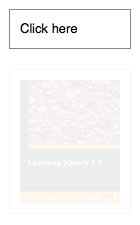

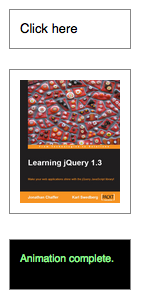
fadeIn() effectEasing
As of jQuery 1.4.3, an optional string naming an easing function may be used. Easing functions specify the speed at which the animation progresses at different points within the animation. The only easing implementations in the jQuery library are the default, called swing, and one that progresses at a constant pace, called linear. More easing functions are available with the use of plug-ins, most notably the jQuery UI suite.
Callback Function
If supplied, the callback is fired once the animation is complete. This can be useful for stringing different animations together in sequence. The callback is not sent any arguments, but this is set to the DOM element being animated. If multiple elements are animated, it is important to note that the callback is executed once per matched element, not once for the animation as a whole.
As of jQuery 1.6, the .promise() method can be used in conjunction with the deferred.done() method to execute a single callback for the animation as a whole when all matching elements have completed their animations ( See the example for .promise() ).
.fadeIn(), can be turned off globally by setting jQuery.fx.off = true, which effectively sets the duration to 0. For more information, see jQuery.fx.off.
$( document.body ).on( "click", function() {
$( "div:hidden" ).first().fadeIn( "slow" );
} );
$( "a" ).on( "click", function() {
$( "div" ).fadeIn( 3000, function() {
$( "span" ).fadeIn( 100 );
});
return false;
});
.dequeue("queuename") to start it.The .fadeOut() method animates the opacity of the matched elements. Once the opacity reaches 0, the display style property is set to none, so the element no longer affects the layout of the page.
Durations are given in milliseconds; higher values indicate slower animations, not faster ones. The strings 'fast' and 'slow' can be supplied to indicate durations of 200 and 600 milliseconds, respectively. If any other string is supplied, or if the duration parameter is omitted, the default duration of 400 milliseconds is used.
We can animate any element, such as a simple image:
<div id="clickme">
Click here
</div>
<img id="book" src="book.png" alt="" width="100" height="123">
With the element initially shown, we can hide it slowly:
$( "#clickme" ).on( "click", function() {
$( "#book" ).fadeOut( "slow", function() {
// Animation complete.
});
});
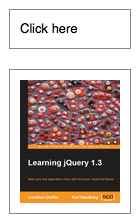
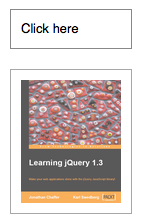
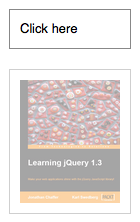
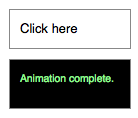
fadeOut() effectNote: To avoid unnecessary DOM manipulation, .fadeOut() will not hide an element that is already considered hidden. For information on which elements jQuery considers hidden, see :hidden Selector.
Easing
As of jQuery 1.4.3, an optional string naming an easing function may be used. Easing functions specify the speed at which the animation progresses at different points within the animation. The only easing implementations in the jQuery library are the default, called swing, and one that progresses at a constant pace, called linear. More easing functions are available with the use of plug-ins, most notably the jQuery UI suite.
Callback Function
If supplied, the callback is fired once the animation is complete. This can be useful for stringing different animations together in sequence. The callback is not sent any arguments, but this is set to the DOM element being animated. If multiple elements are animated, it is important to note that the callback is executed once per matched element, not once for the animation as a whole.
As of jQuery 1.6, the .promise() method can be used in conjunction with the deferred.done() method to execute a single callback for the animation as a whole when all matching elements have completed their animations ( See the example for .promise() ).
.fadeOut(), can be turned off globally by setting jQuery.fx.off = true, which effectively sets the duration to 0. For more information, see jQuery.fx.off.
$( "p" ).on( "click", function() {
$( "p" ).fadeOut( "slow" );
});
$( "span" ).on( "click", function() {
$( this ).fadeOut( 1000, function() {
$( "div" ).text( "'" + $( this ).text() + "' has faded!" );
$( this ).remove();
});
});
$( "span" ).hover(function() {
$( this ).addClass( "hilite" );
}, function() {
$( this ).removeClass( "hilite" );
});
$( "#btn1" ).on( "click", function() {
function complete() {
$( "<div>" ).text( this.id ).appendTo( "#log" );
}
$( "#box1" ).fadeOut( 1600, "linear", complete );
$( "#box2" ).fadeOut( 1600, complete );
});
$( "#btn2" ).on( "click", function() {
$( "div" ).show();
$( "#log" ).empty();
});
The .fadeTo() method animates the opacity of the matched elements. It is similar to the .fadeIn() method but that method unhides the element and always fades to 100% opacity.
Durations are given in milliseconds; higher values indicate slower animations, not faster ones. The strings 'fast' and 'slow' can be supplied to indicate durations of 200 and 600 milliseconds, respectively. If any other string is supplied, the default duration of 400 milliseconds is used. Unlike the other effect methods, .fadeTo() requires that duration be explicitly specified.
If supplied, the callback is fired once the animation is complete. This can be useful for stringing different animations together in sequence. The callback is not sent any arguments, but this is set to the DOM element being animated. If multiple elements are animated, it is important to note that the callback is executed once per matched element, not once for the animation as a whole.
We can animate any element, such as a simple image:
<div id="clickme">
Click here
</div>
<img id="book" src="book.png" alt="" width="100" height="123">
// With the element initially shown, we can dim it slowly:
$( "#clickme" ).on( "click", function() {
$( "#book" ).fadeTo( "slow" , 0.5, function() {
// Animation complete.
});
});
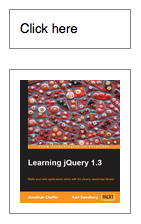
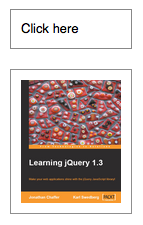
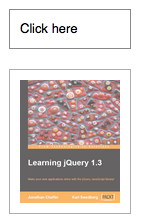
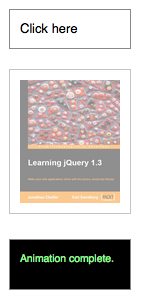
fadeTo() effectWith duration set to 0, this method just changes the opacity CSS property, so .fadeTo( 0, opacity ) is the same as .css( "opacity", opacity ).
.fadeTo(), can be turned off globally by setting jQuery.fx.off = true, which effectively sets the duration to 0. For more information, see jQuery.fx.off.
$( "p" ).first().on( "click", function() {
$( this ).fadeTo( "slow", 0.33 );
} );
<p>
Click this paragraph to see it fade.
</p>
<p>
Compare to this one that won't fade.
</p>
$( "div" ).on( "click", function() {
$( this ).fadeTo( "fast", Math.random() );
});
var getPos = function( n ) {
return (Math.floor( n ) * 90) + "px";
};
$( "p" ).each(function( n ) {
var r = Math.floor( Math.random() * 3 );
var tmp = $( this ).text();
$( this ).text( $( "p" ).eq( r ).text() );
$( "p" ).eq( r ).text( tmp );
$( this ).css( "left", getPos( n ) );
} );
$( "div" )
.each(function( n ) {
$( this ).css( "left", getPos( n ) );
} )
.css( "cursor", "pointer" )
.on( "click", function() {
$( this ).fadeTo( 250, 0.25, function() {
$( this )
.css( "cursor", "" )
.prev()
.css( {
"font-weight": "bolder",
"font-style": "italic"
} );
} );
} );
.dequeue("queuename") to start it.The .fadeToggle() method animates the opacity of the matched elements. When called on a visible element, the element's display style property is set to none once the opacity reaches 0, so the element no longer affects the layout of the page.
Durations are given in milliseconds; higher values indicate slower animations, not faster ones. The strings 'fast' and 'slow' can be supplied to indicate durations of 200 and 600 milliseconds, respectively.
Easing
The string representing an easing function specifies the speed at which the animation progresses at different points within the animation. The only easing implementations in the jQuery library are the default, called swing, and one that progresses at a constant pace, called linear. More easing functions are available with the use of plug-ins, most notably the jQuery UI suite.
Callback Function
If supplied, the callback is fired once the animation is complete. This can be useful for stringing different animations together in sequence. The callback is not sent any arguments, but this is set to the DOM element being animated. If multiple elements are animated, it is important to note that the callback is executed once per matched element, not once for the animation as a whole.
As of jQuery 1.6, the .promise() method can be used in conjunction with the deferred.done() method to execute a single callback for the animation as a whole when all matching elements have completed their animations ( See the example for .promise() ).
.fadeToggle(), can be turned off globally by setting jQuery.fx.off = true, which effectively sets the duration to 0. For more information, see jQuery.fx.off.
$( "button" ).first().on( "click", function() {
$( "p" ).first().fadeToggle( "slow", "linear" );
} );
$( "button" ).last().on( "click", function() {
$( "p" ).last().fadeToggle( "fast", function() {
$( "#log" ).append( "<div>finished</div>" );
} );
} );
<button>fadeToggle p1</button>
<button>fadeToggle p2</button>
<p>This paragraph has a slow, linear fade.</p>
<p>This paragraph has a fast animation.</p>
<div id="log"></div>
:file is equivalent to [type="file"]. As with other pseudo-class selectors (those that begin with a ":") it is recommended to precede it with a tag name or some other selector; otherwise, the universal selector ("*") is implied. In other words, the bare $( ":file" ) is equivalent to $("*:file" ), so $( "input:file" ) should be used instead.
:file is a jQuery extension and not part of the CSS specification, queries using :file cannot take advantage of the performance boost provided by the native DOM querySelectorAll() method. For better performance in modern browsers, use [type="file"] instead.
var input = $( "input:file" ).css( {
background: "yellow",
border: "3px red solid"
} );
$( "div" )
.text( "For this type jQuery found " + input.length + "." )
.css( "color", "red" );
$( "form" ).on( "submit", function( event ) {
event.preventDefault();
} );
this is the current DOM element.Given a jQuery object that represents a set of DOM elements, the .filter() method constructs a new jQuery object from a subset of the matching elements. The supplied selector is tested against each element; all elements matching the selector will be included in the result.
Consider a page with a simple list on it:
<ul>
<li>list item 1</li>
<li>list item 2</li>
<li>list item 3</li>
<li>list item 4</li>
<li>list item 5</li>
<li>list item 6</li>
</ul>
We can apply this method to the set of list items:
$( "li" ).filter( ":nth-child(2n)" ).css( "background-color", "red" );
The result of this call is a red background for items 2, 4, and 6, as they match the selector.
Using a Filter Function
The second form of this method allows us to filter elements against a function rather than a selector. For each element, if the function returns true (or a "truthy" value), the element will be included in the filtered set; otherwise, it will be excluded. Suppose we have a somewhat more involved HTML snippet:
<ul>
<li><strong>list</strong> item 1 - one strong tag</li>
<li><strong>list</strong> item <strong>2</strong> -
two <span>strong tags</span></li>
<li>list item 3</li>
<li>list item 4</li>
<li>list item 5</li>
<li>list item 6</li>
</ul>
We can select the list items, then filter them based on their contents:
$( "li" )
.filter(function( index ) {
return $( "strong", this ).length === 1;
})
.css( "background-color", "red" );
This code will alter the first list item only, as it contains exactly one <strong> tag. Within the filter function, this refers to each DOM element in turn. The parameter passed to the function tells us the index of that DOM element within the set matched by the jQuery object.
We can also take advantage of the index passed through the function, which indicates the 0-based position of the element within the unfiltered set of matched elements:
$( "li" )
.filter(function( index ) {
return index % 3 === 2;
})
.css( "background-color", "red" );
This alteration to the code will cause the third and sixth list items to be highlighted, as it uses the modulus operator (%) to select every item with an index value that, when divided by 3, has a remainder of 2.
Note: When a CSS selector string is passed to .filter(), text and comment nodes will always be removed from the resulting jQuery object during the filtering process. When a specific node or array of nodes are provided, a text or comment node will be included in the resulting jQuery object only if it matches one of the nodes in the filtering array.
addClass and removeClass.
$( "div" )
.css( "background", "#c8ebcc" )
.filter( ".middle" )
.css( "border-color", "red" );
$( "div" )
.css( "background", "#b4b0da" )
.filter(function( index ) {
return index === 1 || $( this ).attr( "id" ) === "fourth";
})
.css( "border", "3px double red" );
$( "div" ).filter( document.getElementById( "unique" ) );
$( "div" ).filter( $( "#unique" ) );
Given a jQuery object that represents a set of DOM elements, the .find() method allows us to search through the descendants of these elements in the DOM tree and construct a new jQuery object from the matching elements. The .find() and .children() methods are similar, except that the latter only travels a single level down the DOM tree.
The first signature for the .find()method accepts a selector expression of the same type that we can pass to the $() function. The elements will be filtered by testing whether they match this selector; all parts of the selector must lie inside of an element on which .find() is called. The expressions allowed include selectors like > p which will find all the paragraphs that are children of the elements in the jQuery object.
Consider a page with a basic nested list on it:
<ul class="level-1">
<li class="item-i">I</li>
<li class="item-ii">II
<ul class="level-2">
<li class="item-a">A</li>
<li class="item-b">B
<ul class="level-3">
<li class="item-1">1</li>
<li class="item-2">2</li>
<li class="item-3">3</li>
</ul>
</li>
<li class="item-c">C</li>
</ul>
</li>
<li class="item-iii">III</li>
</ul>
If we begin at item II, we can find list items within it:
$( "li.item-ii" ).find( "li" ).css( "background-color", "red" );
The result of this call is a red background on items A, B, 1, 2, 3, and C. Even though item II matches the selector expression, it is not included in the results; only descendants are considered candidates for the match.
Unlike most of the tree traversal methods, the selector expression is required in a call to .find(). If we need to retrieve all of the descendant elements, we can pass in the universal selector '*' to accomplish this.
Selector context is implemented with the .find() method; therefore, $( "li.item-ii" ).find( "li" ) is equivalent to $( "li", "li.item-ii" ).
As of jQuery 1.6, we can also filter the selection with a given jQuery collection or element. With the same nested list as above, if we start with:
var allListElements = $( "li" );
And then pass this jQuery object to find:
$( "li.item-ii" ).find( allListElements );
This will return a jQuery collection which contains only the list elements that are descendants of item II.
Similarly, an element may also be passed to find:
var item1 = $( "li.item-1" )[ 0 ];
$( "li.item-ii" ).find( item1 ).css( "background-color", "red" );
The result of this call would be a red background on item 1.
addClass and removeClass.
$( "p span" )
$( "p" ).find( "span" ).css( "color", "red" );
<p><span>Hello</span>, how are you?</p>
<p>Me? I'm <span>good</span>.</p>
var spans = $( "span" );
$( "p" ).find( spans ).css( "color", "red" );
<p><span>Hello</span>, how are you?</p>
<p>Me? I'm <span>good</span>.</p>
<div>Did you <span>eat</span> yet?</div>
var newText = $( "p" ).text().split( " " ).join( "</span> <span>" );
newText = "<span>" + newText + "</span>";
$( "p" )
.html( newText )
.find( "span" )
.hover(function() {
$( this ).addClass( "hilite" );
}, function() {
$( this ).removeClass( "hilite" );
})
.end()
.find( ":contains('t')" )
.css({
"font-style": "italic",
"font-weight": "bolder"
});
When .finish() is called on an element, the currently-running animation and all queued animations (if any) immediately stop and their CSS properties set to their target values. All queued animations are removed.
If the first argument is provided, only the animations in the queue represented by that string will be stopped.
The .finish() method is similar to .stop(true, true) in that it clears the queue and the current animation jumps to its end value. It differs, however, in that .finish() also causes the CSS property of all queued animations to jump to their end values, as well.
Animations may be stopped globally by setting the property $.fx.off to true. When this is done, all animation methods will immediately set elements to their final state when called, rather than displaying an effect.
var horiz = $( "#path" ).width() - 20,
vert = $( "#path" ).height() - 20;
var btns = {
bstt: function() {
$( "div.box" ).stop( true, true );
},
bs: function() {
$( "div.box" ).stop();
},
bsft: function() {
$( "div.box" ).stop( false, true );
},
bf: function() {
$( "div.box" ).finish();
},
bcf: function() {
$( "div.box" ).clearQueue().finish();
},
bsff: function() {
$( "div.box" ).stop( false, false );
},
bstf: function() {
$( "div.box" ).stop( true, false );
},
bcs: function() {
$( "div.box" ).clearQueue().stop();
}
};
$( "button.b" ).on( "click", function() {
btns[ this.id ]();
});
$( "#go" ).on( "click", function() {
$( ".box" )
.clearQueue()
.stop()
.css({
left: 10,
top: 10
})
.animate({
top: vert
}, 3000 )
.animate({
left: horiz
}, 3000 )
.animate({
top: 10
}, 3000 );
});
<div class="box"></div>
<div id="path">
<button id="go">Go</button>
<br>
<button id="bstt" class="b">.stop( true,true )</button>
<button id="bcf" class="b">.clearQueue().finish()</button>
<br>
<button id="bstf" class="b">.stop( true, false )</button>
<button id="bcs" class="b">.clearQueue().stop()</button>
<br>
<button id="bsff" class="b">.stop( false, false )</button>
<button id="bs" class="b">.stop()</button>
<br>
<button id="bsft" class="b">.stop( false, true )</button>
<br>
<button id="bf" class="b">.finish()</button>
</div>
While .first() matches only a single element, the :first-child selector can match more than one: one for each parent. This is equivalent to :nth-child(1).
$( "div span:first-child" )
.css( "text-decoration", "underline" )
.hover(function() {
$( this ).addClass( "sogreen" );
}, function() {
$( this ).removeClass( "sogreen" );
});
The :first-of-type selector matches elements that have no other element with both the same parent and the same element name coming before it in the document tree.
$( "span:first-of-type" ).addClass( "fot" );
As of jQuery 3.4, the :first pseudo-class is deprecated. Remove it from your selectors and filter the results later using .first().
The :first pseudo-class is equivalent to :eq( 0 ). It could also be written as :lt( 1 ). While this matches only a single element, :first-child can match more than one: One for each parent.
:first is a jQuery extension and not part of the CSS specification, queries using :first cannot take advantage of the performance boost provided by the native DOM querySelectorAll() method. To achieve the best performance when using :first to select elements, first select the elements using a pure CSS selector, then use .filter(":first").
$( "tr:first" ).css( "font-style", "italic" );
Given a jQuery object that represents a set of DOM elements, the .first() method constructs a new jQuery object from the first element in that set.
Consider a page with a simple list on it:
<ul>
<li>list item 1</li>
<li>list item 2</li>
<li>list item 3</li>
<li>list item 4</li>
<li>list item 5</li>
</ul>
We can apply this method to the set of list items:
$( "li" ).first().css( "background-color", "red" );
The result of this call is a red background for the first item.
$( "ul li" ).first().addClass( "highlight" );
<ul>
<li>Look:</li>
<li>This is some text in a list.</li>
<li>This is a note about it.</li>
<li>This is another note about it.</li>
</ul>
As with other pseudo-class selectors (those that begin with a ":"), it is recommended to precede :focus with a tag name or some other selector; otherwise, the universal selector ( "*" ) is implied. In other words, the bare $( ":focus" ) is equivalent to $( "*:focus" ). If you are looking for the currently focused element, $( document.activeElement ) will retrieve it without having to search the whole DOM tree.
$( "#content" ).delegate( "*", "focus blur", function() {
var elem = $( this );
setTimeout(function() {
elem.toggleClass( "focused", elem.is( ":focus" ) );
}, 0 );
});
This API is deprecated.
Instead of .focus( handler ) or .focus( eventData, handler ), use .on( "focus", handler ) or .on( "focus", eventData, handler ), respectively.
Instead of .focus(), use .trigger( "focus" ).
"focus".This page describes the focus event. For the deprecated .focus() method, see .focus().
- The
focusevent is sent to an element when it gains focus. This event is implicitly applicable to a limited set of elements, such as form elements (<input>,<select>, etc.) and links (<a href>). In recent browser versions, the event can be extended to include all element types by explicitly setting the element'stabindexproperty. An element can gain focus via keyboard commands, such as the Tab key, or by mouse clicks on the element. - Elements with focus are usually highlighted in some way by the browser, for example with a dotted line surrounding the element. The focus is used to determine which element is the first to receive keyboard-related events.
Attempting to set focus to a hidden element causes an error in Internet Explorer. Take care to only use .trigger( "focus" ) on elements that are visible. To run an element's focus event handlers without setting focus to the element, use .triggerHandler( "focus" ) instead of .trigger( "focus" ).
For example, consider the HTML:
<form>
<input id="target" type="text" value="Field 1">
<input type="text" value="Field 2">
</form>
<div id="other">
Trigger the handler
</div>
The event handler can be bound to the first input field:
$( "#target" ).on( "focus", function() {
alert( "Handler for `focus` called." );
} );
Now clicking on the first field, or tabbing to it from another field, displays the alert:
Handler for `focus` called.
We can trigger the event when another element is clicked:
$( "#other" ).on( "click", function() {
$( "#target" ).trigger( "focus" );
} );
After this code executes, clicks on Trigger the handler will also alert the message.
The focus event does not bubble. As of version 1.4.2, jQuery works around this limitation by mapping focus to the focusin event in its event delegation methods.
The native focus event is asynchronous in all versions of IE, contrary to other browsers. To avoid issues related to this discrepancy, as of jQuery 3.7.0, jQuery uses focusin as the native backing event for focus in IE.
$( "input" ).on( "focus", function() {
$( this ).next( "span" ).css( "display", "inline" ).fadeOut( 1000 );
} );
<p><input type="text"> <span>focus fire</span></p>
<p><input type="password"> <span>focus fire</span></p>
$( "input[type=text]" ).on( "focus", function() {
$( this ).trigger( "blur" );
} );
$( function() {
$( "#login" ).trigger( "focus" );
} );
"focus".See the description for .on( "focus", ... ).
This API is deprecated.
Instead of .focusin( handler ) or .focusin( eventData, handler ), use .on( "focusin", handler ) or .on( "focusin", eventData, handler ), respectively.
Instead of .focusin(), use .trigger( "focusin" ).
"focusin".This page describes the focusin event. For the deprecated .focusin() method, see .focusin().
The focusin event is sent to an element when it, or any element inside of it, gains focus. This is distinct from the focus event in that it supports detecting the focus event on parent elements (in other words, it supports event bubbling).
This event will likely be used together with the focusout event.
$( "p" ).on( "focusin", function() {
$( this ).find( "span" ).css( "display", "inline" ).fadeOut( 1000 );
} );
<p><input type="text"> <span>focusin fire</span></p>
<p><input type="password"> <span>focusin fire</span></p>
"focusin".See the description for .on( "focusin", ... ).
This API is deprecated.
Instead of .focusout( handler ) or .focusout( eventData, handler ), use .on( "focusout", handler ) or .on( "focusout", eventData, handler ), respectively.
Instead of .focusout(), use .trigger( "focusout" ).
"focusout".This page describes the focusout event. For the deprecated .focusout() method, see .focusout().
The focusout event is sent to an element when it, or any element inside of it, loses focus. This is distinct from the blur event in that it supports detecting the loss of focus on descendant elements (in other words, it supports event bubbling).
This event will likely be used together with the focusin event.
focusout count and the blur count. (The blur count does not change because those events do not bubble.)
var focusout = 0,
blur = 0;
$( "p" )
.on( "focusout", function() {
focusout++;
$( "#focus-count" ).text( "focusout fired: " + focusout + "x" );
} )
.on( "blur", function() {
blur++;
$( "#blur-count" ).text( "blur fired: " + blur + "x" );
} );
<div class="inputs">
<p>
<input type="text"><br>
<input type="text">
</p>
<p>
<input type="password">
</p>
</div>
<div id="focus-count">focusout fire</div>
<div id="blur-count">blur fire</div>
"focusout".See the description for .on( "focusout", ... ).
The .get() method grants access to the DOM nodes underlying each jQuery object. If the value of index is out of bounds — less than the negative number of elements or equal to or greater than the number of elements — it returns undefined. Consider a simple unordered list:
<ul>
<li id="foo">foo</li>
<li id="bar">bar</li>
</ul>
With an index specified, .get( index ) retrieves a single element:
console.log( $( "li" ).get( 0 ) );
Since the index is zero-based, the first list item is returned:
<li id="foo">
Each jQuery object also masquerades as an array, so we can use the array dereferencing operator to get at the list item instead:
console.log( $( "li" )[ 0 ] );
However, this syntax lacks some of the additional capabilities of .get(), such as specifying a negative index:
console.log( $( "li" ).get( -1 ) );
A negative index is counted from the end of the matched set, so this example returns the last item in the list:
<li id="bar">
$( "*", document.body ).on( "click", function( event ) {
event.stopPropagation();
var domElement = $( this ).get( 0 );
$( "span" ).first().text( "Clicked on - " + domElement.nodeName );
});
Consider a simple unordered list:
<ul>
<li id="foo">foo</li>
<li id="bar">bar</li>
</ul>
Without a parameter, .get() returns an array of all of the elements:
console.log( $( "li" ).get() );
All of the matched DOM nodes are returned by this call, contained in a standard array:
[<li id="foo">, <li id="bar">]
function display( divs ) {
var a = [];
for ( var i = 0; i < divs.length; i++ ) {
a.push( divs[ i ].innerHTML );
}
$( "span" ).text( a.join(" ") );
}
display( $( "div" ).get().reverse() );
index within the matched set.As of jQuery 3.4, the :gt pseudo-class is deprecated. Remove it from your selectors and filter the results later using .slice(). For example, :gt(3) can be replaced with a call to .slice( 4 ) (the provided index needs to be increased by one).
index-related selectors
The index-related selector expressions (including this "greater than" selector) filter the set of elements that have matched the expressions that precede them. They narrow the set down based on the order of the elements within this matched set. For example, if elements are first selected with a class selector (.myclass) and four elements are returned, these elements are given indices 0 through 3 for the purposes of these selectors.
Note that since JavaScript arrays use 0-based indexing, these selectors reflect that fact. This is why $( ".myclass:gt(1)" ) selects elements after the second element in the document with the class myclass, rather than after the first. In contrast, :nth-child(n) uses 1-based indexing to conform to the CSS specification.
Prior to jQuery 1.8, the :gt(index) selector did not accept a negative value for index
:gt() is a jQuery extension and not part of the CSS specification, queries using :gt() cannot take advantage of the performance boost provided by the native DOM querySelectorAll() method. For better performance in modern browsers, use $("your-pure-css-selector").slice(index) instead.
$( "td:gt(4)" ).css( "backgroundColor", "yellow" );
$( "td:gt(-2)" ).css( "color", "red" );
<table border="1">
<tr><td>TD #0</td><td>TD #1</td><td>TD #2</td></tr>
<tr><td>TD #3</td><td>TD #4</td><td>TD #5</td></tr>
<tr><td>TD #6</td><td>TD #7</td><td>TD #8</td></tr>
</table>
// Using .one() so the handler is executed at most once
// per element per event type
$( "div[id]" ).one( "click", function() {
var idString = $( this ).text() + " = " + $( this ).attr( "id" );
$( this ).text( idString );
});
<div>no id</div>
<div id="hey">with id</div>
<div id="there">has an id</div>
<div>nope</div>
The expression $( "div:has(p)" ) matches a <div> if a <p> exists anywhere among its descendants, not just as a direct child.
:has() is a jQuery extension and not part of the CSS specification, queries using :has() cannot take advantage of the performance boost provided by the native DOM querySelectorAll() method. For better performance in modern browsers, use $( "your-pure-css-selector" ).has( selector/DOMElement ) instead.
$( "div:has(p)" ).addClass( "test" );
<div><p>Hello in a paragraph</p></div>
<div>Hello again! (with no paragraph)</div>
Given a jQuery object that represents a set of DOM elements, the .has() method constructs a new jQuery object from a subset of the matching elements. The supplied selector is tested against the descendants of the matching elements; the element will be included in the result if any of its descendant elements matches the selector.
Consider a page with a nested list as follows:
<ul>
<li>list item 1</li>
<li>list item 2
<ul>
<li>list item 2-a</li>
<li>list item 2-b</li>
</ul>
</li>
<li>list item 3</li>
<li>list item 4</li>
</ul>
We can apply this method to the set of list items as follows:
$( "li" ).has( "ul" ).css( "background-color", "red" );
The result of this call is a red background for item 2, as it is the only <li> that has a <ul> among its descendants.
$( "ul" ).append( "<li>" +
( $( "ul" ).has( "li" ).length ? "Yes" : "No" ) +
"</li>" );
$( "ul" ).has( "li" ).addClass( "full" );
Elements may have more than one class assigned to them. In HTML, this is represented by separating the class names with a space:
<div id="mydiv" class="foo bar"></div>
The .hasClass() method will return true if the class is assigned to an element, even if other classes also are. For example, given the HTML above, the following will return true:
$( "#mydiv" ).hasClass( "foo" )
As would:
$( "#mydiv" ).hasClass( "bar" )
While this would return false:
$( "#mydiv" ).hasClass( "quux" )
As of jQuery 1.12/2.2, this method supports XML documents, including SVG.
$( "#result1" ).append( $( "p" ).first().hasClass( "selected" ).toString() );
$( "#result2" ).append( $( "p" ).last().hasClass( "selected" ).toString() );
$( "#result3" ).append( $( "p" ).hasClass( "selected" ).toString() ) ;
:header is a jQuery extension and not part of the CSS specification, queries using :header cannot take advantage of the performance boost provided by the native DOM querySelectorAll() method. To achieve the best performance when using :header to select elements, first select the elements using a pure CSS selector, then use .filter(":header").
$( ":header" ).css({ background: "#ccc", color: "blue" });
<h1>Header 1</h1>
<p>Contents 1</p>
<h2>Header 2</h2>
<p>Contents 2</p>
The difference between .css( "height" ) and .height() is that the latter returns a unit-less pixel value (for example, 400) while the former returns a value with units intact (for example, 400px). The .height() method is recommended when an element's height needs to be used in a mathematical calculation.
This method is also able to find the height of the window and document.
// Returns height of browser viewport
$( window ).height();
// Returns height of HTML document
$( document ).height();
Note that .height() will always return the content height, regardless of the value of the CSS box-sizing property. As of jQuery 1.8, this may require retrieving the CSS height plus box-sizing property and then subtracting any potential border and padding on each element when the element has box-sizing: border-box. To avoid this penalty, use .css( "height" ) rather than .height().
Note: Although style and script tags will report a value for .width() or height() when absolutely positioned and given display:block, it is strongly discouraged to call those methods on these tags. In addition to being a bad practice, the results may also prove unreliable.
.height(), may be fractional in some cases. Code should not assume it is an integer. Also, dimensions may be incorrect when the page is zoomed by the user; browsers do not expose an API to detect this condition.
.height() is not guaranteed to be accurate when the element or its parent is hidden. To get an accurate value, ensure the element is visible before using .height(). jQuery will attempt to temporarily show and then re-hide an element in order to measure its dimensions, but this is unreliable and (even when accurate) can significantly impact page performance. This show-and-rehide measurement feature may be removed in a future version of jQuery.
function showHeight( element, height ) {
$( "div" ).text( "The height for the " + element + " is " + height + "px." );
}
$( "#getp" ).on( "click", function() {
showHeight( "paragraph", $( "p" ).height() );
});
$( "#getd" ).on( "click", function() {
showHeight( "document", $( document ).height() );
});
$( "#getw" ).on( "click", function() {
showHeight( "window", $( window ).height() );
});
this refers to the current element in the set.When calling .height(value), the value can be either a string (number and unit) or a number. If only a number is provided for the value, jQuery assumes a pixel unit. If a string is provided, however, a valid CSS measurement must be provided for the height (such as 100px, 50%, or auto). Note that in modern browsers, the CSS height property does not include padding, border, or margin.
If no explicit unit was specified (like 'em' or '%') then "px" is concatenated to the value.
Note that .height(value) sets the content height of the box regardless of the value of the CSS box-sizing property.
$( "div" ).one( "click", function() {
$( this ).height( 30 ).css({
cursor: "auto",
backgroundColor: "green"
});
});
Elements can be considered hidden for several reasons:
- They have a CSS
displayvalue ofnone. - They are form elements with
type="hidden". - Their width and height are explicitly set to 0.
- An ancestor element is hidden, so the element is not shown on the page.
Elements with visibility: hidden or opacity: 0 are considered to be visible, since they still consume space in the layout. During animations that hide an element, the element is considered to be visible until the end of the animation.
Elements that are not in a document are not considered to be visible; jQuery does not have a way to know if they will be visible when appended to a document since it depends on the applicable styles.
This selector is the opposite of the :visible selector. So, every element selected by :hidden isn't selected by :visible and vice versa.
During animations to show an element, the element is considered to be visible at the start of the animation.
How :hidden is determined was changed in jQuery 1.3.2. An element is assumed to be hidden if it or any of its parents consumes no space in the document. CSS visibility isn't taken into account (therefore $( elem ).css( "visibility", "hidden" ).is( ":hidden" ) == false). The release notes outline the changes in more detail.
jQuery 3 slightly modifies the meaning of :hidden (and therefore of :visible). Starting with this version, elements will be considered :hidden if they don't have any layout boxes. For example, br elements and inline elements with no content will not be selected by the :hidden selector.
:hidden is a jQuery extension and not part of the CSS specification, queries using :hidden cannot take advantage of the performance boost provided by the native DOM querySelectorAll() method. To achieve the best performance when using :hidden to select elements, first select the elements using a pure CSS selector, then use .filter(":hidden").
// In some browsers :hidden includes head, title, script, etc...
var hiddenElements = $( "body" ).find( ":hidden" ).not( "script" );
$( "span" ).first().text( "Found " + hiddenElements.length + " hidden elements total." );
$( "div:hidden" ).show( 3000 );
$( "span" ).last().text( "Found " + $( "input:hidden" ).length + " hidden inputs." );
.dequeue("queuename") to start it.With no parameters, the .hide() method is the simplest way to hide an element:
$( ".target" ).hide();
The matched elements will be hidden immediately, with no animation. This is roughly equivalent to calling .css( "display", "none" ), except that the value of the display property is saved in jQuery's data cache so that display can later be restored to its initial value. If an element has a display value of inline and is hidden then shown, it will once again be displayed inline.
When a duration, a plain object, or a "complete" function is provided, .hide() becomes an animation method. The .hide() method animates the width, height, and opacity of the matched elements simultaneously. When these properties reach 0, the display style property is set to none to ensure that the element no longer affects the layout of the page.
Durations are given in milliseconds; higher values indicate slower animations, not faster ones. The strings 'fast' and 'slow' can be supplied to indicate durations of 200 and 600 milliseconds, respectively.
Note that .hide() is fired immediately and will override the animation queue if no duration or a duration of 0 is specified.
As of jQuery 1.4.3, an optional string naming an easing function may be used. Easing functions specify the speed at which the animation progresses at different points within the animation. The only easing implementations in the jQuery library are the default, called swing, and one that progresses at a constant pace, called linear. More easing functions are available with the use of plug-ins, most notably the jQuery UI suite.
If supplied, the callback is fired once the animation is complete. This can be useful for stringing different animations together in sequence. The callback is not sent any arguments, but this is set to the DOM element being animated. If multiple elements are animated, it is important to note that the callback is executed once per matched element, not once for the animation as a whole.
Note: This method may cause performance issues, especially when used on many elements. If you're encountering such issues, use performance testing tools to determine whether this method is causing them. Moreover, this method can cause problems with responsive layouts if the display value differs at different viewport sizes.
We can animate any element, such as a simple image:
<div id="clickme">
Click here
</div>
<img id="book" src="book.png" alt="" width="100" height="123">
// With the element initially shown, we can hide it slowly:
$( "#clickme" ).on( "click", function() {
$( "#book" ).hide( "slow", function() {
alert( "Animation complete." );
});
});
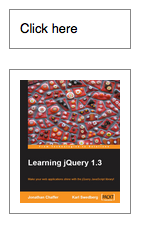
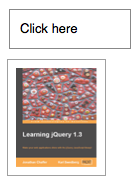
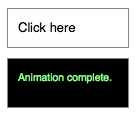
hide() effect.hide(), can be turned off globally by setting jQuery.fx.off = true, which effectively sets the duration to 0. For more information, see jQuery.fx.off.
$( "p" ).hide();
$( "a" ).on( "click", function( event ) {
event.preventDefault();
$( this ).hide();
});
<p>Hello</p>
<a href="#">Click to hide me too</a>
<p>Here is another paragraph</p>
$( "button" ).on( "click", function() {
$( "p" ).hide( "slow" );
});
$( "#hider" ).on( "click", function() {
$( "span:last-child" ).hide( "fast", function() {
// Use arguments.callee so we don't need a named function
$( this ).prev().hide( "fast", arguments.callee );
});
});
$( "#shower" ).on( "click", function() {
$( "span" ).show( 2000 );
});
for ( var i = 0; i < 5; i++ ) {
$( "<div>" ).appendTo( document.body );
}
$( "div" ).on( "click", function() {
$( this ).hide( 2000, function() {
$( this ).remove();
});
});
This API is deprecated. Use .on( "mouseenter", handlerIn ).on( "mouseleave", handlerOut ) instead.
The .hover() method binds handlers for both mouseenter and mouseleave events. You can use it to simply apply behavior to an element during the time the mouse is within the element.
Calling $( selector ).hover( handlerIn, handlerOut ) is shorthand for:
$( selector ).on( "mouseenter", handlerIn ).on( "mouseleave", handlerOut );
See the discussions for mouseenter and mouseleave for more details.
$( "li" ).hover(
function() {
$( this ).append( $( "<span> ***</span>" ) );
}, function() {
$( this ).find( "span" ).last().remove();
}
);
$( "li.fade" ).hover(function() {
$( this ).fadeOut( 100 );
$( this ).fadeIn( 500 );
});
$( "td" ).hover(
function() {
$( this ).addClass( "hover" );
}, function() {
$( this ).removeClass( "hover" );
}
);
$( "td" ).off( "mouseenter mouseleave" );
This API is deprecated. Use .on( "mouseenter mouseleave", handlerInOut ) instead.
The .hover() method, when passed a single function, will execute that handler for both mouseenter and mouseleave events. This allows the user to use jQuery's various toggle methods within the handler or to respond differently within the handler depending on the event.type.
Calling $(selector).hover(handlerInOut) is shorthand for:
$( selector ).on( "mouseenter mouseleave", handlerInOut );
See the discussions for mouseenter and mouseleave for more details.
$( "li" )
.odd()
.hide()
.end()
.even()
.hover(function() {
$( this )
.toggleClass( "active" )
.next()
.stop( true, true )
.slideToggle();
});
This method is not available on XML documents.
In an HTML document, .html() can be used to get the contents of any element. If the selector expression matches more than one element, only the first match will have its HTML content returned. Consider this code:
$( "div.demo-container" ).html();
In order for the following <div>'s content to be retrieved, it would have to be the first one with class="demo-container" in the document:
<div class="demo-container">
<div class="demo-box">Demonstration Box</div>
</div>
The result would look like this:
<div class="demo-box">Demonstration Box</div>
This method uses the browser's innerHTML property. Some browsers may not return HTML that exactly replicates the HTML source in an original document. For example, Internet Explorer sometimes leaves off the quotes around attribute values if they contain only alphanumeric characters.
<img onload="">). Do not use these methods to insert strings obtained from untrusted sources such as URL query parameters, cookies, or form inputs. Doing so can introduce cross-site-scripting (XSS) vulnerabilities. Remove or escape any user input before adding content to the document.
$( "p" ).on( "click", function() {
var htmlString = $( this ).html();
$( this ).text( htmlString );
});
this refers to the current element in the set.The .html() method is not available in XML documents.
When .html() is used to set an element's content,
any content that was in that element is completely replaced by the new content.
Additionally, jQuery removes other constructs such as data and event
handlers from child elements before replacing those elements with the new content.
Consider the following HTML:
<div class="demo-container">
<div class="demo-box">Demonstration Box</div>
</div>
The content of <div class="demo-container"> can be set like this:
$( "div.demo-container" )
.html( "<p>All new content. <em>You bet!</em></p>" );
That line of code will replace everything inside <div class="demo-container">:
<div class="demo-container">
<p>All new content. <em>You bet!</em></p>
</div>
As of jQuery 1.4, the .html() method allows the HTML content to be set by passing in a function.
$( "div.demo-container" ).html(function() {
var emphasis = "<em>" + $( "p" ).length + " paragraphs!</em>";
return "<p>All new content for " + emphasis + "</p>";
});
Given a document with six paragraphs, this example will set the HTML of <div class="demo-container"> to <p>All new content for <em>6 paragraphs!</em></p>.
This method uses the browser's innerHTML property. Some browsers may not generate a DOM that exactly replicates the HTML source provided. For example, Internet Explorer prior to version 8 will convert all href properties on links to absolute URLs, and Internet Explorer prior to version 9 will not correctly handle HTML5 elements without the addition of a separate compatibility layer.
To set the content of a <script> element, which does not contain HTML, use the .text() method and not .html().
Note: In Internet Explorer up to and including version 9, setting the text content of an HTML element may corrupt the text nodes of its children that are being removed from the document as a result of the operation. If you are keeping references to these DOM elements and need them to be unchanged, use .empty().html( string ) instead of .html(string) so that the elements are removed from the document before the new string is assigned to the element.
$( "div" ).html( "<span class='red'>Hello <b>Again</b></span>" );
$( "div" ).html( "<b>Wow!</b> Such excitement..." );
$( "div b" )
.append( document.createTextNode( "!!!" ) )
.css( "color", "red" );
For id selectors, jQuery uses the JavaScript function document.getElementById(), which is extremely efficient. When another selector is attached to the id selector, such as h2#pageTitle, jQuery performs an additional check before identifying the element as a match.
Calling jQuery() (or $()) with an id selector as its argument will return a jQuery object containing a collection of either zero or one DOM element.
Each id value must be used only once within a document. If more than one element has been assigned the same ID, queries that use that ID will only select the first matched element in the DOM. This behavior should not be relied on, however; a document with more than one element using the same ID is invalid.
If the id contains characters like periods or colons you have to escape those characters with backslashes.
$( "#myDiv" ).css( "border", "3px solid red" );
<div id="notMe"><p>id="notMe"</p></div>
<div id="myDiv">id="myDiv"</div>
$( "#myID\\.entry\\[1\\]" ).css( "border", "3px solid red" );
<div id="myID.entry[0]">id="myID.entry[0]"</div>
<div id="myID.entry[1]">id="myID.entry[1]"</div>
<div id="myID.entry[2]">id="myID.entry[2]"</div>
:image is equivalent to [type="image"]
:image is a jQuery extension and not part of the CSS specification, queries using :image cannot take advantage of the performance boost provided by the native DOM querySelectorAll() method. For better performance in modern browsers, use [type="image"] instead.
var input = $( "input:image" ).css( {
background:"yellow",
border:"3px red solid"
} );
$( "div" )
.text( "For this type jQuery found " + input.length + "." )
.css( "color", "red" );
$( "form" ).on( "submit", function( event ) {
event.preventDefault();
} );
Return Values
If no argument is passed to the .index() method, the return value is an integer indicating the position of the first element within the jQuery object relative to its sibling elements.
If .index() is called on a collection of elements and a DOM element or jQuery object is passed in, .index() returns an integer indicating the position of the passed element relative to the original collection.
If a selector string is passed as an argument, .index() returns an integer indicating the position of the first element within the jQuery object relative to the elements matched by the selector. If the element is not found, .index() will return -1.
Detail
The complementary operation to .get(), which accepts an index and returns a DOM node, .index() can take a DOM node and returns an index. Suppose we have a simple unordered list on the page:
<ul>
<li id="foo">foo</li>
<li id="bar">bar</li>
<li id="baz">baz</li>
</ul>
If we retrieve one of the three list items (for example, through a DOM function or as the context to an event handler), .index() can search for this list item within the set of matched elements:
var listItem = document.getElementById( "bar" );
alert( "Index: " + $( "li" ).index( listItem ) );
We get back the zero-based position of the list item:
Index: 1
Similarly, if we retrieve a jQuery object consisting of one of the three list items, .index() will search for that list item:
var listItem = $( "#bar" );
alert( "Index: " + $( "li" ).index( listItem ) );
We get back the zero-based position of the list item:
Index: 1
Note that if the jQuery collection used as the .index() method's argument contains more than one element, the first element within the matched set of elements will be used.
var listItems = $( "li" ).slice( 1 );
alert( "Index: " + $( "li" ).index( listItems ) );
We get back the zero-based position of the first list item within the matched set:
Index: 1
If we use a string as the .index() method's argument, it is interpreted as a jQuery selector string. The first element among the object's matched elements which also matches this selector is located.
var listItem = $( "#bar" );
alert( "Index: " + listItem.index( "li" ) );
We get back the zero-based position of the list item:
Index: 1
If we omit the argument, .index() will return the position of the first element within the set of matched elements in relation to its siblings:
alert( "Index: " + $( "#bar" ).index() );
Again, we get back the zero-based position of the list item:
Index: 1
$( "div" ).on( "click", function() {
// `this` is the DOM element that was clicked
var index = $( "div" ).index( this );
$( "span" ).text( "That was div index #" + index );
});
var listItem = $( "#bar" );
$( "div" ).html( "Index: " + $( "li" ).index( listItem ) );
<ul>
<li id="foo">foo</li>
<li id="bar">bar</li>
<li id="baz">baz</li>
</ul>
<div></div>
var listItems = $( "li" ).slice( 1 );
$( "div" ).html( "Index: " + $( "li" ).index( listItems ) );
<ul>
<li id="foo">foo</li>
<li id="bar">bar</li>
<li id="baz">baz</li>
</ul>
<div></div>
$( "div" ).html( "Index: " + $( "#bar" ).index( "li" ) );
<ul>
<li id="foo">foo</li>
<li id="bar">bar</li>
<li id="baz">baz</li>
</ul>
<div></div>
var barIndex = $( "#bar" ).index();
$( "div" ).html( "Index: " + barIndex );
<ul>
<li id="foo">foo</li>
<li id="bar">bar</li>
<li id="baz">baz</li>
</ul>
<div></div>
var foobar = $( "li" ).index( $( "#foobar" ) );
$( "div" ).html( "Index: " + foobar );
<ul>
<li id="foo">foo</li>
<li id="bar">bar</li>
<li id="baz">baz</li>
</ul>
<div></div>
This method returns the height of the element, including top and bottom padding, in pixels. If called on an empty set of elements, returns undefined (null before jQuery 3.0).
This method is not applicable to window and document objects; for these, use .height() instead.
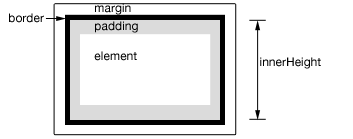
.innerHeight(), may be fractional in some cases. Code should not assume it is an integer. Also, dimensions may be incorrect when the page is zoomed by the user; browsers do not expose an API to detect this condition.
.innerHeight() is not guaranteed to be accurate when the element or its parent is hidden. To get an accurate value, ensure the element is visible before using .innerHeight(). jQuery will attempt to temporarily show and then re-hide an element in order to measure its dimensions, but this is unreliable and (even when accurate) can significantly impact page performance. This show-and-rehide measurement feature may be removed in a future version of jQuery.
var p = $( "p" ).first();
$( "p" ).last().text( "innerHeight:" + p.innerHeight() );
this refers to the current element in the set.When calling .innerHeight("value"), the value can be either a string (number and unit) or a number. If only a number is provided for the value, jQuery assumes a pixel unit. If a string is provided, however, any valid CSS measurement may be used for the height (such as 100px, 50%, or auto). Note that in modern browsers, the CSS height property does not include padding, border, or margin, unless the box-sizing CSS property is used.
If no explicit unit is specified (like "em" or "%") then "px" is assumed.
var modHeight = 70;
$( "div" ).one( "click", function() {
$( this ).innerHeight( modHeight ).addClass( "mod" );
modHeight -= 8;
});
This method returns the width of the element, including left and right padding, in pixels. If called on an empty set of elements, returns undefined (null before jQuery 3.0).
This method is not applicable to window and document objects; for these, use .width() instead.
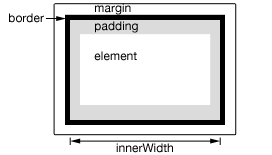
.innerWidth(), may be fractional in some cases. Code should not assume it is an integer. Also, dimensions may be incorrect when the page is zoomed by the user; browsers do not expose an API to detect this condition.
.innerWidth() is not guaranteed to be accurate when the element or its parent is hidden. To get an accurate value, ensure the element is visible before using .innerWidth(). jQuery will attempt to temporarily show and then re-hide an element in order to measure its dimensions, but this is unreliable and (even when accurate) can significantly impact page performance. This show-and-rehide measurement feature may be removed in a future version of jQuery.
var p = $( "p" ).first();
$( "p" ).last().text( "innerWidth:" + p.innerWidth() );
this refers to the current element in the set.When calling .innerWidth("value"), the value can be either a string (number and unit) or a number. If only a number is provided for the value, jQuery assumes a pixel unit. If a string is provided, however, any valid CSS measurement may be used for the width (such as 100px, 50%, or auto). Note that in modern browsers, the CSS width property does not include padding, border, or margin, unless the box-sizing CSS property is used.
If no explicit unit is specified (like "em" or "%") then "px" is assumed.
var modWidth = 60;
$( "div" ).one( "click", function() {
$( this ).innerWidth( modWidth ).addClass( "mod" );
modWidth -= 8;
});
The :input selector basically selects all form controls.
:input is a jQuery extension and not part of the CSS specification, queries using :input cannot take advantage of the performance boost provided by the native DOM querySelectorAll() method. To achieve the best performance when using :input to select elements, first select the elements using a pure CSS selector, then use .filter(":input").
var allInputs = $( ":input" );
var formChildren = $( "form > *" );
$( "#messages" ).text( "Found " + allInputs.length + " inputs and the form has " +
formChildren.length + " children." );
$( "form" ).on( "submit", function( event ) {
event.preventDefault();
} );
The .after() and .insertAfter() methods perform the same task. The major difference is in the syntax—specifically, in the placement of the content and target. With .after(), the selector expression preceding the method is the container after which the content is inserted. With .insertAfter(), on the other hand, the content precedes the method, either as a selector expression or as markup created on the fly, and it is inserted after the target container.
Consider the following HTML:
<div class="container">
<h2>Greetings</h2>
<div class="inner">Hello</div>
<div class="inner">Goodbye</div>
</div>
We can create content and insert it after several elements at once:
$( "<p>Test</p>" ).insertAfter( ".inner" );
Each inner <div> element gets this new content:
<div class="container">
<h2>Greetings</h2>
<div class="inner">Hello</div>
<p>Test</p>
<div class="inner">Goodbye</div>
<p>Test</p>
</div>
We can also select an element on the page and insert it after another:
$( "h2" ).insertAfter( $( ".container" ) );
If an element selected this way is inserted into a single location elsewhere in the DOM, it will be moved after the target (not cloned) and a new set consisting of the inserted element is returned:
<div class="container">
<div class="inner">Hello</div>
<div class="inner">Goodbye</div>
</div>
<h2>Greetings</h2>
If there is more than one target element, however, cloned copies of the inserted element will be created for each target after the first, and that new set (the original element plus clones) is returned.
Before jQuery 1.9, the append-to-single-element case did not create a new set, but instead returned the original set which made it difficult to use the .end() method reliably when being used with an unknown number of elements.
<img onload="">). Do not use these methods to insert strings obtained from untrusted sources such as URL query parameters, cookies, or form inputs. Doing so can introduce cross-site-scripting (XSS) vulnerabilities. Remove or escape any user input before adding content to the document.
addClass and removeClass.
$( "p" ).insertAfter( "#foo" );
The .before() and .insertBefore() methods perform the same task. The major difference is in the syntax-specifically, in the placement of the content and target. With .before(), the selector expression preceding the method is the container before which the content is inserted. With .insertBefore(), on the other hand, the content precedes the method, either as a selector expression or as markup created on the fly, and it is inserted before the target container.
Consider the following HTML:
<div class="container">
<h2>Greetings</h2>
<div class="inner">Hello</div>
<div class="inner">Goodbye</div>
</div>
We can create content and insert it before several elements at once:
$( "<p>Test</p>" ).insertBefore( ".inner" );
Each inner <div> element gets this new content:
<div class="container">
<h2>Greetings</h2>
<p>Test</p>
<div class="inner">Hello</div>
<p>Test</p>
<div class="inner">Goodbye</div>
</div>
We can also select an element on the page and insert it before another:
$( "h2" ).insertBefore( $( ".container" ) );
If an element selected this way is inserted into a single location elsewhere in the DOM, it will be moved before the target (not cloned) and a new set consisting of the inserted element is returned:
<h2>Greetings</h2>
<div class="container">
<div class="inner">Hello</div>
<div class="inner">Goodbye</div>
</div>
If there is more than one target element, however, cloned copies of the inserted element will be created for each target after the first, and that new set (the original element plus clones) is returned.
Before jQuery 1.9, the append-to-single-element case did not create a new set, but instead returned the original set which made it difficult to use the .end() method reliably when being used with an unknown number of elements.
<img onload="">). Do not use these methods to insert strings obtained from untrusted sources such as URL query parameters, cookies, or form inputs. Doing so can introduce cross-site-scripting (XSS) vulnerabilities. Remove or escape any user input before adding content to the document.
addClass and removeClass.
$( "p" ).insertBefore( "#foo" );
index, which is the element's index in the jQuery collection, and element, which is the DOM element. Within the function, this refers to the current DOM element.true if at least one of these elements matches the given arguments.Unlike other filtering methods, .is() does not create a new jQuery object. Instead, it allows you to test the contents of a jQuery object without modification. This is often useful inside callbacks, such as event handlers.
Suppose you have a list, with two of its items containing a child element:
<ul>
<li>list <strong>item 1</strong></li>
<li><span>list item 2</span></li>
<li>list item 3</li>
</ul>
You can attach a click handler to the <ul> element, and then limit the code to be triggered only when a list item itself, not one of its children, is clicked:
$( "ul" ).on( "click", function( event ) {
var target = $( event.target );
if ( target.is( "li" ) ) {
target.css( "background-color", "red" );
}
});
Now, when the user clicks on the word "list" in the first item or anywhere in the third item, the clicked list item will be given a red background. However, when the user clicks on item 1 in the first item or anywhere in the second item, nothing will occur, because in those cases the target of the event would be <strong> or <span>, respectively.
Using a Function
The second form of this method evaluates expressions related to elements based on a function rather than a selector. For each element, if the function returns true, .is() returns true as well. For example, given a somewhat more involved HTML snippet:
<ul>
<li><strong>list</strong> item 1 - one strong tag</li>
<li><strong>list</strong> item <strong>2</strong> -
two <span>strong tags</span></li>
<li>list item 3</li>
<li>list item 4</li>
<li>list item 5</li>
</ul>
You can attach a click handler to every <li> that evaluates the number of <strong> elements within the clicked <li> at that time like so:
$( "li" ).on( "click", function() {
var li = $( this ),
isWithTwo = li.is(function() {
return $( "strong", this ).length === 2;
});
if ( isWithTwo ) {
li.css( "background-color", "green" );
} else {
li.css( "background-color", "red" );
}
});
$( "div" ).one( "click", function() {
if ( $( this ).is( ":first-child" ) ) {
$( "p" ).text( "It's the first div." );
} else if ( $( this ).is( ".blue,.red" ) ) {
$( "p" ).text( "It's a blue or red div." );
} else if ( $( this ).is( ":contains('Peter')" ) ) {
$( "p" ).text( "It's Peter!" );
} else {
$( "p" ).html( "It's nothing <em>special</em>." );
}
$( "p" ).hide().slideDown( "slow" );
$( this ).css({
"border-style": "inset",
cursor: "default"
});
});
var isFormParent = $( "input[type='checkbox']" ).parent().is( "form" );
$( "div" ).text( "isFormParent = " + isFormParent );
var isFormParent = $( "input[type='checkbox']" ).parent().is( "form" );
$( "div" ).text( "isFormParent = " + isFormParent );
var alt = $( "#browsers li:nth-child(2n)" ).css( "background", "#0ff" );
$( "li" ).on( "click", function() {
var li = $( this );
if ( li.is( alt ) ) {
li.slideUp();
} else {
li.css( "background", "red" );
}
});
var alt = $( "#browsers li:nth-child(2n)" ).css( "background", "#0ff" );
$( "li" ).on( "click", function() {
if ( alt.is( this ) ) {
$( this ).slideUp();
} else {
$( this ).css( "background", "red" );
}
});
The .jquery property is assigned to the jQuery prototype, commonly referred to by its alias $.fn. It is a string containing the version number of jQuery, such as "1.5.0" or "1.4.4".
var a = { what: "A regular JS object" },
b = $( "body" );
if ( a.jquery ) { // Falsy, since it's undefined
alert( "a is a jQuery object!" );
}
if ( b.jquery ) { // Truthy, since it's a string
alert( "b is a jQuery object!" );
}
alert( "You are running jQuery version: " + $.fn.jquery );
dataType to its MIME type, which gets sent in the Accept request header. This header tells the server what kind of response it will accept in return. For example, the following defines a custom type mycustomtype to be sent with the request:
$.ajax({
accepts: {
mycustomtype: 'application/x-some-custom-type'
},
// Instructions for how to deserialize a `mycustomtype`
converters: {
'text mycustomtype': function(result) {
// Do Stuff
return newresult;
}
},
// Expect a `mycustomtype` back from server
dataType: 'mycustomtype'
});
converters for this to work properly.
true by default). If you need synchronous requests, set this option to false. Cross-domain requests and dataType: "jsonp" requests do not support synchronous operation. Note that synchronous requests may temporarily lock the browser, disabling any actions while the request is active. As of jQuery 1.8, the use of async: false with jqXHR ($.Deferred) is deprecated; you must use the success/error/complete callback options instead of the corresponding methods of the jqXHR object such as jqXHR.done().false in the beforeSend function will cancel the request. As of jQuery 1.5, the beforeSend option will be called regardless of the type of request.false, it will force requested pages not to be cached by the browser. Note: Setting cache to false will only work correctly with HEAD and GET requests. It works by appending "_={timestamp}" to the GET parameters. The parameter is not needed for other types of requests, except in IE8 when a POST is made to a URL that has already been requested by a GET.success and error callbacks are executed). The function gets passed two arguments: The jqXHR (in jQuery 1.4.x, XMLHTTPRequest) object and a string categorizing the status of the request ("success", "notmodified", "nocontent", "error", "timeout", "abort", or "parsererror"). As of jQuery 1.5, the complete setting can accept an array of functions. Each function will be called in turn. This is an Ajax Event.$.ajax(), then it is always sent to the server (even if no data is sent). As of jQuery 1.6 you can pass false to tell jQuery to not set any content type header. Note: The W3C XMLHttpRequest specification dictates that the charset is always UTF-8; specifying another charset will not force the browser to change the encoding. Note: For cross-domain requests, setting the content type to anything other than application/x-www-form-urlencoded, multipart/form-data, or text/plain will trigger the browser to send a preflight OPTIONS request to the server.$.ajaxSettings merged with the settings passed to $.ajax). For example, specifying a DOM element as the context will make that the context for the complete callback of a request, like so:
$.ajax({
url: "test.html",
context: document.body
}).done(function() {
$( this ).addClass( "done" );
});
true. This allows, for example, server-side redirection to another domain.Data to be sent to the server. If the HTTP method is one that cannot have an entity body, such as GET, the data is appended to the URL.
When data is an object, jQuery generates the data string from the object's key/value pairs unless the processData option is set to false. For example, { a: "bc", d: "e,f" } is converted to the string "a=bc&d=e%2Cf". If the value is an array, jQuery serializes multiple values with same key based on the value of the traditional setting (described below). For example, { a: [1,2] } becomes the string "a%5B%5D=1&a%5B%5D=2" with the default traditional: false setting.
When data is passed as a string it should already be encoded using the correct encoding for contentType, which by default is application/x-www-form-urlencoded.
In requests with dataType: "json" or dataType: "jsonp", if the string contains a double question mark (??) anywhere in the URL or a single question mark (?) in the query string, it is replaced with a value generated by jQuery that is unique for each copy of the library on the page (e.g. jQuery21406515378922229067_1479880736745).
"xml": Returns a XML document that can be processed via jQuery."html": Returns HTML as plain text; included script tags are evaluated when inserted in the DOM."script": Evaluates the response as JavaScript and returns it as plain text. Disables caching by appending a query string parameter,_=[TIMESTAMP], to the URL unless thecacheoption is set totrue. Note: This will turn POSTs into GETs for remote-domain requests. Prior to jQuery 3.5.0, unsuccessful HTTP responses with a scriptContent-Typewere still executed."json": Evaluates the response as JSON and returns a JavaScript object. Cross-domain"json"requests that have a callback placeholder, e.g.?callback=?, are performed using JSONP unless the request includesjsonp: falsein its request options. The JSON data is parsed in a strict manner; any malformed JSON is rejected and a parse error is thrown. As of jQuery 1.9, an empty response is also rejected; the server should return a response ofnullor{}instead. (See json.org for more information on proper JSON formatting.)"jsonp": Loads in a JSON block using JSONP. Adds an extra"?callback=?"to the end of your URL to specify the callback. Disables caching by appending a query string parameter,"_=[TIMESTAMP]", to the URL unless thecacheoption is set totrue."text": A plain text string.- multiple, space-separated values: As of jQuery 1.5, jQuery can convert a dataType from what it received in the Content-Type header to what you require. For example, if you want a text response to be treated as XML, use
"text xml"for the dataType. You can also make a JSONP request, have it received as text, and interpreted by jQuery as XML:"jsonp text xml". Similarly, a shorthand string such as"jsonp xml"will first attempt to convert from jsonp to xml, and, failing that, convert from jsonp to text, and then from text to xml.
null) are "timeout", "error", "abort", and "parsererror". When an HTTP error occurs, errorThrown receives the textual portion of the HTTP status, such as "Not Found" or "Internal Server Error." (in HTTP/2 it may instead be an empty string) As of jQuery 1.5, the error setting can accept an array of functions. Each function will be called in turn. Note: This handler is not called for cross-domain scripts and cross-domain JSONP requests. This is an Ajax Event.true. Set to false to prevent the global handlers like ajaxStart or ajaxStop from being triggered. This can be used to control various Ajax Events.X-Requested-With: XMLHttpRequest is always added, but its default XMLHttpRequest value can be changed here. Values in the headers setting can also be overwritten from within the beforeSend function.false, ignoring the header. In jQuery 1.4 this technique also checks the 'etag' specified by the server to catch unmodified data.file, *-extension, and widget. If the isLocal setting needs modification, it is recommended to do so once in the $.ajaxSetup() method.{jsonp:'onJSONPLoad'} would result in 'onJSONPLoad=?' passed to the server. As of jQuery 1.5, setting the jsonp option to false prevents jQuery from adding the "?callback" string to the URL or attempting to use "=?" for transformation. In this case, you should also explicitly set the jsonpCallback setting. For example, { jsonp: false, jsonpCallback: "callbackName" }. If you don't trust the target of your Ajax requests, consider setting the jsonp property to false for security reasons.jsonpCallback is set to the return value of that function."POST", "GET", "PUT").data option as an object (technically, anything other than a string) will be processed and transformed into a query string, fitting to the default content-type "application/x-www-form-urlencoded". If you want to send a DOMDocument, or other non-processed data, set this option to false.nonce, integrity, or crossorigin attributes to satisfy Content Security Policy requirements.charset attribute on the script tag used in the request. Used when the character set on the local page is not the same as the one on the remote script. Alternatively, the charset attribute can be specified in scriptAttrs instead, which will also ensure the use of the "script" transport.An object of numeric HTTP codes and functions to be called when the response has the corresponding code. For example, the following will alert when the response status is a 404:
$.ajax({
statusCode: {
404: function() {
alert( "page not found" );
}
}
});
If the request is successful, the status code functions take the same parameters as the success callback; if it results in an error (including 3xx redirects to another domain), they take the same parameters as the error callback. 3xx redirects to the same domain are handled by the browser and are not controlled by jQuery.
dataType parameter or the dataFilter callback function, if specified; a string describing the status; and the jqXHR (in jQuery 1.4.x, XMLHttpRequest) object. As of jQuery 1.5, the success setting can accept an array of functions. Each function will be called in turn. This is an Ajax Event.$.ajax call is made; if several other requests are in progress and the browser has no connections available, it is possible for a request to time out before it can be sent. In jQuery 1.4.x and below, the XMLHttpRequest object will be in an invalid state if the request times out; accessing any object members may throw an exception. In Firefox 3.0+ only, script and JSONP requests cannot be cancelled by a timeout; the script will run even if it arrives after the timeout period.true if you wish to use the traditional style of param serialization.method. You should use type if you're using versions of jQuery prior to 1.9.0.An object of fieldName-fieldValue pairs to set on the native XHR object. For example, you can use it to set withCredentials to true for cross-domain requests if needed.
$.ajax({
url: a_cross_domain_url,
xhrFields: {
withCredentials: true
}
});
In jQuery 1.5, the withCredentials property was not propagated to the native XHR and thus CORS requests requiring it would ignore this flag. For this reason, we recommend using jQuery 1.5.1+ should you require the use of it.
The $.ajax() function underlies all Ajax requests sent by jQuery. It is often unnecessary to directly call this function, as several higher-level alternatives like $.get() and .load() are available and are easier to use. If less common options are required, though, $.ajax() can be used more flexibly.
At its simplest, the $.ajax() function can be called with no arguments:
$.ajax();
Note: Default settings can be set globally by using the $.ajaxSetup() function.
This example, using no options, loads the contents of the current page, but does nothing with the result. To use the result, you can implement one of the callback functions.
The jqXHR Object
The jQuery XMLHttpRequest (jqXHR) object returned by $.ajax() as of jQuery 1.5 is a superset of the browser's native XMLHttpRequest object. For example, it contains responseText and responseXML properties, as well as a getResponseHeader() method. When the transport mechanism is something other than XMLHttpRequest (for example, a script tag for a JSONP request) the jqXHR object simulates native XHR functionality where possible.
As of jQuery 1.5.1, the jqXHR object also contains the overrideMimeType() method (it was available in jQuery 1.4.x, as well, but was temporarily removed in jQuery 1.5). The .overrideMimeType() method may be used in the beforeSend() callback function, for example, to modify the response content-type header:
$.ajax({
url: "https://fiddle.jshell.net/favicon.png",
beforeSend: function( xhr ) {
xhr.overrideMimeType( "text/plain; charset=x-user-defined" );
}
})
.done(function( data ) {
if ( console && console.log ) {
console.log( "Sample of data:", data.slice( 0, 100 ) );
}
});
The jqXHR objects returned by $.ajax() as of jQuery 1.5 implement the Promise interface, giving them all the properties, methods, and behavior of a Promise (see Deferred object for more information). These methods take one or more function arguments that are called when the $.ajax() request terminates. This allows you to assign multiple callbacks on a single request, and even to assign callbacks after the request may have completed. (If the request is already complete, the callback is fired immediately.) Available Promise methods of the jqXHR object include:
-
jqXHR.done(function( data, textStatus, jqXHR ) {});
An alternative construct to the success callback option, refer to
deferred.done()for implementation details. -
jqXHR.fail(function( jqXHR, textStatus, errorThrown ) {});
An alternative construct to the error callback option, the
.fail()method replaces the deprecated.error()method. Refer todeferred.fail()for implementation details. -
jqXHR.always(function( data|jqXHR, textStatus, jqXHR|errorThrown ) { }); (added in jQuery 1.6)
An alternative construct to the complete callback option, the
.always()method replaces the deprecated.complete()method.In response to a successful request, the function's arguments are the same as those of
.done(): data, textStatus, and the jqXHR object. For failed requests the arguments are the same as those of.fail(): the jqXHR object, textStatus, and errorThrown. Refer todeferred.always()for implementation details. -
jqXHR.then(function( data, textStatus, jqXHR ) {}, function( jqXHR, textStatus, errorThrown ) {});
Incorporates the functionality of the
.done()and.fail()methods, allowing (as of jQuery 1.8) the underlying Promise to be manipulated. Refer todeferred.then()for implementation details.
Deprecation Notice: The jqXHR.success(), jqXHR.error(), and jqXHR.complete() callbacks are removed as of jQuery 3.0. You can use jqXHR.done(), jqXHR.fail(), and jqXHR.always() instead.
// Assign handlers immediately after making the request,
// and remember the jqXHR object for this request
var jqxhr = $.ajax( "example.php" )
.done(function() {
alert( "success" );
})
.fail(function() {
alert( "error" );
})
.always(function() {
alert( "complete" );
});
// Perform other work here ...
// Set another completion function for the request above
jqxhr.always(function() {
alert( "second complete" );
});
The this reference within all callbacks is the object in the context option passed to $.ajax in the settings; if context is not specified, this is a reference to the Ajax settings themselves.
For backward compatibility with XMLHttpRequest, a jqXHR object will expose the following properties and methods:
-
readyState -
responseXMLand/orresponseTextwhen the underlying request responded with xml and/or text, respectively -
responseURL(as of jQuery 4.1) is the final URL of the response after any redirects, when the underlying transport reports it. For XMLHttpRequest-based requests in modern browsers, this mirrorsXMLHttpRequest.responseURL; for script, JSONP, aborted, or otherwise unsupported requests it isundefined. -
status -
statusText(may be an empty string in HTTP/2) -
abort( [ statusText ] ) -
getAllResponseHeaders()as a string -
getResponseHeader( name ) -
overrideMimeType( mimeType ) -
setRequestHeader( name, value )which departs from the standard by replacing the old value with the new one rather than concatenating the new value to the old one -
statusCode( callbacksByStatusCode )
No onreadystatechange mechanism is provided, however, since done, fail, always, and statusCode cover all conceivable requirements.
Callback Function Queues
The beforeSend, error, dataFilter, success and complete options all accept callback functions that are invoked at the appropriate times.
As of jQuery 1.5, the fail and done, and, as of jQuery 1.6, always callback hooks are first-in, first-out managed queues, allowing for more than one callback for each hook. See Deferred object methods, which are implemented internally for these $.ajax() callback hooks.
The callback hooks provided by $.ajax() are as follows:
beforeSendcallback option is invoked; it receives thejqXHRobject and thesettingsobject as parameters.errorcallback option is invoked, if the request fails. It receives thejqXHR, a string indicating the error type, and an exception object if applicable. Some built-in errors will provide a string as the exception object: "abort", "timeout", "No Transport".dataFiltercallback option is invoked immediately upon successful receipt of response data. It receives the returned data and the value ofdataType, and must return the (possibly altered) data to pass on tosuccess.successcallback option is invoked, if the request succeeds. It receives the returned data, a string containing the success code, and thejqXHRobject.- Promise callbacks —
.done(),.fail(),.always(), and.then()— are invoked, in the order they are registered. completecallback option fires, when the request finishes, whether in failure or success. It receives thejqXHRobject, as well as a string containing the success or error code.
Data Types
Different types of response to $.ajax() call are subjected to different kinds of pre-processing before being passed to the success handler. The type of pre-processing depends by default upon the Content-Type of the response, but can be set explicitly using the dataType option. If the dataType option is provided, the Content-Type header of the response will be disregarded.
The available data types are text, html, xml, json, jsonp, and script.
If text or html is specified, no pre-processing occurs. The data is simply passed on to the success handler, and made available through the responseText property of the jqXHR object.
If xml is specified, the response is parsed using jQuery.parseXML before being passed, as an XMLDocument, to the success handler. The XML document is made available through the responseXML property of the jqXHR object.
If json is specified, the response is parsed using jQuery.parseJSON before being passed, as an object, to the success handler. The parsed JSON object is made available through the responseJSON property of the jqXHR object.
If script is specified, $.ajax() will execute the JavaScript that is received from the server before passing it on to the success handler as a string.
If jsonp is specified, $.ajax() will automatically append a query string parameter of (by default) callback=? to the URL. The jsonp and jsonpCallback properties of the settings passed to $.ajax() can be used to specify, respectively, the name of the query string parameter and the name of the JSONP callback function. The server should return valid JavaScript that passes the JSON response into the callback function. $.ajax() will execute the returned JavaScript, calling the JSONP callback function, before passing the JSON object contained in the response to the $.ajax() success handler.
For more information on JSONP, see the original post detailing its use.
Sending Data to the Server
By default, Ajax requests are sent using the GET HTTP method. If the POST method is required, the method can be specified by setting a value for the type option. This option affects how the contents of the data option are sent to the server. POST data will always be transmitted to the server using UTF-8 charset, per the W3C XMLHTTPRequest standard.
The data option can contain either a query string of the form key1=value1&key2=value2, or an object of the form {key1: 'value1', key2: 'value2'}. If the latter form is used, the data is converted into a query string using jQuery.param() before it is sent. This processing can be circumvented by setting processData to false. The processing might be undesirable if you wish to send an XML object to the server; in this case, change the contentType option from application/x-www-form-urlencoded to a more appropriate MIME type.
Advanced Options
The global option prevents handlers registered for the ajaxSend, ajaxError, and similar events from firing when this request would trigger them. This can be useful to, for example, suppress a loading indicator that was implemented with an ajaxSend handler if the requests are frequent and brief. With cross-domain script and JSONP requests, the global option is automatically set to false. See the descriptions of these methods below for more details.
If the server performs HTTP authentication before providing a response, the user name and password pair can be sent via the username and password options.
Ajax requests are time-limited, so errors can be caught and handled to provide a better user experience. Request timeouts are usually either left at their default or set as a global default using $.ajaxSetup() rather than being overridden for specific requests with the timeout option.
By default, requests are always issued, but the browser may serve results out of its cache. To disallow use of the cached results, set cache to false. To cause the request to report failure if the asset has not been modified since the last request, set ifModified to true.
The scriptCharset allows the character set to be explicitly specified for requests that use a <script> tag (that is, a type of script or jsonp). This is useful if the script and host page have differing character sets.
The first letter in Ajax stands for "asynchronous," meaning that the operation occurs in parallel and the order of completion is not guaranteed. The async option to $.ajax() defaults to true, indicating that code execution can continue after the request is made. Setting this option to false (and thus making the call no longer asynchronous) is strongly discouraged, as it can cause the browser to become unresponsive.
The $.ajax() function returns the XMLHttpRequest object that it creates. Normally jQuery handles the creation of this object internally, but a custom function for manufacturing one can be specified using the xhr option. The returned object can generally be discarded, but does provide a lower-level interface for observing and manipulating the request. In particular, calling .abort() on the object will halt the request before it completes.
Extending Ajax
As of jQuery 1.5, jQuery's Ajax implementation includes prefilters, transports, and converters that allow you to extend Ajax with a great deal of flexibility.
Using Converters
$.ajax() converters support mapping data types to other data types. If, however, you want to map a custom data type to a known type (e.g json), you must add a correspondence between the response Content-Type and the actual data type using the contents option:
$.ajaxSetup({
contents: {
mycustomtype: /mycustomtype/
},
converters: {
"mycustomtype json": function( result ) {
// Do stuff
return newresult;
}
}
});
This extra object is necessary because the response Content-Types and data types never have a strict one-to-one correspondence (hence the regular expression).
To convert from a supported type (e.g text, json) to a custom data type and back again, use another pass-through converter:
$.ajaxSetup({
contents: {
mycustomtype: /mycustomtype/
},
converters: {
"text mycustomtype": true,
"mycustomtype json": function( result ) {
// Do stuff
return newresult;
}
}
});
The above now allows passing from text to mycustomtype and then mycustomtype to json.
$.ajax({
method: "POST",
url: "some.php",
data: { name: "John", location: "Boston" }
})
.done(function( msg ) {
alert( "Data Saved: " + msg );
});
$.ajax({
url: "test.html",
cache: false
})
.done(function( html ) {
$( "#results" ).append( html );
});
false, the automatic conversion of data to strings is prevented.
var xmlDocument = [create xml document];
var xmlRequest = $.ajax({
url: "page.php",
processData: false,
data: xmlDocument
});
xmlRequest.done( handleResponse );
var menuId = $( "ul.nav" ).first().attr( "id" );
var request = $.ajax({
url: "script.php",
method: "POST",
data: { id : menuId },
dataType: "html"
});
request.done(function( msg ) {
$( "#log" ).html( msg );
});
request.fail(function( jqXHR, textStatus ) {
alert( "Request failed: " + textStatus );
});
$.ajax({
method: "GET",
url: "test.js",
dataType: "script"
});
$.ajax().A typical prefilter registration using $.ajaxPrefilter() looks like this:
$.ajaxPrefilter(function( options, originalOptions, jqXHR ) {
// Modify options, control originalOptions, store jqXHR, etc
});
where:
optionsare the request optionsoriginalOptionsare the options as provided to the$.ajax()method, unmodified and, thus, without defaults fromajaxSettingsjqXHRis the jqXHR object of the request
Prefilters are a perfect fit when custom options need to be handled. Given the following code, for example, a call to $.ajax() would automatically abort a request to the same URL if the custom abortOnRetry option is set to true:
var currentRequests = {};
$.ajaxPrefilter(function( options, originalOptions, jqXHR ) {
if ( options.abortOnRetry ) {
if ( currentRequests[ options.url ] ) {
currentRequests[ options.url ].abort();
}
currentRequests[ options.url ] = jqXHR;
}
});
Prefilters can also be used to modify existing options. For example, the following proxies cross-domain requests through https://mydomain.net/proxy/:
$.ajaxPrefilter(function( options ) {
if ( options.crossDomain ) {
options.url = "https://mydomain.net/proxy/" + encodeURIComponent( options.url );
options.crossDomain = false;
}
});
If the optional dataTypes argument is supplied, the prefilter will be only be applied to requests with the indicated dataTypes. For example, the following only applies the given prefilter to JSON and script requests:
$.ajaxPrefilter( "json script", function( options, originalOptions, jqXHR ) {
// Modify options, control originalOptions, store jqXHR, etc
});
The $.ajaxPrefilter() method can also redirect a request to another dataType by returning that dataType. For example, the following sets a request as "script" if the URL has some specific properties defined in a custom isActuallyScript() function:
$.ajaxPrefilter(function( options ) {
if ( isActuallyScript( options.url ) ) {
return "script";
}
});
This would ensure not only that the request is considered "script" but also that all the prefilters specifically attached to the script dataType would be applied to it.
For details on the settings available for $.ajaxSetup(), see $.ajax().
All subsequent Ajax calls using any function will use the new settings, unless overridden by the individual calls, until the next invocation of $.ajaxSetup().
Note: The settings specified here will affect all calls to $.ajax or Ajax-based derivatives such as $.get(). This can cause undesirable behavior since other callers (for example, plugins) may be expecting the normal default settings. For that reason we strongly recommend against using this API. Instead, set the options explicitly in the call or define a simple plugin to do so.
For example, the following sets a default for the url parameter before pinging the server repeatedly:
$.ajaxSetup({
url: "ping.php"
});
Now each time an Ajax request is made, the "ping.php" URL will be used automatically:
$.ajax({
// url not set here; uses ping.php
data: { "name": "Dan" }
});
Note: Global callback functions should be set via .on() with their respective global Ajax events—ajaxStart, ajaxStop, ajaxComplete, ajaxError, ajaxSuccess, ajaxSend—rather than within the options object for $.ajaxSetup().
$.ajaxSetup({
url: "/xmlhttp/",
global: false,
type: "POST"
});
$.ajax({ data: myData });
A transport is an object that provides two methods, send and abort, that are used internally by $.ajax() to issue requests. A transport is the most advanced way to enhance $.ajax() and should be used only as a last resort when prefilters and converters are insufficient.
Since each request requires its own transport object instance, transports cannot be registered directly. Therefore, you should provide a function that returns a transport instead.
Transports factories are registered using $.ajaxTransport(). A typical registration looks like this:
$.ajaxTransport( dataType, function( options, originalOptions, jqXHR ) {
if( /* transportCanHandleRequest */ ) {
return {
send: function( headers, completeCallback ) {
// Send code
},
abort: function() {
// Abort code
}
};
}
});
where:
optionsare the request optionsoriginalOptionsare the options as provided to the$.ajax()method, unmodified and, thus, without defaults from ajaxSettingsjqXHRis the jqXHR object of the requestheadersis an object of (key-value) request headers that the transport can transmit if it supports itcompleteCallbackis the callback used to notify Ajax of the completion of the request
As of jQuery 3.8 and 4.1 (excluding jQuery 4.0), completeCallback accepts a single params object:
function( params ) {}
with the following properties:
statusis the HTTP status code of the response, like 200 for a typical success, or 404 for when the resource is not found.statusTextis the statusText of the response.responses(Optional) is An object containing dataType/value that contains the response in all the formats the transport could provide (for instance, a native XMLHttpRequest object would set responses to{ xml: XMLData, text: textData }for a response that is an XML document)headers(Optional) is a string containing all the response headers if the transport has access to them (akin to whatXMLHttpRequest.getAllResponseHeaders()would provide).responseURL(Optional) is the final URL of the response after any redirects, if the transport has access to it (akin to whatXMLHttpRequest.responseURLwould provide). It is exposed on the jqXHR object asjqXHR.responseURL. Added in jQuery 4.1.
An older, positional-arguments form is also supported, but limited to the following four parameters:
function( status, statusText, responses, headers ) {}
The parameters have the same meaning as the object properties described above. Both calling conventions are supported; jQuery detects which one is used by checking whether the first argument is an object.
Just like prefilters, a transport's factory function can be attached to a specific dataType:
$.ajaxTransport( "script", function( options, originalOptions, jqXHR ) {
// Will only be called for script requests
});
The following example shows how a minimal image transport could be implemented:
$.ajaxTransport( "image", function( s ) {
if ( s.type === "GET" && s.async ) {
var image;
return {
send: function( _ , callback ) {
image = new Image();
function done( status ) {
if ( image ) {
var statusText = ( status === 200 ) ? "success" : "error",
tmp = image;
image = image.onreadystatechange = image.onerror = image.onload = null;
callback( {
status: status,
statusText: statusText,
responses: { image: tmp }
} );
}
}
image.onreadystatechange = image.onload = function() {
done( 200 );
};
image.onerror = function() {
done( 404 );
};
image.src = s.url;
},
abort: function() {
if ( image ) {
image = image.onreadystatechange = image.onerror = image.onload = null;
}
}
};
}
});
Handling Custom Data Types
The jQuery Ajax implementation comes with a set of standard dataTypes, such as text, json, xml, and html.
Use the converters option in $.ajaxSetup() to augment or modify the data type conversion strategies used by $.ajax().
The unminified jQuery source itself includes a list of default converters, which effectively illustrates how they can be used:
// List of data converters
// 1) Key format is "source_type destination_type"
// (a single space in-between)
// 2) The catchall symbol "*" can be used for source_type
converters: {
// Convert anything to text
"* text": window.String,
// Text to html (true = no transformation)
"text html": true,
// Evaluate text as a json expression
"text json": jQuery.parseJSON,
// Parse text as xml
"text xml": jQuery.parseXML
}
When you specify a converters option globally in $.ajaxSetup() or per call in $.ajax(), the object will map onto the default converters, overwriting those you specify and leaving the others intact.
For example, the jQuery source uses $.ajaxSetup() to add a converter for "text script":
jQuery.ajaxSetup({
accepts: {
script: "text/javascript, application/javascript"
},
contents: {
script: /javascript/
},
converters: {
"text script": jQuery.globalEval
}
});
Note: This API has been removed in jQuery 3.0; check if document.compatMode is equal to "CSS1Compat" instead. Or, even better - always specify a DOCTYPE and avoid using quirks mode which jQuery doesn't support.
Note: This API has been removed in jQuery 1.9; please rely on feature detection instead.
The $.browser property provides information about the web browser that is accessing the page, as reported by the browser itself. It contains flags for each of the four most prevalent browser classes (Internet Explorer, Mozilla, Webkit, and Opera) as well as version information.
Available flags are:
- webkit (as of jQuery 1.4)
- safari (deprecated)
- opera
- msie
- mozilla
This property is available immediately. It is therefore safe to use it to determine whether or not to call $(document).ready().
The $.browser property is deprecated in jQuery 1.3, and its functionality may be moved to a team-supported plugin in a future release of jQuery.
Because $.browser uses navigator.userAgent to determine the platform, it is vulnerable to spoofing by the user or misrepresentation by the browser itself. It is always best to avoid browser-specific code entirely where possible. Instead of relying on $.browser it's better to use libraries like Modernizr.
jQuery.each( jQuery.browser, function( i, val ) {
$( "<div>" + i + " : <span>" + val + "</span>" )
.appendTo( document.body );
});
$.browser.msie;
if ( $.browser.webkit ) {
alert( "This is WebKit!" );
}
Note: This API has been removed in jQuery 1.9; please rely on feature detection instead.
Here are some typical results:
- Internet Explorer: 6.0, 7.0, 8.0
- Mozilla/Firefox/Flock/Camino: 1.7.12, 1.8.1.3, 1.9
- Opera: 10.06, 11.01
- Safari/Webkit: 312.8, 418.9
Note that IE8 claims to be 7 in Compatibility View.
$( "p" ).html( "The version # of the browser's rendering engine is: <span>" +
$.browser.version + "</span>" );
if ( $.browser.msie ) {
alert( $.browser.version );
}
The $.Callbacks() function is internally used to provide the base functionality behind the jQuery $.ajax() and $.Deferred() components. It can be used as a similar base to define functionality for new components.
$.Callbacks() supports a number of methods including callbacks.add(),callbacks.remove(), callbacks.fire() and callbacks.disable().
Getting started
The following are two sample methods named fn1 and fn2:
function fn1( value ) {
console.log( value );
}
function fn2( value ) {
console.log( "fn2 says: " + value );
return false;
}
These can be added as callbacks to a $.Callbacks list and invoked as follows:
var callbacks = $.Callbacks();
callbacks.add( fn1 );
// Outputs: foo!
callbacks.fire( "foo!" );
callbacks.add( fn2 );
// Outputs: bar!, fn2 says: bar!
callbacks.fire( "bar!" );
The result of this is that it becomes simple to construct complex lists of callbacks where input values can be passed through to as many functions as needed with ease.
Two specific methods were being used above: .add() and .fire(). The .add() method supports adding new callbacks to the callback list, while the .fire() method executes the added functions and provides a way to pass arguments to be processed by the callbacks in the same list.
Another method supported by $.Callbacks is .remove(), which has the ability to remove a particular callback from the callback list. Here's a practical example of .remove() being used:
var callbacks = $.Callbacks();
callbacks.add( fn1 );
// Outputs: foo!
callbacks.fire( "foo!" );
callbacks.add( fn2 );
// Outputs: bar!, fn2 says: bar!
callbacks.fire( "bar!" );
callbacks.remove( fn2 );
// Only outputs foobar, as fn2 has been removed.
callbacks.fire( "foobar" );
Supported Flags
The flags argument is an optional argument to $.Callbacks(), structured as a list of space-separated strings that change how the callback list behaves (eg. $.Callbacks( "unique stopOnFalse" )).
Possible flags:
once: Ensures the callback list can only be fired once (like a Deferred).memory: Keeps track of previous values and will call any callback added after the list has been fired right away with the latest "memorized" values (like a Deferred).unique: Ensures a callback can only be added once (so there are no duplicates in the list).stopOnFalse: Interrupts callings when a callback returns false.
By default a callback list will act like an event callback list and can be "fired" multiple times.
For examples of how flags should ideally be used, see below:
$.Callbacks( "once" ):
var callbacks = $.Callbacks( "once" );
callbacks.add( fn1 );
callbacks.fire( "foo" );
callbacks.add( fn2 );
callbacks.fire( "bar" );
callbacks.remove( fn2 );
callbacks.fire( "foobar" );
/*
output:
foo
*/
$.Callbacks( "memory" ):
var callbacks = $.Callbacks( "memory" );
callbacks.add( fn1 );
callbacks.fire( "foo" );
callbacks.add( fn2 );
callbacks.fire( "bar" );
callbacks.remove( fn2 );
callbacks.fire( "foobar" );
/*
output:
foo
fn2 says:foo
bar
fn2 says:bar
foobar
*/
$.Callbacks( "unique" ):
var callbacks = $.Callbacks( "unique" );
callbacks.add( fn1 );
callbacks.fire( "foo" );
callbacks.add( fn1 ); // Repeat addition
callbacks.add( fn2 );
callbacks.fire( "bar" );
callbacks.remove( fn2 );
callbacks.fire( "foobar" );
/*
output:
foo
bar
fn2 says:bar
foobar
*/
$.Callbacks( "stopOnFalse" ):
function fn1( value ) {
console.log( value );
return false;
}
function fn2( value ) {
fn1( "fn2 says: " + value );
return false;
}
var callbacks = $.Callbacks( "stopOnFalse" );
callbacks.add( fn1 );
callbacks.fire( "foo" );
callbacks.add( fn2 );
callbacks.fire( "bar" );
callbacks.remove( fn2 );
callbacks.fire( "foobar" );
/*
output:
foo
bar
foobar
*/
Because $.Callbacks() supports a list of flags rather than just one, setting several flags has a cumulative effect similar to "&&". This means it's possible to combine flags to create callback lists that, say, both are unique and ensure if list was already fired, adding more callbacks will have it called with the latest fired value (i.e. $.Callbacks("unique memory")).
$.Callbacks( 'unique memory' ):
function fn1( value ) {
console.log( value );
return false;
}
function fn2( value ) {
fn1( "fn2 says: " + value );
return false;
}
var callbacks = $.Callbacks( "unique memory" );
callbacks.add( fn1 );
callbacks.fire( "foo" );
callbacks.add( fn1 ); // Repeat addition
callbacks.add( fn2 );
callbacks.fire( "bar" );
callbacks.add( fn2 );
callbacks.fire( "baz" );
callbacks.remove( fn2 );
callbacks.fire( "foobar" );
/*
output:
foo
fn2 says:foo
bar
fn2 says:bar
baz
fn2 says:baz
foobar
*/
Flag combinations with $.Callbacks() are internally in jQuery for the .done() and .fail() functions on a Deferred — both of which use $.Callbacks('memory once').
The methods of $.Callbacks can also be detached, should there be a need to define short-hand versions for convenience:
var callbacks = $.Callbacks(),
add = callbacks.add,
remove = callbacks.remove,
fire = callbacks.fire;
add( fn1 );
fire( "hello world" );
remove( fn1 );
$.Callbacks, $.Deferred and Pub/Sub
The general idea behind pub/sub (Publish/Subscribe, or, the Observer pattern) is the promotion of loose coupling in applications. Rather than single objects calling on the methods of other objects, an object instead subscribes to a specific task or activity of another object and is notified when it occurs. Observers are also called Subscribers, and we refer to the object being observed as the Publisher (or the subject). Publishers notify subscribers when events occur.
To demonstrate the component-creation capabilities of $.Callbacks(), it's possible to implement a Pub/Sub system using only callback lists. Using $.Callbacks as a topics queue, a system for publishing and subscribing to topics can be implemented as follows:
var topics = {};
jQuery.Topic = function( id ) {
var callbacks, method,
topic = id && topics[ id ];
if ( !topic ) {
callbacks = jQuery.Callbacks();
topic = {
publish: callbacks.fire,
subscribe: callbacks.add,
unsubscribe: callbacks.remove
};
if ( id ) {
topics[ id ] = topic;
}
}
return topic;
};
This can then be used by parts of your application to publish and subscribe to events of interest quite easily:
// Subscribers
$.Topic( "mailArrived" ).subscribe( fn1 );
$.Topic( "mailArrived" ).subscribe( fn2 );
$.Topic( "mailSent" ).subscribe( fn1 );
// Publisher
$.Topic( "mailArrived" ).publish( "hello world!" );
$.Topic( "mailSent" ).publish( "woo! mail!" );
// Here, "hello world!" gets pushed to fn1 and fn2
// when the "mailArrived" notification is published
// with "woo! mail!" also being pushed to fn1 when
// the "mailSent" notification is published.
/*
output:
hello world!
fn2 says: hello world!
woo! mail!
*/
While this is useful, the implementation can be taken further. Using $.Deferreds, it's possible to ensure publishers only publish notifications for subscribers once particular tasks have been completed (resolved). See the below code sample for some further comments on how this could be used in practice:
// Subscribe to the mailArrived notification
$.Topic( "mailArrived" ).subscribe( fn1 );
// Create a new instance of Deferreds
var dfd = $.Deferred();
// Define a new topic (without directly publishing)
var topic = $.Topic( "mailArrived" );
// When the deferred has been resolved, publish a
// notification to subscribers
dfd.done( topic.publish );
// Here the Deferred is being resolved with a message
// that will be passed back to subscribers. It's possible to
// easily integrate this into a more complex routine
// (eg. waiting on an Ajax call to complete) so that
// messages are only published once the task has actually
// finished.
dfd.resolve( "it's been published!" );
The $.contains() method returns true if the DOM element provided by the second argument is a descendant of the DOM element provided by the first argument, whether it is a direct child or nested more deeply. Otherwise, it returns false. Only element nodes are supported; if the second argument is a text or comment node, $.contains() will return false.
Note: The first argument must be a DOM element, not a jQuery object or plain JavaScript object.
$.contains( document.documentElement, document.body ); // true
$.contains( document.body, document.documentElement ); // false
The $.cssHooks object provides a way to define functions for getting and setting particular CSS values. It can also be used to create new cssHooks for normalizing CSS3 features such as box shadows and gradients.
For example, some versions of Webkit-based browsers require -webkit-border-radius to set the border-radius on an element, while earlier Firefox versions require -moz-border-radius. A css hook can normalize these vendor-prefixed properties to let .css() accept a single, standard property name (border-radius, or with DOM property syntax, borderRadius).
In addition to providing fine-grained control over how specific style properties are handled, $.cssHooks also extends the set of properties available to the .animate() method.
Defining a new css hook is straight-forward. The skeleton template below can serve as a guide to creating your own.
(function( $ ) {
// First, check to see if cssHooks are supported
if ( !$.cssHooks ) {
// If not, output an error message
throw( new Error( "jQuery 1.4.3 or above is required for this plugin to work" ) );
}
// Wrap in a document ready call, because jQuery writes
// cssHooks at this time and will blow away your functions
// if they exist.
$(function () {
$.cssHooks[ "someCSSProp" ] = {
get: function( elem, computed, extra ) {
// Handle getting the CSS property
},
set: function( elem, value ) {
// Handle setting the CSS value
}
};
});
})( jQuery );
Feature Testing
Before normalizing a vendor-specific CSS property, first determine whether the browser supports the standard property or a vendor-prefixed variation. For example, to check for support of the border-radius property, see if any variation is a member of a temporary element's style object.
(function( $ ) {
function styleSupport( prop ) {
var vendorProp, supportedProp,
// Capitalize first character of the prop to test vendor prefix
capProp = prop.charAt( 0 ).toUpperCase() + prop.slice( 1 ),
prefixes = [ "Moz", "Webkit", "ms" ],
div = document.createElement( "div" );
if ( prop in div.style ) {
// Browser supports standard CSS property name
supportedProp = prop;
} else {
// Otherwise test support for vendor-prefixed property names
for ( var i = 0; i < prefixes.length; i++ ) {
vendorProp = prefixes[ i ] + capProp;
if ( vendorProp in div.style ) {
supportedProp = vendorProp;
break;
}
}
}
// Avoid memory leak in IE
div = null;
// Add property to $.support so it can be accessed elsewhere
$.support[ prop ] = supportedProp;
return supportedProp;
}
// Call the function, e.g. testing for "border-radius" support:
styleSupport( "borderRadius" );
})( jQuery );
Defining a complete css hook
To define a complete css hook, combine the support test with a filled-out version of the skeleton template provided in the first example:
(function( $ ) {
if ( !$.cssHooks ) {
throw( new Error( "jQuery 1.4.3+ is needed for this plugin to work" ) );
}
function styleSupport( prop ) {
var vendorProp, supportedProp,
capProp = prop.charAt( 0 ).toUpperCase() + prop.slice( 1 ),
prefixes = [ "Moz", "Webkit", "ms" ],
div = document.createElement( "div" );
if ( prop in div.style ) {
supportedProp = prop;
} else {
for ( var i = 0; i < prefixes.length; i++ ) {
vendorProp = prefixes[ i ] + capProp;
if ( vendorProp in div.style ) {
supportedProp = vendorProp;
break;
}
}
}
div = null;
$.support[ prop ] = supportedProp;
return supportedProp;
}
var borderRadius = styleSupport( "borderRadius" );
// Set cssHooks only for browsers that support a vendor-prefixed border radius
if ( borderRadius && borderRadius !== "borderRadius" ) {
$.cssHooks.borderRadius = {
get: function( elem, computed, extra ) {
return $.css( elem, borderRadius );
},
set: function( elem, value) {
elem.style[ borderRadius ] = value;
}
};
}
})( jQuery );
You can then set the border radius in a supported browser using either the DOM (camelCased) style or the CSS (hyphenated) style:
$( "#element" ).css( "borderRadius", "10px" );
$( "#another" ).css( "border-radius", "20px" );
If the browser lacks support for any form of the CSS property, vendor-prefixed or not, the style is not applied to the element. However, if the browser supports a proprietary alternative, it can be applied to the cssHooks instead.
(function( $ ) {
// Feature test for support of a CSS property
// and a proprietary alternative
// ...
if ( $.support.someCSSProp && $.support.someCSSProp !== "someCSSProp" ) {
// Set cssHooks for browsers that
// support only a vendor-prefixed someCSSProp
$.cssHooks.someCSSProp = {
get: function( elem, computed, extra ) {
return $.css( elem, $.support.someCSSProp );
},
set: function( elem, value) {
elem.style[ $.support.someCSSProp ] = value;
}
};
} else if ( supportsProprietaryAlternative ) {
$.cssHooks.someCSSProp = {
get: function( elem, computed, extra ) {
// Handle crazy conversion from the proprietary alternative
},
set: function( elem, value ) {
// Handle crazy conversion to the proprietary alternative
}
}
}
})( jQuery );
Special units
By default, jQuery adds a "px" unit to the values passed to the .css() method. This behavior can be prevented by adding the property to the jQuery.cssNumber object
$.cssNumber.someCSSProp = true;
Animating with cssHooks
A css hook can also hook into jQuery's animation mechanism by adding a property to the jQuery.fx.step object:
$.fx.step.someCSSProp = function( fx ) {
$.cssHooks.someCSSProp.set( fx.elem, fx.now + fx.unit );
};
Note that this works best for simple numeric-value animations. More custom code may be required depending on the CSS property, the type of value it returns, and the animation's complexity.
.css() method uses this object to see if it may append px to unitless values.Note: This API has been removed in jQuery 4.0; please pass a string value with the desired units instead.
You can think about jQuery.cssNumber as a list of all CSS properties you might use without a unit. Prior to jQuery 4.0, it was used by .css() to determine if it needs to add px to unitless values.
The keys of the jQuery.cssNumber object are camel-cased and the values are all set to true. If you want to prevent the .css() method from automatically adding the px unit for a specific CSS property and that property is not yet a key of the jQuery.cssNumber object, you can add such an extra property:
if ( jQuery.cssNumber ) {
jQuery.cssNumber.someCSSProp = true;
}
By default the object contains the following properties:
animationIterationCount(added in 1.12.0/2.2.0)aspectRatio(added in 3.7.0)borderImageSlice(added in 3.7.0)columnCount(added in 1.9.0)flexGrow(added in 1.11.1/2.1.1)flexShrink(added in 1.11.1/2.1.1)fontWeight(added in 1.4.3)gridArea(added in 3.4.0)gridColumn(added in 3.4.0)gridColumnEnd(added in 3.4.0)gridColumnStart(added in 3.4.0)gridRow(added in 3.4.0)gridRowEnd(added in 3.4.0)gridRowStart(added in 3.4.0)lineHeight(added in 1.4.3)opacity(added in 1.4.3)order(added in 1.10.2/2.0.3)orphans(added in 1.6.0)scale(added in 3.7.0)widows(added in 1.6.0)zIndex(added in 1.4.3)zoom(added in 1.4.3)fillOpacity(SVG-related, added in 1.6.2)floodOpacity(SVG-related, added in 3.7.0)stopOpacity(SVG-related, added in 3.7.0)strokeMiterlimit(SVG-related, added in 3.7.0)strokeOpacity(SVG-related, added in 3.7.0)
undefined.Note: This is a low-level method; a more convenient .data() is also available.
The jQuery.data() method allows us to attach data of any type to DOM elements in a way that is safe from circular references and therefore free from memory leaks. jQuery ensures that the data is removed when DOM elements are removed via jQuery methods, and when the user leaves the page. We can set several distinct values for a single element and retrieve them later:
jQuery.data( document.body, "foo", 52 );
jQuery.data( document.body, "bar", "test" );
undefined is not recognized as a data value. Calls such as jQuery.data( el, "name", undefined ) will return the corresponding data for "name", and is therefore the same as jQuery.data( el, "name" ).
var div = $( "div" )[ 0 ];
jQuery.data( div, "test", {
first: 16,
last: "pizza!"
});
$( "span" ).first().text( jQuery.data( div, "test" ).first );
$( "span" ).last().text( jQuery.data( div, "test" ).last );
jQuery.data(element, name, value), or the full data store for the element.Note: This is a low-level method; a more convenient .data() is also available.
Regarding HTML5 data-* attributes: This low-level method does NOT retrieve the data-* attributes unless the more convenient .data() method has already retrieved them.
The jQuery.data() method allows us to attach data of any type to DOM elements in a way that is safe from circular references and therefore from memory leaks. We can retrieve several distinct values for a single element one at a time, or as a set:
alert( jQuery.data( document.body, "foo" ) );
alert( jQuery.data( document.body ) );
The above lines alert the data values that were set on the body element. If nothing was set on that element, an empty string is returned.
Calling jQuery.data( element ) retrieves all of the element's associated values as a JavaScript object. Note that jQuery itself uses this method to store data for internal use, such as event handlers, so do not assume that it contains only data that your own code has stored.
Note: this method currently does not provide cross-platform support for setting data on XML documents, as Internet Explorer does not allow data to be attached via expando properties.
$( "button" ).on( "click", function() {
var value,
div = $( "div" )[ 0 ];
switch ( $( "button" ).index( this ) ) {
case 0 :
value = jQuery.data( div, "blah" );
break;
case 1 :
jQuery.data( div, "blah", "hello" );
value = "Stored!";
break;
case 2 :
jQuery.data( div, "blah", 86 );
value = "Stored!";
break;
case 3 :
jQuery.removeData( div, "blah" );
value = "Removed!";
break;
}
$( "span" ).text( "" + value );
} );
This API is called every time an error is thrown inside Deferreds. By default, it only warns about errors that are more likely to be programmer errors than errors thrown due to application logic. This includes errors like SyntaxError or ReferenceError.
The function accepts two parameters - the first one is the error thrown and the second, optional parameter is a "fake" error created before the handler is called so that a stack trace from before an async barrier is available. This second error is only provided if jQuery.Deferred.getErrorHook is defined; see the docs for that API for more details.
Example
// These usually indicate a programmer mistake during development;
// warn about them ASAP rather than swallowing them by default.
var rerrorNames = /^(Eval|Internal|Range|Reference|Syntax|Type|URI)Error$/;
// If `jQuery.Deferred.getErrorHook` is defined, `asyncError` is an error
// captured before the async barrier to get the original error cause
// which may otherwise be hidden.
jQuery.Deferred.exceptionHook = function( error, asyncError ) {
if ( error && rerrorNames.test( error.name ) ) {
MyLoggingLibrary.log(
"jQuery.Deferred exception",
error,
asyncError
);
}
};
Note: This API is not defined by default, but jQuery will make use of it when defined.
When jQuery.Deferred.getErrorHook is defined, it extends the jQuery.Deferred features added in jQuery 3.0 to include an error captured before the async barrier whenever a Deferred throws an exception. This makes it easier to find programming errors that occur inside Deferreds. You can find an example implementation you can copy-paste below, or you can use jquery-deferred-reporter plugin.
jQuery.Deferred.getErrorHook = function() {
try {
throw new Error( "Exception in jQuery.Deferred" );
} catch ( err ) {
return err;
}
};
When defined, an error returned by this API is passed to jQuery.Deferred.exceptionHook as the second parameter.
Why does this API exist?
Prior to jQuery 3.0, Deferreds would simply terminate and the browser would generate a message on the console if an exception occurred such as attempting to call an undefined method as a function (e.g., myobject.missingFunction()). As of version 3.0, jQuery.Deferred follows the Promise/A+ specification when you use the .then method. The spec requires all errors to be trapped by the Promise, which prevents console errors from being logged. If the user has forgotten to add a handler for rejected promises, this can result in the error being silently swallowed with no notification at all!
The native Promise object as implemented in the browser tracks Promise rejections and reports problems on the console. However, doing the same type of reporting in the JavaScript world is much more difficult. jQuery itself is unable to use the native Promise because jQuery.Deferred implements a superset of Promise that requires additional features for methods like .done or .fail, and because Promise is not implemented on all the platforms that jQuery supports.
Note: This API has been deprecated in jQuery 3.7; please use the jQuery.Deferred.getErrorHook method instead.
Note: This API is not defined by default, but jQuery will make use of it when defined.
See jQuery.Deferred.getErrorHook for the context why this API was created. Initially, we advised users to assign to it a function returning an error stack:
jQuery.Deferred.getStackHook = function() {
try {
throw new Error( "Exception in jQuery.Deferred" );
} catch ( err ) {
return err.stack; // stack property returned here
}
};
However, when such a stack is then logged by jQuery from inside of jQuery.Deferred.exceptionHook, the browser won't apply source maps. Therefore, we changed the recommendation to return the full error object itself. To make it clearer, the API was also renamed.
The jQuery.Deferred() factory creates a new deferred object.
The jQuery.Deferred method can be passed an optional function, which is called just before the method returns and is passed the new deferred object as both the this object and as the first argument to the function. The called function can attach callbacks using deferred.then(), for example.
A Deferred object starts in the pending state. Any callbacks added to the object with deferred.then(), deferred.always(), deferred.done(), or deferred.fail() are queued to be executed later. Calling deferred.resolve() or deferred.resolveWith() transitions the Deferred into the resolved state and immediately executes any doneCallbacks that are set. Calling deferred.reject() or deferred.rejectWith() transitions the Deferred into the rejected state and immediately executes any failCallbacks that are set. Once the object has entered the resolved or rejected state, it stays in that state. Callbacks can still be added to the resolved or rejected Deferred — they will execute immediately.
Enhanced Callbacks with jQuery Deferred
In JavaScript it is common to invoke functions that optionally accept callbacks that are called within that function. For example, in versions prior to jQuery 1.5, asynchronous processes such as jQuery.ajax() accept callbacks to be invoked some time in the near-future upon success, error, and completion of the ajax request.
jQuery.Deferred() introduces several enhancements to the way callbacks are managed and invoked. In particular, jQuery.Deferred() provides flexible ways to provide multiple callbacks, and these callbacks can be invoked regardless of whether the original callback dispatch has already occurred. jQuery Deferred is based on the CommonJS Promises/A design.
One model for understanding Deferred is to think of it as a chain-aware function wrapper. The deferred.then(), deferred.always(), deferred.done(), and deferred.fail() methods specify the functions to be called and the deferred.resolve(args) or deferred.reject(args) methods "call" the functions with the arguments you supply. Once the Deferred has been resolved or rejected it stays in that state; a second call to deferred.resolve(), for example, is ignored. If more functions are added by deferred.then(), for example, after the Deferred is resolved, they are called immediately with the arguments previously provided.
In most cases where a jQuery API call returns a Deferred or Promise-compatible object, such as jQuery.ajax() or jQuery.when(), you will only want to use the deferred.then(), deferred.done(), and deferred.fail() methods to add callbacks to the Deferred's queues. The internals of the API call or code that created the Deferred will invoke deferred.resolve() or deferred.reject() on the deferred at some point, causing the appropriate callbacks to run.
fx, the standard effects queue.Note: This is a low-level method, you should probably use .dequeue() instead.
When jQuery.dequeue() is called, the next function on the queue is removed from the queue, and then executed. This function should in turn (directly or indirectly) cause jQuery.dequeue() to be called, so that the sequence can continue.
$( "button" ).on( "click", function() {
$( "div" )
.animate({ left: '+=200px' }, 2000 )
.animate({ top: '0px' }, 600 )
.queue(function() {
$( this ).toggleClass( "red" );
$.dequeue( this );
})
.animate({ left:'10px', top:'30px' }, 700 );
});
The $.each() function is not the same as $(selector).each(), which is used to iterate, exclusively, over a jQuery object. The $.each() function can be used to iterate over any collection, whether it is an object or an array. In the case of an array, the callback is passed an array index and a corresponding array value each time. (The value can also be accessed through the this keyword, but Javascript will always wrap the this value as an Object even if it is a simple string or number value.) The method returns its first argument, the object that was iterated.
$.each([ 52, 97 ], function( index, value ) {
alert( index + ": " + value );
});
This produces two messages:
0: 52
1: 97
If an object is used as the collection, the callback is passed a key-value pair each time:
var obj = {
"flammable": "inflammable",
"duh": "no duh"
};
$.each( obj, function( key, value ) {
alert( key + ": " + value );
});
Once again, this produces two messages:
flammable: inflammable
duh: no duh
We can break the $.each() loop at a particular iteration by making the callback function return false. Returning non-false is the same as a continue statement in a for loop; it will skip immediately to the next iteration.
var arr = [ "one", "two", "three", "four", "five" ];
var obj = { one: 1, two: 2, three: 3, four: 4, five: 5 };
jQuery.each( arr, function( i, val ) {
$( "#" + val ).text( "Mine is " + val + "." );
// Will stop running after "three"
return ( val !== "three" );
});
jQuery.each( obj, function( i, val ) {
$( "#" + i ).append( document.createTextNode( " - " + val ) );
});
$.each( [ "a", "b", "c" ], function( i, l ){
alert( "Index #" + i + ": " + l );
});
$.each({ name: "John", lang: "JS" }, function( k, v ) {
alert( "Key: " + k + ", Value: " + v );
});
This method exists primarily for plugin developers who wish to override it and provide a better display (or more information) for the error messages.
If you do override the method, remember to still throw an error at the end to preserve semantics.
jQuery.error to send it to a logging service, assuming the sendErrorLog method is provided by this service.
jQuery.error = function( message ) {
sendErrorLog( "jQuery error: " + message );
throw new Error( message );
};
This method is useful for situations where a class name or an ID contains characters that have a special meaning in CSS, such as the dot or the semicolon.
The method is essentially a shim for the CSS Working Group's CSS.escape() method. The main difference is that $.escapeSelector() can be reliably used in all of jQuery's supported browsers.
$.escapeSelector( "#target" ); // "\#target"
.box inside a div.
$( "div" ).find( "." + $.escapeSelector( ".box" ) );
false for this argument is not supported.When two or more object arguments are supplied to $.extend(), properties from all of the objects are added to the target object. Arguments that are null or undefined are ignored.
If only one argument is supplied to $.extend(), this means the target argument was omitted. In this case, the jQuery object itself is assumed to be the target. By doing this, you can add new functions to the jQuery namespace. This can be useful for plugin authors wishing to add new methods to JQuery.
Keep in mind that the target object (first argument) will be modified, and will also be returned from $.extend(). If, however, you want to preserve both of the original objects, you can do so by passing an empty object as the target:
var object = $.extend({}, object1, object2);The merge performed by $.extend() is not recursive by default; if a property of the first object is itself an object or array, it will be completely overwritten by a property with the same key in the second or subsequent object. The values are not merged. This can be seen in the example below by examining the value of banana. However, by passing true for the first function argument, objects will be recursively merged.
Warning: Versions prior to 3.4 had a security issue where calling jQuery.extend(true, {}, object) on an unsanitized object containing a __proto__ property would extend Object.prototype.
Warning: Passing false for the first argument is not supported.
Undefined properties are not copied. However, properties inherited from the object's prototype will be copied over. Properties that are an object constructed via new MyCustomObject(args), or built-in JavaScript types such as Date or RegExp, are not re-constructed and will appear as plain Objects in the resulting object or array.
On a deep extend, Object and Array are extended, but object wrappers on primitive types such as String, Boolean, and Number are not. Deep-extending a cyclical data structure will result in an error.
For needs that fall outside of this behavior, write a custom extend method instead, or use a library like lodash.
var object1 = {
apple: 0,
banana: { weight: 52, price: 100 },
cherry: 97
};
var object2 = {
banana: { price: 200 },
durian: 100
};
// Merge object2 into object1
$.extend( object1, object2 );
// Assuming JSON.stringify - not available in IE<8
$( "#log" ).append( JSON.stringify( object1 ) );
<div id="log"></div>
var object1 = {
apple: 0,
banana: { weight: 52, price: 100 },
cherry: 97
};
var object2 = {
banana: { price: 200 },
durian: 100
};
// Merge object2 into object1, recursively
$.extend( true, object1, object2 );
// Assuming JSON.stringify - not available in IE<8
$( "#log" ).append( JSON.stringify( object1 ) );
<div id="log"></div>
var defaults = { validate: false, limit: 5, name: "foo" };
var options = { validate: true, name: "bar" };
// Merge defaults and options, without modifying defaults
var settings = $.extend( {}, defaults, options );
// Assuming JSON.stringify - not available in IE<8
$( "#log" ).append( "<div><b>defaults -- </b>" + JSON.stringify( defaults ) + "</div>" );
$( "#log" ).append( "<div><b>options -- </b>" + JSON.stringify( options ) + "</div>" );
$( "#log" ).append( "<div><b>settings -- </b>" + JSON.stringify( settings ) + "</div>" );
<div id="log"></div>
jQuery.find. This page describes all the APIs under jQuery.find.
Note
jQuery selector engine first tries to run the passed selector — with some modifications — through native querySelectorAll, so selectors natively supported by the current browsers generally work out of the box. However, if the browser does not recognize the selector, jQuery does the whole selection on its own. Some newer selectors may not work with such a jQuery selection.
Selectors
CSS 3
jQuery supports virtually all CSS 3 Selectors, including escaped selectors (.foo\+bar), Unicode selectors, and results returned in document order. The only exceptions are those that would require additional DOM event listeners to keep track of the state of elements.
As such, the following pseudo-selectors are not supported:
:hover:active:visited,:link
Note: These CSS3 pseudo-selectors were unsupported prior to version 1.9:
:target:root:nth-last-child:nth-of-type,:nth-last-of-type,:first-of-type,:last-of-type,:only-of-type:lang()
Other selectors and conventions
Changes
- Full selector lists in
:not(); e.g.:not(a.b),:not(div > p),:not(div, p) - Nested pseudo-selectors; e.g.
:not(:has(div:first-child))
Additions
[NAME!=VALUE]: Elements whose NAME attribute doesn't match the specified value. Equivalent to:not([NAME=VALUE]).:contains(TEXT): Elements with textContent containing the word 'TEXT'. Case-sensitive.:header: Header elements (h1, h2, h3, h4, h5, h6).:parent: Elements with at least one child node (either text or an element).:selected: (option) elements that are currently selected
Form Selector Additions
Note: In this context, input, button, select, and textarea are all considered to be input elements.
:input: Input elements:button: Input elements that arebuttons or have type "button":checkbox,:file,:image,:password,:radio,:reset,:submit,:text: Input elements with the specified type
Positional Selector Additions
In this context, "positional" refers to an element's placement in the collection after a selection, based on document order. For example, div:first would return an array containing the first div on the page, while div:first em would target the first div on the page and select all em elements within.
Note: Positional indexes begin at zero.
:first/:last: The first/last matching element:even/:odd: Even/odd-numbered elements:eq/:nth: The nth element; e.g.:eq(5)finds the 6th element:lt/:gt: Elements at positions above/below the specified position
API
The jQuery Selection API consists of 3 parts:
- The Public API, which users interact with.
- The Extension API, for modifications to the selector engine.
- The Internal API, used internally by jQuery.
Public API
jQuery.find( String selector[, DOMNode context[, Array results]] )
The main function for finding elements. Uses querySelectorAll if available.
returns (Array): All elements matching the selector
Parameters
selector: A CSS selector
context: An element, document, or document fragment to use as the context for finding elements. Defaults to document.
Note: Prior to version 2.1, document fragments were not valid here.
results: An array or an array-like object, to which jQuery will append results. For example, jQuery passes a jQuery collection. An "array-like object" is an object with a nonnegative numeric length property and a push method.
jQuery.find.matchesSelector( DOMElement element, String selector )
Uses native matchesSelector if available
returns(Boolean): Whether the given element matches the selector
Parameters
element: A DOMElement against which jQuery will test the selector
selector: A CSS selector
jQuery.find.matches( String selector, Array<DOMElement> elements )
returns(Array): Elements in the array that match the given selector
Parameters
selector: A CSS selector
elements: An array of DOMElements to filter against the specified selector
Extension API
jQuery.expr.match.NAME = RegExp
This contains the regular expressions used to parse a selector into different parts, to be used for finding and filtering. The name of each of the regular expressions should correspond to the names specified in the jQuery.expr.find and jQuery.expr.filter objects.
Finding
In order to add a new find function:
- A regular expression must be added to the
matchobject. - A function to
findmust be defined. "|" + NAMEmust be appended to thejQuery.expr.orderregex.
jQuery.expr.find.NAME = function( match, context, isXML ) {}
A method for finding some elements on a page. The specified function will be called no more than once per selector.
matchis the array of results returned from matching the specified regex against the selector.contextis the DOMElement or DOMDocument from which selection will occur.isXMLis a boolean value indicating whether the function is currently operating within an XML document.
Filtering
In order to add a new filtering statement:
- A regular expression must be added to the
matchobject. - A function must be added to the
filterobject. - A function may optionally be added to the
preFilterobject.
jQuery.expr.preFilter.NAME = function( match ) {}
An optional pre-filter function which allows filtering of the matched array against the corresponding regular expression, which will return a new matched array. This matched array will eventually be passed and flattened as arguments against the corresponding filter function. This is intended to clean up some of the repetitive processing that occurs in a filter function.
jQuery.expr.filter.NAME: function( element, match[1][, match[2], match[3], ...] ) {}
Note: match[0] will be deleted prior to being passed to a filter, and must not be used.
The arguments for a filter method are the element and the captures from the regex corresponding to this filter (indicated above by what is in the match, starting at index 1). The return result must be boolean: true if the element matches the selector, false if not.
Attributes
jQuery.expr.attrHandle.LOWERCASE_NAME = function( elem, casePreservedName, isXML ) {}
Handle an attribute which requires specialized processing (such as href, which has cross-browser issues). The return result must be the actual string value of that attribute.
Pseudo-selectors (pseudos)
jQuery.expr.pseudos.NAME = function( elem ) {}
The most common extension to a selector engine: adding a new pseudo. The return result from this function must be boolean: true if the element matches the selector, false if not.
For example, this defines a simple :fixed pseudo:
var $test = jQuery( document );
jQuery.expr.pseudos.fixed = function( elem ) {
$test[ 0 ] = elem;
return $test.css( "position" ) === "fixed";
};
jQuery.expr.createPseudo( function )
createPseudo is only required if the custom pseudo-selector accepts an argument.
Note: In jQuery 1.8 and earlier, the API for creating custom pseudos with arguments was broken. In jQuery 1.8.1+, the API is backwards-compatible. Regardless, the use of createPseudo is greatly encouraged.
Now that the parser compiles a single function containing other functions, custom pseudo-selectors with arguments are much cleaner.
For example, within jQuery, the implementation of the :not( <sub-selector> ) pseudo is very similar to:
jQuery.expr.pseudos.not =
jQuery.expr.createPseudo( function( subSelector ) {
var matcher = jQuery.find.compile( subSelector );
return function( elem ) {
return !matcher( elem );
};
} );
jQuery.expr.setFilters.LOWERCASE_NAME = function( elements, argument, not ) {}
These filters are run after a previous part of a selector has already returned results. setFilters are found from matching jQuery.expr.match.POS. When applicable, argument is expected to be an integer. The not argument is a boolean indicating whether the result should be inverted (as in div:not(:first)).
For example, the code for the :first setFilter is similar to:
var first = function( elements, argument, not ) {
// No argument for first
return not ? elements.slice( 1 ) : [ elements[ 0 ] ];
};
jQuery.expr.setFilters.first = first;
It is easy to extend jQuery selection engine — even jQuery's POS selectors. For example, to rename :first as :uno:
jQuery.expr.match.POS = new RegExp( oldPOS.source.replace( "first", "uno" ), "gi" );
jQuery.expr.setFilters.uno = jQuery.expr.setFilters.first;
delete jQuery.expr.setFilters.first;
jQuery.find( "div:uno" ); // ==> [ <div> ]
Internal API
Note: Functionality should be accessed via the Public and Extension APIs. While the Internal API is intended specifically for internal use, it has been exposed for edge cases.
jQuery.expr.cacheLength
jQuery internally caches compiled selector functions and tokenization objects. The length of these caches defaults to 50, but can be set to any positive integer by assigning to this property.
jQuery.find.compile( selector )
This method compiles a selector function and caches it for later use. For example, calling jQuery.find.compile( ".myWidget:myPseudo" ) during initialization of a plugin will speed up the first selection of matching elements.
returns(Function): The compiled function to be used when filtering the set of possibly matching elements
Parameters
selector: A CSS selector
jQuery.fn.extend() method extends the jQuery prototype ($.fn) object to provide new methods that can be chained to the jQuery() function.
$.fn) object and then use one of them.
jQuery.fn.extend({
check: function() {
return this.each(function() {
this.checked = true;
});
},
uncheck: function() {
return this.each(function() {
this.checked = false;
});
}
});
// Use the newly created .check() method
$( "input[type='checkbox']" ).check();
This property is deprecated as of version 3.0, and has no effect in browsers that support the requestAnimationFrame method.
On browsers that do not support requestAnimationFrame, this property can be changed to adjust the interval at which animations will run. The default is 13 milliseconds.
Since jQuery uses one global interval, no animation should be running or all animations should stop for the change of this property to take effect.
When this property is set to true, all animation methods will immediately set elements to their final state when called, rather than displaying an effect. This may be desirable for a couple reasons:
- jQuery is being used on a low-resource device.
- Users are encountering accessibility problems with the animations.
Animations can be turned back on by setting the property to false.
var toggleFx = function() {
$.fx.off = !$.fx.off;
};
toggleFx();
$( "button" ).on( "click", toggleFx );
$( "input" ).on( "click", function() {
$( "div" ).toggle( "slow" );
} );
dataType is provided, but you can use null or jQuery.noop as a placeholder. NOTE: In jQuery 3.x and older, when providing a null value for success you also have to provide the data parameter; you can set it to null or undefined.url are optional. A default can be set for any option with $.ajaxSetup(). See jQuery.ajax( settings ) for a complete list of all settings. The type option will automatically be set to GET.This is a shorthand Ajax function, which is equivalent to:
$.ajax({
url: url,
data: data,
success: success,
dataType: dataType
});
The success callback function is passed the returned data, which will be an XML root element, text string, JavaScript file, or JSON object, depending on the MIME type of the response. It is also passed the text status of the response.
As of jQuery 1.5, the success callback function is also passed a "jqXHR" object (in jQuery 1.4, it was passed the XMLHttpRequest object). However, since JSONP and cross-domain GET requests do not use XHR, in those cases the jqXHR and textStatus parameters passed to the success callback are undefined.
Most implementations will specify a success handler:
$.get( "ajax/test.html", function( data ) {
$( ".result" ).html( data );
alert( "Load was performed." );
});
This example fetches the requested HTML snippet and inserts it on the page.
The jqXHR Object
As of jQuery 1.5, all of jQuery's Ajax methods return a superset of the XMLHTTPRequest object. This jQuery XHR object, or "jqXHR," returned by $.get() implements the Promise interface, giving it all the properties, methods, and behavior of a Promise (see Deferred object for more information). The jqXHR.done() (for success), jqXHR.fail() (for error), and jqXHR.always() (for completion, whether success or error; added in jQuery 1.6) methods take a function argument that is called when the request terminates. For information about the arguments this function receives, see the jqXHR Object section of the $.ajax() documentation.
The Promise interface also allows jQuery's Ajax methods, including $.get(), to chain multiple .done(), .fail(), and .always() callbacks on a single request, and even to assign these callbacks after the request may have completed. If the request is already complete, the callback is fired immediately.
// Assign handlers immediately after making the request,
// and remember the jqxhr object for this request
var jqxhr = $.get( "example.php", function() {
alert( "success" );
})
.done(function() {
alert( "second success" );
})
.fail(function() {
alert( "error" );
})
.always(function() {
alert( "finished" );
});
// Perform other work here ...
// Set another completion function for the request above
jqxhr.always(function() {
alert( "second finished" );
});
Deprecation Notice
The jqXHR.success(), jqXHR.error(), and jqXHR.complete() callback methods are removed as of jQuery 3.0. You can use jqXHR.done(), jqXHR.fail(), and jqXHR.always() instead.
ajaxError event. Alternatively, as of jQuery 1.5, the .error() method of the jqXHR object returned by jQuery.get() is also available for error handling.
$.get( "test.php" );
$.get( "test.php", { name: "John", time: "2pm" } );
$.get( "test.php", { "choices[]": ["Jon", "Susan"] } );
$.get( "test.php", function( data ) {
alert( "Data Loaded: " + data );
});
$.get( "test.cgi", { name: "John", time: "2pm" } )
.done(function( data ) {
alert( "Data Loaded: " + data );
});
$.get( "test.php", function( data ) {
$( "body" )
.append( "Name: " + data.name ) // John
.append( "Time: " + data.time ); // 2pm
}, "json" );
// If this was sent on https://api.jquery.com/jQuery.get/ you will
// get the response result of https://api.jquery.com/jQuery.ajax/
$.get( "/jQuery.ajax/", function( data ) {
console.log( typeof data ); // string
console.log( data ); // HTML content of the jQuery.ajax page
});
This is a shorthand Ajax function, which is equivalent to:
$.ajax({
dataType: "json",
url: url,
data: data,
success: success
});
Data that is sent to the server is appended to the URL as a query string. If the value of the data parameter is a plain object, it is converted to a string and url-encoded before it is appended to the URL.
Most implementations will specify a success handler:
$.getJSON( "ajax/test.json", function( data ) {
var items = [];
$.each( data, function( key, val ) {
items.push( "<li id='" + key + "'>" + val + "</li>" );
});
$( "<ul/>", {
"class": "my-new-list",
html: items.join( "" )
}).appendTo( "body" );
});
This example, of course, relies on the structure of the JSON file:
{
"one": "Singular sensation",
"two": "Beady little eyes",
"three": "Little birds pitch by my doorstep"
}
Using this structure, the example loops through the requested data, builds an unordered list, and appends it to the body.
The success callback is passed the returned data, which is typically a JavaScript object or array as defined by the JSON structure and parsed using the $.parseJSON() method. It is also passed the text status of the response.
As of jQuery 1.5, the success callback function receives a "jqXHR" object (in jQuery 1.4, it received the XMLHttpRequest object). However, since JSONP and cross-domain GET requests do not use XHR, in those cases the jqXHR and textStatus parameters passed to the success callback are undefined.
Important: As of jQuery 1.4, if the JSON file contains a syntax error, the request will usually fail silently. Avoid frequent hand-editing of JSON data for this reason. JSON is a data-interchange format with syntax rules that are stricter than those of JavaScript's object literal notation. For example, all strings represented in JSON, whether they are properties or values, must be enclosed in double-quotes. For details on the JSON format, see https://json.org/.
JSONP
If the URL includes the string "callback=?" (or similar, as defined by the server-side API), the request is treated as JSONP instead. See the discussion of the jsonp data type in $.ajax() for more details.
The jqXHR Object
As of jQuery 1.5, all of jQuery's Ajax methods return a superset of the XMLHTTPRequest object. This jQuery XHR object, or "jqXHR," returned by $.getJSON() implements the Promise interface, giving it all the properties, methods, and behavior of a Promise (see Deferred object for more information). The jqXHR.done() (for success), jqXHR.fail() (for error), and jqXHR.always() (for completion, whether success or error; added in jQuery 1.6) methods take a function argument that is called when the request terminates. For information about the arguments this function receives, see the jqXHR Object section of the $.ajax() documentation.
The Promise interface in jQuery 1.5 also allows jQuery's Ajax methods, including $.getJSON(), to chain multiple .done(), .always(), and .fail() callbacks on a single request, and even to assign these callbacks after the request may have completed. If the request is already complete, the callback is fired immediately.
// Assign handlers immediately after making the request,
// and remember the jqxhr object for this request
var jqxhr = $.getJSON( "example.json", function() {
console.log( "success" );
})
.done(function() {
console.log( "second success" );
})
.fail(function() {
console.log( "error" );
})
.always(function() {
console.log( "complete" );
});
// Perform other work here ...
// Set another completion function for the request above
jqxhr.always(function() {
console.log( "second complete" );
});
Deprecation Notice
The jqXHR.success(), jqXHR.error(), and jqXHR.complete() callback methods are removed as of jQuery 3.0. You can use jqXHR.done(), jqXHR.fail(), and jqXHR.always() instead.
(function() {
var flickerAPI = "https://api.flickr.com/services/feeds/photos_public.gne?jsoncallback=?";
$.getJSON( flickerAPI, {
tags: "mount rainier",
tagmode: "any",
format: "json"
})
.done(function( data ) {
$.each( data.items, function( i, item ) {
$( "<img>" ).attr( "src", item.media.m ).appendTo( "#images" );
if ( i === 3 ) {
return false;
}
});
});
})();
<div id="images"></div>
$.getJSON( "test.js", function( json ) {
console.log( "JSON Data: " + json.users[ 3 ].name );
});
$.getJSON( "test.js", { name: "John", time: "2pm" } )
.done(function( json ) {
console.log( "JSON Data: " + json.users[ 3 ].name );
})
.fail(function( jqxhr, textStatus, error ) {
var err = textStatus + ", " + error;
console.log( "Request Failed: " + err );
});
This is a shorthand Ajax function, which is equivalent to:
$.ajax({
url: url,
dataType: "script",
success: success
});
The script is executed in the global context, so it can refer to other variables and use jQuery functions. Included scripts can have some impact on the current page.
Success Callback
The callback is fired once the script has been loaded and executed.
Scripts are included and run by referencing the file name:
$.getScript( "ajax/test.js", function( data, textStatus, jqxhr ) {
console.log( data ); // Data returned
console.log( textStatus ); // Success
console.log( jqxhr.status ); // 200
console.log( "Load was performed." );
});
Handling Errors
As of jQuery 1.5, you may use .fail() to account for errors:
$.getScript( "ajax/test.js" )
.done(function( script, textStatus ) {
console.log( textStatus );
})
.fail(function( jqxhr, settings, exception ) {
$( "div.log" ).text( "Triggered ajaxError handler." );
});
Prior to jQuery 1.5, the global ajaxError callback event had to be used in order to handle $.getScript() errors:
$( "div.log" ).on( "ajaxError", function( e, jqxhr, settings, exception ) {
if ( settings.dataType == "script" ) {
$( this ).text( "Triggered ajaxError handler." );
}
} );
Prior to jQuery 3.5.0, unsuccessful HTTP responses with a script Content-Type were still executed.
Caching Responses
By default, $.getScript() sets the cache setting to false. This appends a timestamped query parameter to the request URL to ensure that the browser downloads the script each time it is requested. You can override this feature by setting the cache property globally using $.ajaxSetup():
$.ajaxSetup({
cache: true
});
Alternatively, you could define a new method that uses the more flexible $.ajax() method.
jQuery.cachedScript = function( url, options ) {
// Allow user to set any option except for dataType, cache, and url
options = $.extend( options || {}, {
dataType: "script",
cache: true,
url: url
});
// Use $.ajax() since it is more flexible than $.getScript
// Return the jqXHR object so we can chain callbacks
return jQuery.ajax( options );
};
// Usage
$.cachedScript( "ajax/test.js" ).done(function( script, textStatus ) {
console.log( textStatus );
});
var url = "https://code.jquery.com/color/jquery.color-2.1.2.js";
$.getScript( url, function() {
$( "#go" ).on( "click", function() {
$( ".block" )
.animate({
backgroundColor: "rgb(255, 180, 180)"
}, 1000 )
.delay( 500 )
.animate({
backgroundColor: "olive"
}, 1000 )
.delay( 500 )
.animate({
backgroundColor: "#00f"
}, 1000 );
});
});
<button id="go">» Run</button>
<div class="block"></div>
This method behaves differently from using a normal JavaScript eval() in that it's executed within the global context (which is important for loading external scripts dynamically).
function test() {
jQuery.globalEval( "var newVar = true;" );
}
test();
// newVar === true
function test() {
jQuery.globalEval( "var newVar = true;", {
nonce: "nonce-2726c7f26c"
} );
}
test();
// newVar === true
this will be the global window object.The $.grep() method removes items from an array as necessary so that all remaining items pass a provided test. The test is a function that is passed an array item and the index of the item within the array. Only if the test returns true will the item be in the result array.
The filter function will be passed two arguments: the current array item and its index. The filter function must return 'true' to include the item in the result array.
var arr = [ 1, 9, 3, 8, 6, 1, 5, 9, 4, 7, 3, 8, 6, 9, 1 ];
$( "div" ).text( arr.join( ", " ) );
arr = jQuery.grep(arr, function( n, i ) {
return ( n !== 5 && i > 4 );
});
$( "p" ).text( arr.join( ", " ) );
arr = jQuery.grep(arr, function( a ) {
return a !== 9;
});
$( "span" ).text( arr.join( ", " ) );
$.grep( [ 0, 1, 2 ], function( n, i ) {
return n > 0;
});
$.grep( [ 0, 1, 2 ], function( n, i ) {
return n > 0;
}, true );
The jQuery.hasData() method provides a way to determine if an element currently has any values that were set using jQuery.data(). If there is no data object associated with an element, the method returns false; otherwise it returns true.
The primary advantage of jQuery.hasData(element) is that it does not create and associate a data object with the element if none currently exists. In contrast, jQuery.data(element) always returns a data object to the caller, creating one if no data object previously existed.
Note that jQuery's event system uses the jQuery data API to store event handlers. Therefore, binding an event to an element using .on(), .bind(), .live(), .delegate(), or one of the shorthand event methods also associates a data object with that element.
var $p = jQuery( "p" ), p = $p[ 0 ];
$p.append( jQuery.hasData( p ) + " " ); // false
$.data( p, "testing", 123 );
$p.append( jQuery.hasData( p ) + " " ); // true
$.removeData( p, "testing" );
$p.append( jQuery.hasData( p ) + " " ); // false
$p.on( "click", function() {} );
$p.append( jQuery.hasData( p ) + " " ); // true
$p.off( "click" );
$p.append( jQuery.hasData( p ) + " " ); // false
<p>Results: </p>
Note: This API has been deprecated in jQuery 3.2. Instead of relying on this global switch, it's better to put explicitly wait for required code. If you need to wait both for the ready state & for a custom promise, use the following pattern:
$.when( $.ready, customPromise )
.then( function() {
// main code
} )
.catch( function( error ) {
// handle errors
} )
The $.holdReady() method allows the caller to delay jQuery's ready event. This advanced feature would typically be used by dynamic script loaders that want to load additional JavaScript such as jQuery plugins before allowing the ready event to occur, even though the DOM may be ready. This method must be called early in the document, such as in the <head> immediately after the jQuery script tag. Calling this method after the ready event has already fired will have no effect.
To delay the ready event, first call $.holdReady( true ). When the ready event should be released to execute, call $.holdReady( false ). Note that multiple holds can be put on the ready event, one for each $.holdReady( true ) call. The ready event will not actually fire until all holds have been released with a corresponding number of $.holdReady( false ) calls and the normal document ready conditions are met. (See ready for more information.)
$.holdReady( true );
$.getScript( "myplugin.js", function() {
$.holdReady( false );
});
This method rarely needs to be called directly. Instead, use it as an entry point to modify existing jQuery manipulation methods. jQuery calls this method on input HTML before processing it further: it accepts an HTML string & should return a HTML string as well.
This function can also be overwritten in order to bypass certain edge case issues. The default htmlPrefilter function in jQuery leaves input unmodified since 3.5.0. Older versions would greedily ensure that all tags were XHTML-compliant. This included anything that looked like an HTML tag, but was actually within a string (e.g. <a title="<div />"><>), leading to potential security issues. For more information, see the jQuery Core 3.5 Upgrade guide.
The $.inArray() method is similar to JavaScript's native .indexOf() method in that it returns -1 when it doesn't find a match. If the first element within the array matches value, $.inArray() returns 0.
Because JavaScript treats 0 as loosely equal to false (i.e. 0 == false, but 0 !== false), to check for the presence of value within array, you need to check if it's not equal to (or greater than) -1.
The comparison between values is strict. The following will return -1 (not found) because a number is being searched in an array of strings:
$.inArray( 5 + 5, [ "8", "9", "10", 10 + "" ] );
var arr = [ 4, "Pete", 8, "John" ];
var $spans = $( "span" );
$spans.eq( 0 ).text( jQuery.inArray( "John", arr ) );
$spans.eq( 1 ).text( jQuery.inArray( 4, arr ) );
$spans.eq( 2 ).text( jQuery.inArray( "Karl", arr ) );
$spans.eq( 3 ).text( jQuery.inArray( "Pete", arr, 2 ) );
Note: This API has been deprecated in jQuery 3.2; please use the native Array.isArray method instead.
$.isArray() returns a Boolean indicating whether the object is a JavaScript array (not an array-like object, such as a jQuery object).
As of jQuery 1.4 this method checks both properties on the object itself and properties inherited from prototypes (in that it doesn't use hasOwnProperty). The argument should always be a plain JavaScript Object as other types of object (DOM elements, primitive strings/numbers, host objects) may not give consistent results across browsers. To determine if an object is a plain JavaScript object, use $.isPlainObject()
jQuery.isEmptyObject({}); // true
jQuery.isEmptyObject({ foo: "bar" }); // false
As of jQuery 3.3, jQuery.isFunction() has been deprecated. In most cases, its use can be replaced by typeof x === "function".
Note: As of jQuery 1.3, functions provided by the browser like alert() and DOM element methods like getAttribute() are not guaranteed to be detected as functions in browsers such as Internet Explorer.
$.isFunction(function() {});
Note: This API has been deprecated in jQuery 3.3.
The $.isNumeric() method checks whether its argument represents a numeric value. If so, it returns true. Otherwise it returns false. The argument can be of any type.
As of jQuery 3.0 $.isNumeric() returns true only if the argument is of type number, or if it's of type string and it can be coerced into finite numbers. In all other cases, it returns false.
// true (numeric)
$.isNumeric( "-10" )
$.isNumeric( "0" )
$.isNumeric( 0xFF )
$.isNumeric( "0xFF" )
$.isNumeric( "8e5" )
$.isNumeric( "3.1415" )
$.isNumeric( +10 )
$.isNumeric( 0144 )
// false (non-numeric)
$.isNumeric( "-0x42" )
$.isNumeric( "7.2acdgs" )
$.isNumeric( "" )
$.isNumeric( {} )
$.isNumeric( NaN )
$.isNumeric( null )
$.isNumeric( true )
$.isNumeric( Infinity )
$.isNumeric( undefined )
Note: Host objects (or objects used by browser host environments to complete the execution environment of ECMAScript) have a number of inconsistencies which are difficult to robustly feature detect cross-platform. As a result of this, $.isPlainObject() may evaluate inconsistently across browsers in certain instances.
An example of this is a test against document.location using $.isPlainObject() as follows:
console.log( $.isPlainObject( document.location ) );
which throws an invalid pointer exception in IE8. With this in mind, it's important to be aware of any of the gotchas involved in using $.isPlainObject() against older browsers. A couple basic examples that do function correctly cross-browser can be found below.
jQuery.isPlainObject({}) // true
jQuery.isPlainObject( "test" ) // false
Note: This API has been deprecated in jQuery 3.3; if you need this function, reimplement it by yourself:
function isWindow( obj ) {
return obj != null && obj === obj.window;
}
This is used in a number of places in jQuery to determine if we're operating against a browser window (such as the current window or an iframe).
jQuery.isXMLDoc( document ) // false
jQuery.isXMLDoc( document.body ) // false
Many methods, both in jQuery and in JavaScript in general, return objects that are array-like. For example, the jQuery factory function $() returns a jQuery object that has many of the properties of an array (a length, the [] array access operator, etc.), but is not exactly the same as an array and lacks some of an array's built-in methods (such as .pop() and .reverse()).
Note that after the conversion, any special features the object had (such as the jQuery methods in our example) will no longer be present. The object is now a plain array.
// Returns a NodeList
var elems = document.getElementsByTagName( "div" );
// Convert the NodeList to an Array
var arr = jQuery.makeArray( elems );
// Use an Array method on list of dom elements
arr.reverse();
$( arr ).appendTo( document.body );
var obj = $( "li" );
var arr = $.makeArray( obj );
this refers to the global (window) object.this refers to the global (window) object. If you wish to process a jQuery object — for example, $('div').map( callback ); — use .map() instead.
The $.map() method applies a function to each item in an array or object and maps the results into a new array. Prior to jQuery 1.6, $.map() supports traversing arrays and array-like objects only. As of jQuery 1.6 it also traverses objects.
Array-like objects — those with a .length property and a value on the .length - 1 index — may be passed to $.map().
// The following object is array-like.
var fakeArray = { "length": 2, 0: "Addy", 1: "Subtracty" };
// It can be used reliably with $.map()
$.map( realArray, function( val, i ) {
// Do something
});
The translation function that is provided to this method is called for each top-level element in the array or object and is passed two arguments: The element's value and its index or key within the array or object.
The function can return:
- the translated value, which will be mapped to the resulting array
nullorundefined, to remove the item- an array of values, which will be flattened into the full array
var arr = [ "a", "b", "c", "d", "e" ];
$( "div" ).text( arr.join( ", " ) );
arr = jQuery.map( arr, function( n, i ) {
return ( n.toUpperCase() + i );
});
$( "p" ).text( arr.join( ", " ) );
arr = jQuery.map( arr, function( a ) {
return a + a;
});
$( "span" ).text( arr.join( ", " ) );
$.map( [ 0, 1, 2 ], function( n ) {
return n + 4;
});
$.map( [ 0, 1, 2 ], function( n ) {
return n > 0 ? n + 1 : null;
});
$.map( [ 0, 1, 2 ], function( n ) {
return [ n, n + 1 ];
});
var dimensions = { width: 10, height: 15, length: 20 };
dimensions = $.map( dimensions, function( value, index ) {
return value * 2;
});
var dimensions = { width: 10, height: 15, length: 20 };
var keys = $.map( dimensions, function( value, key ) {
return key;
});
$.map( [ 0, 1, 2, 3 ], function( a ) {
return a * a;
});
null and subtracting 45 from the rest.
$.map( [ 0, 1, 52, 97 ], function( a ) {
return (a > 50 ? a - 45 : null);
});
var array = [ 0, 1, 52, 97 ];
array = $.map( array, function( a, index ) {
return [ a - 45, index ];
});
The $.merge() operation forms an array that contains all elements from the two arrays. The orders of items in the arrays are preserved, with items from the second array appended. The $.merge() function is destructive. It alters the length and numeric index properties of the first object to include items from the second.
If you need the original first array, make a copy of it before calling $.merge(). Fortunately, $.merge() itself can be used for this duplication:
var newArray = $.merge([], oldArray);
This shortcut creates a new, empty array and merges the contents of oldArray into it, effectively cloning the array.
Prior to jQuery 1.4, the arguments should be true Javascript Array objects; use $.makeArray if they are not.
$.merge( [ 0, 1, 2 ], [ 2, 3, 4 ] )
$.merge( [ 3, 2, 1 ], [ 4, 3, 2 ] )
var first = [ "a", "b", "c" ];
var second = [ "d", "e", "f" ];
$.merge( $.merge( [], first ), second );
$ variable.Many JavaScript libraries use $ as a function or variable name, just as jQuery does. In jQuery's case, $ is just an alias for jQuery, so all functionality is available without using $. If you need to use another JavaScript library alongside jQuery, return control of $ back to the other library with a call to $.noConflict(). Old references of $ are saved during jQuery initialization; noConflict() simply restores them.
If for some reason two versions of jQuery are loaded (which is not recommended), calling $.noConflict( true ) from the second version will return the globally scoped jQuery variables to those of the first version.
<script src="other_lib.js"></script>
<script src="jquery.js"></script>
<script>
$.noConflict();
// Code that uses other library's $ can follow here.
</script>
This technique is especially effective in conjunction with the .ready() method's ability to alias the jQuery object, as within callback passed to .ready() you can use $ if you wish without fear of conflicts later:
<script src="other_lib.js"></script>
<script src="jquery.js"></script>
<script>
$.noConflict();
jQuery( document ).ready(function( $ ) {
// Code that uses jQuery's $ can follow here.
});
// Code that uses other library's $ can follow here.
</script>
If necessary, you can free up the jQuery name as well by passing true as an argument to the method. This is rarely necessary, and if you must do this (for example, if you need to use multiple versions of the jQuery library on the same page), you need to consider that most plug-ins rely on the presence of the jQuery variable and may not operate correctly in this situation.
jQuery.noConflict();
// Do something with jQuery
jQuery( "div p" ).hide();
// Do something with another library's $()
$( "content" ).style.display = "none";
jQuery.noConflict();
(function( $ ) {
$(function() {
// More code using $ as alias to jQuery
});
})(jQuery);
// Other code using $ as an alias to the other library
var j = jQuery.noConflict();
// Do something with jQuery
j( "div p" ).hide();
// Do something with another library's $()
$( "content" ).style.display = "none";
var dom = {};
dom.query = jQuery.noConflict( true );
var $log = $( "#log" );
$log.append( "2nd loaded jQuery version ($): " + $.fn.jquery + "<br>" );
// Restore globally scoped jQuery variables to the first version loaded
// (the newer version)
jq162 = jQuery.noConflict( true );
$log.append( "<h3>After $.noConflict(true)</h3>" );
$log.append( "1st loaded jQuery version ($): " + $.fn.jquery + "<br>" );
$log.append( "2nd loaded jQuery version (jq162): " + jq162.fn.jquery + "<br>" );
You can use this empty function when you wish to pass around a function that will do nothing.
This is useful for plugin authors who offer optional callbacks; in the case that no callback is given, something like jQuery.noop could execute.
Note: This API has been deprecated in jQuery 3.3; please use the native Date.now() method instead.
The $.now() method is an alias for Date.now().
This function is used internally to convert form element values into a serialized string representation (See .serialize() for more information).
As of jQuery 1.3, the return value of a function is used instead of the function as a String.
As of jQuery 1.4, the $.param() method serializes deep objects recursively to accommodate modern scripting languages and frameworks such as PHP and Ruby on Rails. You can disable this functionality globally by setting jQuery.ajaxSettings.traditional = true;.
As of jQuery 3.0, the $.param() method no longer uses jQuery.ajaxSettings.traditional as its default setting and will default to false. For best compatibility across versions, call $.param() with an explicit value for the second argument and do not use defaults.
If the object passed is in an Array, it must be an array of objects in the format returned by .serializeArray()
[
{ name: "first", value: "Rick" },
{ name: "last", value: "Astley" },
{ name: "job", value: "Rock Star" }
]
Note: Because some frameworks have limited ability to parse serialized arrays, developers should exercise caution when passing an obj argument that contains objects or arrays nested within another array.
Note: Because there is no universally agreed-upon specification for param strings, it is not possible to encode complex data structures using this method in a manner that works ideally across all languages supporting such input. Use JSON format as an alternative for encoding complex data instead.
In jQuery 1.4, HTML5 input elements are also serialized.
We can display a query string representation of an object and a URI-decoded version of the same as follows:
var myObject = {
a: {
one: 1,
two: 2,
three: 3
},
b: [ 1, 2, 3 ]
};
var recursiveEncoded = $.param( myObject );
var recursiveDecoded = decodeURIComponent( $.param( myObject ) );
alert( recursiveEncoded );
alert( recursiveDecoded );
The values of recursiveEncoded and recursiveDecoded are alerted as follows:
a%5Bone%5D=1&a%5Btwo%5D=2&a%5Bthree%5D=3&b%5B%5D=1&b%5B%5D=2&b%5B%5D=3
a[one]=1&a[two]=2&a[three]=3&b[]=1&b[]=2&b[]=3
To emulate the behavior of $.param() prior to jQuery 1.4, we can set the traditional argument to true:
var myObject = {
a: {
one: 1,
two: 2,
three: 3
},
b: [ 1, 2, 3 ]
};
var shallowEncoded = $.param( myObject, true );
var shallowDecoded = decodeURIComponent( shallowEncoded );
alert( shallowEncoded );
alert( shallowDecoded );
The values of shallowEncoded and shallowDecoded are alerted as follows:
a=%5Bobject+Object%5D&b=1&b=2&b=3
a=[object+Object]&b=1&b=2&b=3
var params = { width:1680, height:1050 };
var str = jQuery.param( params );
$( "#results" ).text( str );
// <=1.3.2:
$.param({ a: [ 2, 3, 4 ] }); // "a=2&a=3&a=4"
// >=1.4:
$.param({ a: [ 2, 3, 4 ] }); // "a[]=2&a[]=3&a[]=4"
// <=1.3.2:
$.param({ a: { b: 1, c: 2 }, d: [ 3, 4, { e: 5 } ] });
// "a=[object+Object]&d=3&d=4&d=[object+Object]"
// >=1.4:
$.param({ a: { b: 1, c: 2 }, d: [ 3, 4, { e: 5 } ] });
// "a[b]=1&a[c]=2&d[]=3&d[]=4&d[2][e]=5"
jQuery.parseHTML uses native methods to convert the string to a set of DOM nodes, which can then be inserted into the document. These methods do render all trailing or leading text (even if that's just whitespace). To prevent trailing/leading whitespace from being converted to text nodes you can pass the HTML string through jQuery.trim.
By default, the context is the current document if not specified or given as null or undefined. If the HTML was to be used in another document such as an iframe, that frame's document could be used.
As of 3.0 the default behavior is changed. If the context is not specified or given as null or undefined, a new document is used. This can potentially improve security because inline events will not execute when the HTML is parsed. Once the parsed HTML is injected into a document it does execute, but this gives tools a chance to traverse the created DOM and remove anything deemed unsafe. This improvement does not apply to internal uses of jQuery.parseHTML as they usually pass in the current document. Therefore, a statement like $( "#log" ).append( $( htmlString ) ) is still subject to the injection of malicious code.
Security Considerations
Most jQuery APIs that accept HTML strings will run scripts that are included in the HTML. jQuery.parseHTML does not run scripts in the parsed HTML unless keepScripts is explicitly true. However, it is still possible in most environments to execute scripts indirectly, for example via the <img onerror> attribute. The caller should be aware of this and guard against it by cleaning or escaping any untrusted inputs from sources such as the URL or cookies. For future compatibility, callers should not depend on the ability to run any script content when keepScripts is unspecified or false.
var $log = $( "#log" ),
str = "hello, <b>my name is</b> jQuery.",
html = $.parseHTML( str ),
nodeNames = [];
// Append the parsed HTML
$log.append( html );
// Gather the parsed HTML's node names
$.each( html, function( i, el ) {
nodeNames[ i ] = "<li>" + el.nodeName + "</li>";
});
// Insert the node names
$log.append( "<h3>Node Names:</h3>" );
$( "<ol></ol>" )
.append( nodeNames.join( "" ) )
.appendTo( $log );
As of jQuery 3.0, $.parseJSON is deprecated. To parse JSON strings use the native JSON.parse method instead.
Passing in a malformed JSON string results in a JavaScript exception being thrown. For example, the following are all invalid JSON strings:
"{test: 1}"(test does not have double quotes around it)."{'test': 1}"('test' is using single quotes instead of double quotes)."'test'"('test' is using single quotes instead of double quotes).".1"(a number must start with a digit;"0.1"would be valid)."undefined"(undefinedcannot be represented in a JSON string;null, however, can be)."NaN"(NaNcannot be represented in a JSON string; direct representation ofInfinityis also not permitted).
The JSON standard does not permit "control characters" such as a tab or newline. An example like $.parseJSON( '{ "testing":"1\t2\n3" }' ) will throw an error in most implementations because the JavaScript parser converts the string's tab and newline escapes into literal tab and newline; doubling the backslashes like "1\\t2\\n3" yields expected results. This problem is often seen when injecting JSON into a JavaScript file from a server-side language such as PHP.
Where the browser provides a native implementation of JSON.parse, jQuery uses it to parse the string. For details on the JSON format, see https://json.org/.
Prior to jQuery 1.9, $.parseJSON returned null instead of throwing an error if it was passed an empty string, null, or undefined, even though those are not valid JSON.
var obj = jQuery.parseJSON( '{ "name": "John" }' );
alert( obj.name === "John" );
jQuery.parseXML uses the native parsing function of the browser to create a valid XML Document. This document can then be passed to jQuery to create a typical jQuery object that can be traversed and manipulated.
var xml = "<rss version='2.0'><channel><title>RSS Title</title></channel></rss>",
xmlDoc = $.parseXML( xml ),
$xml = $( xmlDoc ),
$title = $xml.find( "title" );
// Append "RSS Title" to #someElement
$( "#someElement" ).append( $title.text() );
// Change the title to "XML Title"
$title.text( "XML Title" );
// Append "XML Title" to #anotherElement
$( "#anotherElement" ).append( $title.text() );
dataType is provided, but can be null or jQuery.noop as a placeholder. NOTE: In jQuery 3.x and older, when providing a null value for success you also have to provide the data parameter; you can set it to undefined.url are optional. A default can be set for any option with $.ajaxSetup(). See jQuery.ajax( settings ) for a complete list of all settings. Type will automatically be set to POST.This is a shorthand Ajax function, which is equivalent to:
$.ajax({
type: "POST",
url: url,
data: data,
success: success,
dataType: dataType
});
The success callback function is passed the returned data, which will be an XML root element or a text string depending on the MIME type of the response. It is also passed the text status of the response.
As of jQuery 1.5, the success callback function is also passed a "jqXHR" object (in jQuery 1.4, it was passed the XMLHttpRequest object).
Most implementations will specify a success handler:
$.post( "ajax/test.html", function( data ) {
$( ".result" ).html( data );
});
This example fetches the requested HTML snippet and inserts it on the page.
Pages fetched with POST are never cached, so the cache and ifModified options in jQuery.ajaxSetup() have no effect on these requests.
The jqXHR Object
As of jQuery 1.5, all of jQuery's Ajax methods return a superset of the XMLHTTPRequest object. This jQuery XHR object, or "jqXHR," returned by $.post() implements the Promise interface, giving it all the properties, methods, and behavior of a Promise (see Deferred object for more information). The jqXHR.done() (for success), jqXHR.fail() (for error), and jqXHR.always() (for completion, whether success or error; added in jQuery 1.6) methods take a function argument that is called when the request terminates. For information about the arguments this function receives, see the jqXHR Object section of the $.ajax() documentation.
The Promise interface also allows jQuery's Ajax methods, including $.get(), to chain multiple .done(), .fail(), and .always() callbacks on a single request, and even to assign these callbacks after the request may have completed. If the request is already complete, the callback is fired immediately.
// Assign handlers immediately after making the request,
// and remember the jqxhr object for this request
var jqxhr = $.post( "example.php", function() {
alert( "success" );
})
.done(function() {
alert( "second success" );
})
.fail(function() {
alert( "error" );
})
.always(function() {
alert( "finished" );
});
// Perform other work here ...
// Set another completion function for the request above
jqxhr.always(function() {
alert( "second finished" );
});
Deprecation Notice
The jqXHR.success(), jqXHR.error(), and jqXHR.complete() callback methods are removed as of jQuery 3.0. You can use jqXHR.done(), jqXHR.fail(), and jqXHR.always() instead.
ajaxError event. Alternatively, as of jQuery 1.5, the .error() method of the jqXHR object returned by jQuery.post() is also available for error handling.
$.post( "test.php" );
$.post( "test.php", { name: "John", time: "2pm" } );
$.post( "test.php", { 'choices[]': [ "Jon", "Susan" ] } );
$.post( "test.php", $( "#testform" ).serialize() );
$.post( "test.php", function( data ) {
alert( "Data Loaded: " + data );
});
$.post( "test.php", { name: "John", time: "2pm" })
.done(function( data ) {
alert( "Data Loaded: " + data );
});
$.post( "test.php", { func: "getNameAndTime" }, function( data ) {
console.log( data.name ); // John
console.log( data.time ); // 2pm
}, "json");
// Attach a submit handler to the form
$( "#searchForm" ).on( "submit", function( event ) {
// Stop form from submitting normally
event.preventDefault();
// Get some values from elements on the page:
var $form = $( this ),
term = $form.find( "input[name='s']" ).val(),
url = $form.attr( "action" );
// Send the data using post
var posting = $.post( url, { s: term } );
// Put the results in a div
posting.done(function( data ) {
var content = $( data ).find( "#content" );
$( "#result" ).empty().append( content );
} );
} );
<form action="/" id="searchForm">
<input type="text" name="s" placeholder="Search...">
<input type="submit" value="Search">
</form>
<!-- the result of the search will be rendered inside this div -->
<div id="result"></div>
this) of the function should be set.context object).this) of the function should be set.function argument.context object).name argument.Note: This API has been deprecated in jQuery 3.3; please use the native Function.prototype.bind method instead.
This method is most useful for attaching event handlers to an element where the context is pointing back to a different object. Additionally, jQuery makes sure that even if you bind the function returned from jQuery.proxy() it will still unbind the correct function if passed the original.
Be aware, however, that jQuery's event binding subsystem assigns a unique id to each event handling function in order to track it when it is used to specify the function to be unbound. The function represented by jQuery.proxy() is seen as a single function by the event subsystem, even when it is used to bind different contexts. To avoid unbinding the wrong handler, use a unique event namespace for binding and unbinding (e.g., "click.myproxy1") rather than specifying the proxied function during unbinding.
As of jQuery 1.6, any number of additional arguments may be supplied to $.proxy(), and they will be passed to the function whose context will be changed.
As of jQuery 1.9, when the context is null or undefined the proxied function will be called with the same this object as the proxy was called with. This allows $.proxy() to be used to partially apply the arguments of a function without changing the context.
var me = {
type: "zombie",
test: function( event ) {
// Without proxy, `this` would refer to the event target
// use event.target to reference that element.
var element = event.target;
$( element ).css( "background-color", "red" );
// With proxy, `this` refers to the me object encapsulating
// this function.
$( "#log" ).append( "Hello " + this.type + "<br>" );
$( "#test" ).off( "click", this.test );
}
};
var you = {
type: "person",
test: function( event ) {
$( "#log" ).append( this.type + " " );
}
};
// Execute you.test() in the context of the `you` object
// no matter where it is called
// i.e. the `this` keyword will refer to `you`
var youClick = $.proxy( you.test, you );
// attach click handlers to #test
$( "#test" )
// this === "zombie"; handler unbound after first click
.on( "click", $.proxy( me.test, me ) )
// this === "person"
.on( "click", youClick )
// this === "zombie"
.on( "click", $.proxy( you.test, me ) )
// this === "<button> element"
.on( "click", you.test );
var obj = {
name: "John",
test: function() {
$( "#log" ).append( this.name );
$( "#test" ).off( "click", obj.test );
}
};
$( "#test" ).on( "click", jQuery.proxy( obj, "test" ) );
var me = {
// I'm a dog
type: "dog",
// Note that event comes *after* one and two
test: function( one, two, event ) {
$( "#log" )
// `one` maps to `you`, the 1st additional
// argument in the $.proxy function call
.append( "<h3>Hello " + one.type + ":</h3>" )
// The `this` keyword refers to `me`
// (the 2nd, context, argument of $.proxy)
.append( "I am a " + this.type + ", " )
// `two` maps to `they`, the 2nd additional
// argument in the $.proxy function call
.append( "and they are " + two.type + ".<br>" )
// The event type is "click"
.append( "Thanks for " + event.type + "ing." )
// The clicked element is `event.target`,
// and its type is "button"
.append( "the " + event.target.type + "." );
}
};
var you = { type: "cat" };
var they = { type: "fish" };
// Set up handler to execute me.test() in the context
// of `me`, with `you` and `they` as additional arguments
var proxy = $.proxy( me.test, me, you, they );
$( "#test" )
.on( "click", proxy );
fx, the standard effects queue.Note: This is a low-level method, you should probably use .queue() instead.
$( "#show" ).on( "click", function() {
var n = jQuery.queue( $( "div" )[ 0 ], "fx" );
$( "span" ).text( "Queue length is: " + n.length );
});
function runIt() {
$( "div" )
.show( "slow" )
.animate({
left: "+=200"
}, 2000 )
.slideToggle( 1000 )
.slideToggle( "fast" )
.animate({
left: "-=200"
}, 1500 )
.hide( "slow" )
.show( 1200 )
.slideUp( "normal", runIt );
}
runIt();
fx, the standard effects queue.fx, the standard effects queue.Note: This is a low-level method, you should probably use .queue() instead.
Every element can have one or more queues of functions attached to it by jQuery. In most applications, only one queue (called fx) is used. Queues allow a sequence of actions to be called on an element asynchronously, without halting program execution.
The jQuery.queue() method allows us to directly manipulate this queue of functions. Calling jQuery.queue() with a callback is particularly useful; it allows us to place a new function at the end of the queue.
Note that when adding a function with jQuery.queue(), we should ensure that jQuery.dequeue() is eventually called so that the next function in line executes.
$( document.body ).on( "click", function() {
var divs = $( "div" )
.show( "slow" )
.animate({ left: "+=200" }, 2000 );
jQuery.queue( divs[ 0 ], "fx", function() {
$( this ).addClass( "newcolor" );
jQuery.dequeue( this );
} );
divs.animate({ left: "-=200" }, 500 );
jQuery.queue( divs[ 0 ], "fx", function() {
$( this ).removeClass( "newcolor" );
jQuery.dequeue( this );
} );
divs.slideUp();
} );
$( "#start" ).on( "click", function() {
var divs = $( "div" )
.show( "slow" )
.animate({ left: "+=200" }, 5000 );
jQuery.queue( divs[ 0 ], "fx", function() {
$( this ).addClass( "newcolor" );
jQuery.dequeue( this );
});
divs.animate({ left: "-=200" }, 1500 );
jQuery.queue( divs[ 0 ], "fx", function() {
$( this ).removeClass( "newcolor" );
jQuery.dequeue( this );
});
divs.slideUp();
});
$( "#stop" ).on( "click", function() {
jQuery.queue( $( "div" )[ 0 ], "fx", [] );
$( "div" ).stop();
});
As of jQuery 3.0, use of this object is supported via jQuery.when or the native Promise.resolve(). Code should not make assumptions about whether this object is a jQuery.Deferred, native Promise, or some other type of promise object.
See also ready(), which makes use of this.
jQuery.when.
$.when( $.ready ).then(function() {
// Document is ready.
});
jQuery.when.
$.when(
$.getJSON( "ajax/test.json" ),
$.ready
).done(function( data ) {
// Document is ready.
// Value of test.json is passed as `data`.
});
jQuery().jQuery().This method is fired when an error is thrown synchronously in a function wrapped in jQuery() or jQuery( document ).ready(), or equivalent. By default it re-throws the error in a timeout so that it's logged in the console and passed to window.onerror instead of being swallowed. Overwrite this method if you want to handle such errors differently.
console.error.
jQuery.readyException = function( error ) {
console.error( error );
};
Note: This is a low-level method, you should probably use .removeData() instead.
The jQuery.removeData() method allows us to remove values that were previously set using jQuery.data(). When called with the name of a key, jQuery.removeData() deletes that particular value; when called with no arguments, all values are removed.
var div = $( "div" )[ 0 ];
$( "span" ).eq( 0 ).text( "" + $( "div" ).data( "test1" ) );
jQuery.data( div, "test1", "VALUE-1" );
jQuery.data( div, "test2", "VALUE-2" );
$( "span" ).eq( 1 ).text( "" + jQuery.data( div, "test1" ) );
jQuery.removeData( div, "test1" );
$( "span" ).eq( 2 ).text( "" + jQuery.data( div, "test1" ) );
$( "span" ).eq( 3 ).text( "" + jQuery.data( div, "test2" ) );
The $.speed() method provides a way to define properties, such as duration, easing, and queue, to use in a custom animation. By using it, you don't have to implement the logic that deals with default values and optional parameters.
This method is meant for plugin developers who are creating new animation methods. Letting $.speed() do all the parameter hockey and normalization for you, rather than duplicating the logic yourself, makes your work simpler. An example of use can be found in the animated form of .addClass() of jQuery UI.
Note: This API has been removed in jQuery 1.9.
There are two specific use cases for which jQuery.sub() was created. The first was for providing a painless way of overriding jQuery methods without completely destroying the original methods and another was for helping to do encapsulation and basic namespacing for jQuery plugins.
Note that jQuery.sub() doesn't attempt to do any sort of isolation - that's not its intention. All the methods on the sub'd version of jQuery will still point to the original jQuery (events bound and triggered will still be through the main jQuery, data will be bound to elements through the main jQuery, Ajax queries and events will run through the main jQuery, etc.).
Note that if you're looking to use this for plugin development you should first strongly consider using something like the jQuery UI widget factory which manages both state and plugin sub-methods. Some examples of using the jQuery UI widget factory to build a plugin.
The particular use cases of this method can be best described through some examples.
(function(){
var sub$ = jQuery.sub();
sub$.fn.myCustomMethod = function() {
return "just for me";
};
sub$( document ).ready(function() {
sub$( "body" ).myCustomMethod() // "just for me"
});
})();
typeof jQuery( "body" ).myCustomMethod // undefined
(function() {
var myjQuery = jQuery.sub();
myjQuery.fn.remove = function() {
// New functionality: Trigger a remove event
this.trigger( "remove" );
// Be sure to call the original jQuery remove method
return jQuery.fn.remove.apply( this, arguments );
};
myjQuery(function( $ ) {
$( ".menu" ).on( "click", function() {
$( this ).find( ".submenu" ).remove();
});
// A new remove event is now triggered from this copy of jQuery
$( document ).on( "remove", function( event ) {
$( event.target ).parent().hide();
});
});
})();
// Regular jQuery doesn't trigger a remove event when removing an element
// This functionality is only contained within the modified 'myjQuery'.
(function() {
// Create a new copy of jQuery using sub()
var plugin = jQuery.sub();
// Extend that copy with the new plugin methods
plugin.fn.extend({
open: function() {
return this.show();
},
close: function() {
return this.hide();
}
});
// Add our plugin to the original jQuery
jQuery.fn.myplugin = function() {
this.addClass( "plugin" );
// Make sure our plugin returns our special plugin version of jQuery
return plugin( this );
};
})();
$( document ).ready(function() {
// Call the plugin, open method now exists
$( "#main" ).myplugin().open();
// Note: Calling just $( "#main" ).open() won't work as open doesn't exist!
});
A collection of properties that represent the presence of different browser features or bugs. Intended for jQuery's internal use; specific properties may be removed when they are no longer needed internally to improve page startup performance. For your own project's feature-detection needs, we strongly recommend the use of an external library such as Modernizr instead of dependency on properties in jQuery.support.
As of jQuery 1.11 or 1.12, jQuery.support is no longer JSON-serializable; some properties point to functions that return the support test result when called. This was necessary to support lazy execution of support tests.
Note: This API has been deprecated in jQuery 3.5; please use the native String.prototype.trim method instead. Unlike jQuery.trim, String.prototype.trim does not work with types other than strings (null, undefined, Number). Make sure that your code is compatible when migrating.
The $.trim() function removes all newlines, spaces (including non-breaking spaces), and tabs from the beginning and end of the supplied string. If these whitespace characters occur in the middle of the string, they are preserved.
$.trim(" hello, how are you? ");
Note: This API has been deprecated in jQuery 3.3.
A number of techniques are used to determine the exact return value for an object. The [[Class]] is determined as follows:
- If the object is undefined or null, then "undefined" or "null" is returned accordingly.
- jQuery.type( undefined ) === "undefined"
- jQuery.type() === "undefined"
- jQuery.type( window.notDefined ) === "undefined"
- jQuery.type( null ) === "null"
- If the argument is either a primitive value or an instance of a standard built-in ECMAScript object, the [[Class]] internal property is used to determine the type. (More details about this technique.)
- jQuery.type( true ) === "boolean"
- jQuery.type( new Boolean() ) === "boolean"
- jQuery.type( 3 ) === "number"
- jQuery.type( new Number( 3 ) ) === "number"
- jQuery.type( "test" ) === "string"
- jQuery.type( new String( "test" ) ) === "string"
- jQuery.type( function() {} ) === "function"
- jQuery.type( [] ) === "array"
- jQuery.type( new Array() ) === "array"
- jQuery.type( new Date() ) === "date"
- jQuery.type( new Error() ) === "error" // as of jQuery 1.9
- jQuery.type( Symbol() ) === "symbol" // as of jQuery 1.9
- jQuery.type( Object( Symbol() ) ) === "symbol" // as of jQuery 1.12
- jQuery.type( /test/ ) === "regexp"
- Everything else returns "object" as its type.
As of jQuery 3.0, this method is deprecated and just an alias of jQuery.uniqueSort(). Please use that method instead.
The $.unique() function searches through an array of objects, sorting the array, and removing any duplicate nodes. A node is considered a duplicate if it is the exact same node as one already in the array; two different nodes with identical attributes are not considered to be duplicates. This function only works on plain JavaScript arrays of DOM elements, and is chiefly used internally by jQuery. You probably will never need to use it.
As of jQuery 1.4 the results will always be returned in document order.
The $.uniqueSort() function searches through an array or an array-like object of DOM elements, sorting the array/array-like, and removing any duplicate nodes. A node is considered a duplicate if it is the exact same node as one already in the input; two different nodes with identical attributes are not considered to be duplicates. This function only works on plain JavaScript arrays/array-like objects of DOM elements, and is chiefly used internally by jQuery. You probably will never need to use it.
Prior to jQuery 3.0, this method was called jQuery.unique().
As of jQuery 1.4 the results will always be returned in document order.
// uniqueSort() must take a native array
var divs = $( "div" ).get();
// Add 3 elements of class dup too (they are divs)
divs = divs.concat( $( ".dup" ).get() );
$( "div" ).eq( 1 ).text( "Pre-uniqueSort there are " + divs.length + " elements." );
divs = jQuery.uniqueSort( divs );
$( "div" ).eq( 2 ).text( "Post-uniqueSort there are " + divs.length + " elements." )
.css( "color", "red" );
If no arguments are passed to jQuery.when(), it will return a resolved Promise.
If a single Deferred is passed to jQuery.when(), its Promise object (a subset of the Deferred methods) is returned by the method. Additional methods of the Promise object can be called to attach callbacks, such as deferred.then. When the Deferred is resolved or rejected, usually by the code that created the Deferred originally, the appropriate callbacks will be called. For example, the jqXHR object returned by jQuery.ajax() is a Promise-compatible object and can be used this way:
$.when( $.ajax( "test.aspx" ) ).then(function( data, textStatus, jqXHR ) {
alert( jqXHR.status ); // Alerts 200
});
If a single argument is passed to jQuery.when() and it is not a Deferred or a Promise, it will be treated as a resolved Deferred and any doneCallbacks attached will be executed immediately. The doneCallbacks are passed the original argument. In this case any failCallbacks you might set are never called since the Deferred is never rejected. For example:
$.when( { testing: 123 } ).done(function( x ) {
alert( x.testing ); // Alerts "123"
});
If you don't pass it any arguments at all, jQuery.when() will return a resolved promise.
$.when().then(function( x ) {
alert( "I fired immediately" );
});
In the case where multiple Deferred objects are passed to jQuery.when(), the method returns the Promise from a new "master" Deferred object that tracks the aggregate state of all the Deferreds it has been passed. The method will resolve its master Deferred as soon as all the Deferreds resolve, or reject the master Deferred as soon as one of the Deferreds is rejected. If the master Deferred is resolved, the doneCallbacks for the master Deferred are executed. The arguments passed to the doneCallbacks provide the resolved values for each of the Deferreds, and matches the order the Deferreds were passed to jQuery.when(). For example:
var d1 = $.Deferred();
var d2 = $.Deferred();
$.when( d1, d2 ).done(function ( v1, v2 ) {
console.log( v1 ); // "Fish"
console.log( v2 ); // "Pizza"
});
d1.resolve( "Fish" );
d2.resolve( "Pizza" );
In the event a Deferred was resolved with no value, the corresponding doneCallback argument will be undefined. If a Deferred resolved to a single value, the corresponding argument will hold that value. In the case where a Deferred resolved to multiple values, the corresponding argument will be an array of those values. For example:
var d1 = $.Deferred();
var d2 = $.Deferred();
var d3 = $.Deferred();
$.when( d1, d2, d3 ).done(function ( v1, v2, v3 ) {
console.log( v1 ); // v1 is undefined
console.log( v2 ); // v2 is "abc"
console.log( v3 ); // v3 is an array [ 1, 2, 3, 4, 5 ]
});
d1.resolve();
d2.resolve( "abc" );
d3.resolve( 1, 2, 3, 4, 5 );
In the multiple-Deferreds case where one of the Deferreds is rejected, jQuery.when() immediately fires the failCallbacks for its master Deferred. Note that some of the Deferreds may still be unresolved at that point. The arguments passed to the failCallbacks match the signature of the failCallback for the Deferred that was rejected. If you need to perform additional processing for this case, such as canceling any unfinished Ajax requests, you can keep references to the underlying jqXHR objects in a closure and inspect/cancel them in the failCallback.
$.when( $.ajax( "/page1.php" ), $.ajax( "/page2.php" ) ).done(function( a1, a2 ) {
// a1 and a2 are arguments resolved for the page1 and page2 ajax requests, respectively.
// Each argument is an array with the following structure: [ data, statusText, jqXHR ]
var data = a1[ 0 ] + a2[ 0 ]; // a1[ 0 ] = "Whip", a2[ 0 ] = " It"
if ( /Whip It/.test( data ) ) {
alert( "We got what we came for!" );
}
});
myFunc when both ajax requests are successful, or myFailure if either one has an error.
$.when( $.ajax( "/page1.php" ), $.ajax( "/page2.php" ) )
.then( myFunc, myFailure );
In the first formulation listed above, jQuery() — which can also be written as $() — searches through the DOM for any elements that match the provided selector and creates a new jQuery object that references these elements:
$( "div.foo" );If no elements match the provided selector, the new jQuery object is "empty"; that is, it contains no elements and has .length property of 0.
Selector Context
By default, selectors perform their searches within the DOM starting at the document root. However, an alternate context can be given for the search by using the optional second parameter to the $() function. For example, to do a search within an event handler, the search can be restricted like so:
$( "div.foo" ).on( "click", function() {
$( "span", this ).addClass( "bar" );
});
When the search for the span selector is restricted to the context of this, only spans within the clicked element will get the additional class.
Internally, selector context is implemented with the .find() method, so $( "span", this ) is equivalent to $( this ).find( "span" ).
Using DOM elements
The second and third formulations of this function create a jQuery object using one or more DOM elements that were already selected in some other way. A jQuery object is created from the array elements in the order they appeared in the array; unlike most other multi-element jQuery operations, the elements are not sorted in DOM order. Elements will be copied from the array as-is and won't be unwrapped if they're already jQuery collections.
Please note that although you can pass text nodes and comment nodes into a jQuery collection this way, most operations don't support them. The few that do will have an explicit note on their API documentation page.
A common use of single-DOM-element construction is to call jQuery methods on an element that has been passed to a callback function through the keyword this:
$( "div.foo" ).on( "click", function() {
$( this ).slideUp();
});
This example causes elements to be hidden with a sliding animation when clicked. Because the handler receives the clicked item in the this keyword as a bare DOM element, the element must be passed to the $() function before applying jQuery methods to it.
XML data returned from an Ajax call can be passed to the $() function so individual elements of the XML structure can be retrieved using .find() and other DOM traversal methods.
$.post( "url.xml", function( data ) {
var $child = $( data ).find( "child" );
});
Cloning jQuery Objects
When a jQuery object is passed to the $() function, a clone of the object is created. This new jQuery object references the same DOM elements as the initial one.
Returning an Empty Set
Calling the jQuery() method with no arguments returns an empty jQuery set (with a .length property of 0). Similarly, if an argument of null, undefined, an empty array ([]), or an empty string ("") is passed, the set contains no elements.
Working With Plain Objects
At present, the only operations supported on plain JavaScript objects wrapped in jQuery are: .data(),.prop(),.on(), .off(), .trigger() and .triggerHandler(). The use of .data() (or any method requiring .data()) on a plain object will result in a new property on the object called jQuery{randomNumber} (eg. jQuery123456789).
// Define a plain object
var foo = { foo: "bar", hello: "world" };
// Pass it to the jQuery function
var $foo = $( foo );
// Test accessing property values
var test1 = $foo.prop( "foo" ); // bar
// Test setting property values
$foo.prop( "foo", "foobar" );
var test2 = $foo.prop( "foo" ); // foobar
// Test using .data() as summarized above
$foo.data( "keyName", "someValue" );
console.log( $foo ); // will now contain a jQuery{randomNumber} property
// Test binding an event name and triggering
$foo.on( "eventName", function () {
console.log( "eventName was called" );
});
$foo.trigger( "eventName" ); // Logs "eventName was called"
Should .trigger( "eventName" ) be used, it will search for an "eventName" property on the object and attempt to execute it after any attached jQuery handlers are executed. It does not check whether the property is a function or not. To avoid this behavior, .triggerHandler( "eventName" ) should be used instead.
$foo.triggerHandler( "eventName" ); // Also logs "eventName was called"
$( "div > p" ).css( "border", "1px solid gray" );
<p>one</p>
<div><p>two</p></div>
<p>three</p>
$( "input:radio", document.forms[ 0 ] );
$( "div", xml.responseXML );
$( document.body ).css( "background", "black" );
$( myForm.elements ).hide();
Creating New Elements
If a string is passed as the parameter to $(), jQuery examines the string to see if it looks like HTML (i.e., it starts with <tag ... >). If not, the string is interpreted as a selector expression, as explained above. But if the string appears to be an HTML snippet, jQuery attempts to create new DOM elements as described by the HTML. Then a jQuery object is created and returned that refers to these elements. You can perform any of the usual jQuery methods on this object:
$( "<p id='test'>My <em>new</em> text</p>" ).appendTo( "body" );For explicit parsing of a string to HTML, use the $.parseHTML() method.
By default, elements are created with an .ownerDocument matching the document into which the jQuery library was loaded. Elements being injected into a different document should be created using that document, e.g., $("<p>hello iframe</p>", $("#myiframe").prop("contentWindow").document).
If the HTML is more complex than a single tag without attributes, as it is in the above example, the actual creation of the elements is handled by the browser's .innerHTML mechanism. In most cases, jQuery creates a new <div> element and sets the innerHTML property of the element to the HTML snippet that was passed in. When the parameter has a single tag (with optional closing tag or quick-closing) — $( "<img />" ) or $( "<img>" ), $( "<a></a>" ) or $( "<a>" ) — jQuery creates the element using the native JavaScript .createElement() function.
When passing in complex HTML, some browsers may not generate a DOM that exactly replicates the HTML source provided. As mentioned, jQuery uses the browser's .innerHTML property to parse the passed HTML and insert it into the current document. During this process, some browsers filter out certain elements such as <html>, <title>, or <head> elements. As a result, the elements inserted may not be representative of the original string passed.
Filtering isn't, however, limited to these tags. For example, Internet Explorer prior to version 8 will also convert all href properties on links to absolute URLs, and Internet Explorer prior to version 9 will not correctly handle HTML5 elements without the addition of a separate compatibility layer.
To ensure cross-platform compatibility, the snippet must be well-formed. Tags that can contain other elements should be paired with a closing tag:
$( "<a href='https://jquery.com'></a>" );Tags that cannot contain elements may be quick-closed or not:
$( "<img />" );
$( "<input>" );
When passing HTML to jQuery(), note that text nodes are not treated as DOM elements. With the exception of a few methods (such as .content()), they are generally ignored or removed. E.g:
var el = $( "<br>2<br>3" ); // returns [<br>, "2", <br>]
el = $( "<br>2<br>3 >" ); // returns [<br>, "2", <br>, "3 >"]
This behavior is expected. As of jQuery 1.9.0 (and unless using the jQuery Migrate plugin), jQuery() requires the HTML string to start with a < (i.e text nodes cannot appear at the front of the HTML string).
As of jQuery 1.4, the second argument to jQuery() can accept a plain object consisting of a superset of the properties that can be passed to the .attr() method.
Important: If the second argument is passed, the HTML string in the first argument must represent a simple element with no attributes. As of jQuery 1.4, any event type can be passed in, and the following jQuery methods can be called: val, css, html, text, data, width, height, or offset.
As of jQuery 1.8, any jQuery instance method (a method of jQuery.fn) can be used as a property of the object passed to the second parameter:
$( "", {
"class": "my-div",
on: {
touchstart: function( event ) {
// Do something
}
}
}).appendTo( "body" );
The name "class" must be quoted in the object since it is a JavaScript reserved word, and "className" cannot be used since it refers to the DOM property, not the attribute.
While the second argument is convenient, its flexibility can lead to unintended consequences (e.g. $( "<input>", {size: "4"} ) calling the .size() method instead of setting the size attribute). The previous code block could thus be written instead as:
$( "" )
.addClass( "my-div" )
.on({
touchstart: function( event ) {
// Do something
}
})
.appendTo( "body" );
$( "<div><p>Hello</p></div>" ).appendTo( "body" )
$( "<div/>", {
"class": "test",
text: "Click me!",
click: function() {
$( this ).toggleClass( "test" );
}
})
.appendTo( "body" );
This function behaves just like $( document ).ready(), in that it should be used to wrap other $() operations on your page that depend on the DOM being ready. While this function is, technically, chainable, there really isn't much use for chaining against it.
$(function() {
// Document is ready
});
jQuery(function( $ ) {
// Your code using failsafe $ alias here...
});
This API is deprecated.
Instead of .keydown( handler ) or .keydown( eventData, handler ), use .on( "keydown", handler ) or .on( "keydown", eventData, handler ), respectively.
Instead of .keydown(), use .trigger( "keydown" ).
"keydown".This page describes the keydown event. For the deprecated .keydown() method, see .keydown().
The keydown event is sent to an element when the user presses a key on the keyboard. If the key is kept pressed, the event is sent every time the operating system repeats the key. It can be attached to any element, but the event is only sent to the element that has the focus. Focusable elements can vary between browsers, but form elements can always get focus so are reasonable candidates for this event type.
For example, consider the HTML:
<form>
<input id="target" type="text" value="Hello there">
</form>
<div id="other">
Trigger the handler
</div>
The event handler can be bound to the input field:
$( "#target" ).on( "keydown", function() {
alert( "Handler for `keydown` called." );
} );
Now when the insertion point is inside the field, pressing a key displays the alert:
Handler for `keydown` called.
To trigger the event manually, use .trigger( "keydown" ):
$( "#other" ).on( "click", function() {
$( "#target" ).trigger( "keydown" );
} );
After this code executes, clicks on Trigger the handler will also alert the message.
If key presses anywhere need to be caught (for example, to implement global shortcut keys on a page), it is useful to attach this behavior to the document object. Because of event bubbling, all key presses will make their way up the DOM to the document object unless explicitly stopped.
To determine which key was pressed, examine the event object that is passed to the handler function. While browsers use differing properties to store this information, jQuery normalizes the .which property so you can reliably use it to retrieve the key code. This code corresponds to a key on the keyboard, including codes for special keys such as arrows. For catching actual text entry, .keypress() may be a better choice.
var xTriggered = 0;
$( "#target" ).on( "keydown", function( event ) {
if ( event.which == 13 ) {
event.preventDefault();
}
xTriggered++;
var msg = "Handler for `keydown` called " + xTriggered + " time(s).";
$.print( msg, "html" );
$.print( event );
} );
$( "#other" ).on( "click", function() {
$( "#target" ).trigger( "keydown" );
} );
"keydown".See the description for .on( "keydown", ... ).
This API is deprecated.
Instead of .keypress( handler ) or .keypress( eventData, handler ), use .on( "keypress", handler ) or .on( "keypress", eventData, handler ), respectively.
Instead of .keypress(), use .trigger( "keypress" ).
"keypress".This page describes the keypress event. For the deprecated .keypress() method, see .keypress().
Note: as the keypress event isn't covered by any official specification, the actual behavior encountered when using it may differ across browsers, browser versions, and platforms.
The keypress event is sent to an element when the browser registers keyboard input. This is similar to the keydown event, except that modifier and non-printing keys such as Shift, Esc, and delete trigger keydown events but not keypress events. Other differences between the two events may arise depending on platform and browser.
A keypress event handler can be attached to any element, but the event is only sent to the element that has the focus. Focusable elements can vary between browsers, but form controls can always get focus so are reasonable candidates for this event type.
For example, consider the HTML:
<form>
<fieldset>
<input id="target" type="text" value="Hello there">
</fieldset>
</form>
<div id="other">
Trigger the handler
</div>
The event handler can be bound to the input field:
$( "#target" ).on( "keypress", function() {
console.log( "Handler for `keypress` called." );
} );
Now when the insertion point is inside the field, pressing a key displays the log:
Handler for `keypress` called.
To trigger the event manually, use .trigger( "keypress" ):
$( "#other" ).on( "click", function() {
$( "#target" ).trigger( "keypress" );
} );
After this code executes, clicks on the Trigger the handler div will also log the message.
If key presses anywhere need to be caught (for example, to implement global shortcut keys on a page), it is useful to attach this behavior to the document object. Because of event bubbling, all key presses will make their way up the DOM to the document object unless explicitly stopped.
To determine which character was entered, examine the event object that is passed to the handler function. While browsers use differing properties to store this information, jQuery normalizes the .which property so you can reliably use it to retrieve the character code.
Note that keydown and keyup provide a code indicating which key is pressed, while keypress indicates which character was entered. For example, a lowercase "a" will be reported as 65 by keydown and keyup, but as 97 by keypress. An uppercase "A" is reported as 65 by all events. Because of this distinction, when catching special keystrokes such as arrow keys, .keydown() or .keyup() is a better choice.
var xTriggered = 0;
$( "#target" ).on( "keypress", function( event ) {
if ( event.which == 13 ) {
event.preventDefault();
}
xTriggered++;
var msg = "Handler for `keypress` called " + xTriggered + " time(s).";
$.print( msg, "html" );
$.print( event );
} );
$( "#other" ).on( "click", function() {
$( "#target" ).trigger( "keypress" );
} );
"keypress".See the description for .on( "keypress", ... ).
This API is deprecated.
Instead of .keyup( handler ) or .keyup( eventData, handler ), use .on( "keyup", handler ) or .on( "keyup", eventData, handler ), respectively.
Instead of .keyup(), use .trigger( "keyup" ).
"keyup".This page describes the keyup event. For the deprecated .keyup() method, see .keyup().
The keyup event is sent to an element when the user releases a key on the keyboard. It can be attached to any element, but the event is only sent to the element that has the focus. Focusable elements can vary between browsers, but form elements can always get focus so are reasonable candidates for this event type.
For example, consider the HTML:
<form>
<input id="target" type="text" value="Hello there">
</form>
<div id="other">
Trigger the handler
</div>
The event handler can be bound to the input field:
$( "#target" ).on( "keyup", function() {
alert( "Handler for `keyup` called." );
} );
Now when the insertion point is inside the field and a key is pressed and released, the alert is displayed:
Handler for `keyup` called.
To trigger the event manually, use .trigger( "keyup" ):
$( "#other" ).on( "click", function() {
$( "#target" ).trigger( "keyup" );
} );
After this code executes, clicks on Trigger the handler will also alert the message.
If key presses anywhere need to be caught (for example, to implement global shortcut keys on a page), it is useful to attach this behavior to the document object. Because of event bubbling, all key presses will make their way up the DOM to the document object unless explicitly stopped.
To determine which key was pressed, examine the event object that is passed to the handler function. While browsers use differing properties to store this information, jQuery normalizes the .which property so you can reliably use it to retrieve the key code. This code corresponds to a key on the keyboard, including codes for special keys such as arrows. For catching actual text entry, .keypress() may be a better choice.
var xTriggered = 0;
$( "#target" ).on( "keyup", function( event ) {
xTriggered++;
var msg = "Handler for `keyup` called " + xTriggered + " time(s).";
$.print( msg, "html" );
$.print( event );
} ).on( "keydown", function( event ) {
if ( event.which == 13 ) {
event.preventDefault();
}
} );
$( "#other").on( "click", function() {
$( "#target" ).trigger( "keyup" );
} );
"keyup".See the description for .on( "keyup", ... ).
The :lang() selector matches elements that have a language value equal to the supplied language code or that start with the supplied language code immediately followed by "-". For example, the selector $("div:lang(en)")will match <div lang="en"> and <div lang="en-us"> (and any of their descendant <div>s), but not <div lang="fr">
For HTML elements, the language value is determined by the lang attribute and possibly information from meta elements or HTTP headers.
Further discussion of this usage can be found in the W3C CSS specification.
$( "div:lang(en-us)" ).addClass( "usa" );
$( "div:lang(es-es)" ).addClass( "spain" );
<h3>USA</h3>
<div lang="en-us">red
<div>white
<div>and blue</div>
</div>
</div>
<h3>España</h3>
<div lang="es-es">rojo
<div>amarillo
<div>y rojo</div>
</div>
</div>
While .last() matches only a single element, :last-child can match more than one: one for each parent.
$( "div span:last-child" )
.css({ color:"red", fontSize:"80%" })
.hover(function() {
$( this ).addClass( "solast" );
}, function() {
$( this ).removeClass( "solast" );
});
The :last-of-type selector matches elements that have no other element with the same parent and the same element name coming after it in the document tree.
$( "span:last-of-type" )
.css({ color:"red", fontSize:"80%" })
.hover(function() {
$( this ).addClass( "solast" );
}, function() {
$( this ).removeClass( "solast" );
});
As of jQuery 3.4, the :last pseudo-class is deprecated. Remove it from your selectors and filter the results later using .last().
Note that :last selects a single element by filtering the current jQuery collection and matching the last element within it.
:last is a jQuery extension and not part of the CSS specification, queries using :last cannot take advantage of the performance boost provided by the native DOM querySelectorAll() method. To achieve the best performance when using :last to select elements, first select the elements using a pure CSS selector, then use .filter(":last").
$( "tr" ).last().css({ backgroundColor: "yellow", fontWeight: "bolder" });
<table>
<tr><td>First Row</td></tr>
<tr><td>Middle Row</td></tr>
<tr><td>Last Row</td></tr>
</table>
Given a jQuery object that represents a set of DOM elements, the .last() method constructs a new jQuery object from the last element in that set.
Consider a page with a simple list on it:
<ul>
<li>list item 1</li>
<li>list item 2</li>
<li>list item 3</li>
<li>list item 4</li>
<li>list item 5</li>
</ul>
We can apply this method to the set of list items:
$( "li" ).last().css( "background-color", "red" );
The result of this call is a red background for the final item.
$( "ul li" ).last().addClass( "highlight" );
<ul>
<li>Look:</li>
<li>This is some text in a list.</li>
<li>This is a note about it.</li>
<li>This is another note about it.</li>
</ul>
The number of elements currently matched. The .size() method will return the same value.
$( document.body )
.on( "click", function() {
$( document.body ).append( $( "<div>" ) );
var n = $( "div" ).length;
$( "span" ).text( "There are " + n + " divs." +
"Click to add more.");
} )
// Trigger the click to start
.trigger( "click" );
Note: This API has been removed in jQuery 1.9; please use on() instead.
This method provides a means to attach delegated event handlers to the document element of a page, which simplifies the use of event handlers when content is dynamically added to a page. See the discussion of direct versus delegated events in the .on() method for more information.
Rewriting the .live() method in terms of its successors is straightforward; these are templates for equivalent calls for all three event attachment methods:
$( selector ).live( events, data, handler ); // jQuery 1.3+
$( document ).delegate( selector, events, data, handler ); // jQuery 1.4.3+
$( document ).on( events, selector, data, handler ); // jQuery 1.7+
The events argument can either be a space-separated list of event type names and optional namespaces, or an object of event name strings and handlers. The data argument is optional and can be omitted. For example, the following three method calls are functionally equivalent (but see below for more effective and performant ways to attach delegated event handlers):
$( "a.offsite" ).live( "click", function() {
alert( "Goodbye!" ); // jQuery 1.3+
});
$( document ).delegate( "a.offsite", "click", function() {
alert( "Goodbye!" ); // jQuery 1.4.3+
});
$( document ).on( "click", "a.offsite", function() {
alert( "Goodbye!" ); // jQuery 1.7+
});
Use of the .live() method is no longer recommended since later versions of jQuery offer better methods that do not have its drawbacks. In particular, the following issues arise with the use of .live():
- jQuery attempts to retrieve the elements specified by the selector before calling the
.live()method, which may be time-consuming on large documents. - Chaining methods is not supported. For example,
$( "a" ).find( ".offsite, .external" ).live( ... );is not valid and does not work as expected. - Since all
.live()events are attached at thedocumentelement, events take the longest and slowest possible path before they are handled. - On mobile iOS (iPhone, iPad and iPod Touch) the
clickevent does not bubble to the document body for most elements and cannot be used with.live()without applying one of the following workarounds:- Use natively clickable elements such as
aorbutton, as both of these do bubble todocument. - Use
.on()or.delegate()attached to an element below the level ofdocument.body, since mobile iOS does bubble within the body. - Apply the CSS style
cursor:pointerto the element that needs to bubble clicks (or a parent includingdocument.documentElement). Note however, this will disable copy\paste on the element and cause it to be highlighted when touched.
- Use natively clickable elements such as
- Calling
event.stopPropagation()in the event handler is ineffective in stopping event handlers attached lower in the document; the event has already propagated todocument. - The
.live()method interacts with other event methods in ways that can be surprising, e.g.,$( document ).off( "click" )removes all click handlers attached by any call to.live()!
For pages still using .live(), this list of version-specific differences may be helpful:
- Before jQuery 1.7, to stop further handlers from executing after one bound using
.live(), the handler must returnfalse. Calling.stopPropagation()will not accomplish this. - As of jQuery 1.4 the
.live()method supports custom events as well as all JavaScript events that bubble. It also supports certain events that don't bubble, includingchange,submit,focusandblur. - In jQuery 1.3.x only the following JavaScript events could be bound:
click,dblclick,keydown,keypress,keyup,mousedown,mousemove,mouseout,mouseover, andmouseup.
$( "a" ).live( "click", function() {
return false;
});
$( "a" ).live( "click", function( event ) {
event.preventDefault();
});
$( "p" ).live( "myCustomEvent", function( event, myName, myValue ) {
$( this ).text( "Hi there!" );
$( "span" )
.stop()
.css( "opacity", 1 )
.text( "myName = " + myName )
.fadeIn( 30 )
.fadeOut( 1000 );
});
$( "button" ).on( "click", function() {
$( "p" ).trigger( "myCustomEvent" );
});
$( "p" ).live({
click: function() {
$( this ).after( "<p>Another paragraph!</p>" );
},
mouseover: function() {
$( this ).addClass( "over" );
},
mouseout: function() {
$( this ).removeClass( "over" );
}
});
"load".This page describes the load event. For the .load() method removed in jQuery 3.0, see .load().
The load event is sent to an element when it and all sub-elements have been completely loaded. This event can be sent to any element associated with a URL: images, scripts, frames, iframes, and the window object.
For example, consider a page with a simple image:
<img src="book.png" alt="Book" id="book">
The event handler can be bound to the image:
$( "#book" ).on( "load", function() {
// Handler for `load` called.
} );
As soon as the image has been loaded, the handler is called.
In general, it is not necessary to wait for all images to be fully loaded. If code can be executed earlier, it is usually best to place it in a handler sent to the .ready() method.
Caveats of the load event when used with images
A common challenge developers attempt to solve using the load shortcut is to execute a function when an image (or collection of images) have completely loaded. There are several known caveats with this that should be noted. These are:
- It doesn't work consistently nor reliably cross-browser
- It doesn't fire correctly in WebKit if the image src is set to the same src as before
- It doesn't correctly bubble up the DOM tree
- Can cease to fire for images that already live in the browser's cache
Note: The .live() and .delegate() methods cannot be used to detect the load event of an iframe. The load event does not correctly bubble up the parent document and the event.target isn't set by Firefox, IE9 or Chrome, which is required to do event delegation.
$( window ).on( "load", function() {
// Run code
} );
$( "img.userIcon" ).on( "load", function() {
if ( $( this ).height() > 100) {
$( this ).addClass( "bigImg" );
}
} );
"load".See the description for .on( "load", ... ).
This API has been removed in jQuery 3.0.
Instead of .load( handler ) or .load( eventData, handler ), use .on( "load", handler ) or .on( "load", eventData, handler ), respectively.
Instead of .load(), use .trigger( "load" ).
The Ajax module also has a method named .load(). Which one is fired depends on the set of arguments passed.
Note: Prior to jQuery 3.0, the event handling suite also had a method named .load(). Older versions of jQuery determined which method to fire based on the set of arguments passed to it.
This method is the simplest way to fetch data from the server. It is roughly equivalent to $.get(url, data, success) except that it is a method rather than global function and it has an implicit callback function. When a successful response is detected (i.e. when textStatus is "success" or "notmodified"), .load() sets the HTML contents of the matched elements to the returned data. This means that most uses of the method can be quite simple:
$( "#result" ).load( "ajax/test.html" );
If no element is matched by the selector — in this case, if the document does not contain an element with id="result" — the Ajax request will not be sent.
Callback Function
If a "complete" callback is provided, it is executed after post-processing and HTML insertion has been performed. The callback is fired once for each element in the jQuery collection, and this is set to each DOM element in turn.
$( "#result" ).load( "ajax/test.html", function() {
alert( "Load was performed." );
});
In the two examples above, if the current document does not contain an element with an ID of "result," the .load() method is not executed.
Request Method
The POST method is used if data is provided as an object; otherwise, GET is assumed.
Loading Page Fragments
The .load() method, unlike $.get(), allows us to specify a portion of the remote document to be inserted. This is achieved with a special syntax for the url parameter. If one or more space characters are included in the string, the portion of the string following the first space is assumed to be a jQuery selector that determines the content to be loaded.
We could modify the example above to use only part of the document that is fetched:
$( "#result" ).load( "ajax/test.html #container" );
When this method executes, it retrieves the content of ajax/test.html, but then jQuery parses the returned document to find the element with an ID of container. This element, along with its contents, is inserted into the element with an ID of result, and the rest of the retrieved document is discarded.
jQuery uses the browser's .innerHTML property to parse the retrieved document and insert it into the current document. During this process, browsers often filter elements from the document such as <html>, <title>, or <head> elements. As a result, the elements retrieved by .load() may not be exactly the same as if the document were retrieved directly by the browser.
Script Execution
When calling .load() using a URL without a suffixed selector expression, the content is passed to .html() prior to scripts being removed. This executes the script blocks before they are discarded. If .load() is called with a selector expression appended to the URL, however, the scripts are stripped out prior to the DOM being updated, and thus are not executed. An example of both cases can be seen below:
Here, any JavaScript loaded into #a as a part of the document will successfully execute.
$( "#a" ).load( "article.html" );
However, in the following case, script blocks in the document being loaded into #b are stripped out and not executed:
$( "#b" ).load( "article.html #target" );
$( "#new-projects" ).load( "/resources/load.html #projects li" );
$( "#success" ).load( "/not-here.php", function( response, status, xhr ) {
if ( status == "error" ) {
var msg = "Sorry but there was an error: ";
$( "#error" ).html( msg + xhr.status + " " + xhr.statusText );
}
});
$( "#feeds" ).load( "feeds.html" );
$( "#objectID" ).load( "test.php", { "choices[]": [ "Jon", "Susan" ] } );
$( "#feeds" ).load( "feeds.php", { limit: 25 }, function() {
alert( "The last 25 entries in the feed have been loaded" );
});
index within the matched set.As of jQuery 3.4, the :lt pseudo-class is deprecated. Remove it from your selectors and filter the results later using .slice(). For example, :lt(3) can be replaced with a call to .slice( 0, 3 ).
index-related selectors
The index-related selectors (including this "less than" selector) filter the set of elements that have matched the expressions that precede them. They narrow the set down based on the order of the elements within this matched set. For example, if elements are first selected with a class selector (.myclass) and four elements are returned, these elements are given indices 0 through 3 for the purposes of these selectors.
Note that since JavaScript arrays use 0-based indexing, these selectors reflect that fact. This is why $( ".myclass:lt(1)" ) selects the first element in the document with the class myclass, rather than selecting no elements. In contrast, :nth-child(n) uses 1-based indexing to conform to the CSS specification.
Prior to jQuery 1.8, the :lt(index) selector did not accept a negative value for index
:lt() is a jQuery extension and not part of the CSS specification, queries using :lt() cannot take advantage of the performance boost provided by the native DOM querySelectorAll() method. For better performance in modern browsers, use $("your-pure-css-selector").slice(0, index) instead.
$( "td:lt(4)" ).css( "backgroundColor", "yellow" );
$( "td:lt(-2)" ).css( "color", "red" );
<table border="1">
<tr><td>TD #0</td><td>TD #1</td><td>TD #2</td></tr>
<tr><td>TD #3</td><td>TD #4</td><td>TD #5</td></tr>
<tr><td>TD #6</td><td>TD #7</td><td>TD #8</td></tr>
</table>
If you wish to process a plain array or object, use the jQuery.map() instead.
As the return value is a jQuery object, which contains an array, it's very common to call .get() on the result to work with a basic array.
The .map() method is particularly useful for getting or setting the value of a collection of elements. Consider a form with a set of checkboxes in it:
<form method="post" action="">
<fieldset>
<div>
<label for="two">2</label>
<input type="checkbox" value="2" id="two" name="number[]">
</div>
<div>
<label for="four">4</label>
<input type="checkbox" value="4" id="four" name="number[]">
</div>
<div>
<label for="six">6</label>
<input type="checkbox" value="6" id="six" name="number[]">
</div>
<div>
<label for="eight">8</label>
<input type="checkbox" value="8" id="eight" name="number[]">
</div>
</fieldset>
</form>
To get a comma-separated list of checkbox IDs:
$( ":checkbox" )
.map(function() {
return this.id;
})
.get()
.join();
The result of this call is the string, "two,four,six,eight".
Within the callback function, this refers to the current DOM element for each iteration. The function can return an individual data item or an array of data items to be inserted into the resulting set. If an array is returned, the elements inside the array are inserted into the set. If the function returns null or undefined, no element will be inserted.
$( "p" )
.append( $( "input" ).map(function() {
return $( this ).val();
})
.get()
.join( ", " ) );
var mappedItems = $( "li" ).map(function( index ) {
var replacement = $( "<li>" ).text( $( this ).text() ).get( 0 );
if ( index === 0 ) {
// Make the first item all caps
$( replacement ).text( $( replacement ).text().toUpperCase() );
} else if ( index === 1 || index === 3 ) {
// Delete the second and fourth items
replacement = null;
} else if ( index === 2 ) {
// Make two of the third item and add some text
replacement = [ replacement, $( "<li>" ).get( 0 ) ];
$( replacement[ 0 ] ).append( "<b> - A</b>" );
$( replacement[ 1 ] ).append( "Extra <b> - B</b>" );
}
// Replacement will be a dom element, null,
// or an array of dom elements
return replacement;
});
$( "#results" ).append( mappedItems );
$.fn.equalizeHeights = function() {
var maxHeight = this.map(function( i, e ) {
return $( e ).height();
}).get();
return this.height( Math.max.apply( this, maxHeight ) );
};
$( "input" ).on( "click", function() {
$( "div" ).equalizeHeights();
} );
This API is deprecated.
Instead of .mousedown( handler ) or .mousedown( eventData, handler ), use .on( "mousedown", handler ) or .on( "mousedown", eventData, handler ), respectively.
Instead of .mousedown(), use .trigger( "mousedown" ).
"mousedown".This page describes the mousedown event. For the deprecated .mousedown() method, see .mousedown().
The mousedown event is sent to an element when the mouse pointer is over the element, and the mouse button is pressed. Any HTML element can receive this event.
For example, consider the HTML:
<div id="target">
Click here
</div>
<div id="other">
Trigger the handler
</div>
The event handler can be bound to any <div>:
$( "#target" ).on( "mousedown", function() {
alert( "Handler for `mousedown` called." );
} );
Now if we click on this element, the alert is displayed:
Handler for `mousedown` called.
We can also trigger the event when a different element is clicked:
$( "#other" ).on( "click", function() {
$( "#target" ).trigger( "mousedown" );
} );
After this code executes, clicks on Trigger the handler will also alert the message.
The mousedown event is sent when any mouse button is clicked. To act only on specific buttons, we can use the event object's which property. Not all browsers support this property (Internet Explorer uses button instead), but jQuery normalizes the property so that it is safe to use in any browser. The value of which will be 1 for the left button, 2 for the middle button, or 3 for the right button.
This event is primarily useful for ensuring that the primary button was used to begin a drag operation; if ignored, strange results can occur when the user attempts to use a context menu. While the middle and right buttons can be detected with these properties, this is not reliable. In Opera and Safari, for example, right mouse button clicks are not detectable by default.
If the user clicks on an element, drags away from it, and releases the button, this is still counted as a mousedown event. This sequence of actions is treated as a "canceling" of the button press in most user interfaces, so it is usually better to use the click event unless we know that the mousedown event is preferable for a particular situation.
$( "p" )
.on( "mouseup", function() {
$( this ).append( "<span style='color:#f00;'>Mouse up.</span>" );
} )
.on( "mousedown", function() {
$( this ).append( "<span style='color:#00f;'>Mouse down.</span>" );
} );
<p>Press mouse and release here.</p>
"mousedown".See the description for .on( "mousedown", ... ).
This API is deprecated.
Instead of .mouseenter( handler ) or .mouseenter( eventData, handler ), use .on( "mouseenter", handler ) or .on( "mouseenter", eventData, handler ), respectively.
Instead of .mouseenter(), use .trigger( "mouseenter" ).
"mouseenter".This page describes the mouseenter event. For the deprecated .mouseenter() method, see .mouseenter().
The mouseenter JavaScript event is proprietary to Internet Explorer. Because of the event's general utility, jQuery simulates this event so that it can be used regardless of browser. This event is sent to an element when the mouse pointer enters the element. Any HTML element can receive this event.
For example, consider the HTML:
<div id="outer">
Outer
<div id="inner">
Inner
</div>
</div>
<div id="other">
Trigger the handler
</div>
<div id="log"></div>
The event handler can be bound to any element:
$( "#outer" ).on( "mouseenter", function() {
$( "#log" ).append( "<div>Handler for `mouseenter` called.</div>" );
} );
Now when the mouse pointer moves over the Outer <div>, the message is appended to <div id="log">. You can also trigger the event when another element is clicked:
$( "#other" ).on( "click", function() {
$( "#outer" ).trigger( "mouseenter" );
} );
After this code executes, clicks on Trigger the handler will also append the message.
The mouseenter event differs from mouseover in the way it handles event bubbling. If mouseover were used in this example, then when the mouse pointer moved over the Inner element, the handler would be triggered. This is usually undesirable behavior. The mouseenter event, on the other hand, only triggers its handler when the mouse enters the element it is bound to, not a descendant. So in this example, the handler is triggered when the mouse enters the Outer element, but not the Inner element.
mouseover fires when the pointer moves into the child element as well, while mouseenter fires only when the pointer moves into the bound element.
var i = 0;
$( "div.overout" )
.on( "mouseover", function() {
$( "p", this ).first().text( "mouse over" );
$( "p", this ).last().text( ++i );
} )
.on( "mouseout", function() {
$( "p", this ).first().text( "mouse out" );
} );
var n = 0;
$( "div.enterleave" )
.on( "mouseenter", function() {
$( "p", this ).first().text( "mouse enter" );
$( "p", this ).last().text( ++n );
} )
.on( "mouseleave", function() {
$( "p", this ).first().text( "mouse leave" );
} );
<div class="out overout">
<p>move your mouse</p>
<div class="in overout"><p>move your mouse</p><p>0</p></div>
<p>0</p>
</div>
<div class="out enterleave">
<p>move your mouse</p>
<div class="in enterleave"><p>move your mouse</p><p>0</p></div>
<p>0</p>
</div>
"mouseenter".See the description for .on( "mouseenter", ... ).
This API is deprecated.
Instead of .mouseleave( handler ) or .mouseleave( eventData, handler ), use .on( "mouseleave", handler ) or .on( "mouseleave", eventData, handler ), respectively.
Instead of .mouseleave(), use .trigger( "mouseleave" ).
"mouseleave".This page describes the mouseleave event. For the deprecated .mouseleave() method, see .mouseleave().
The mouseleave JavaScript event is proprietary to Internet Explorer. Because of the event's general utility, jQuery simulates this event so that it can be used regardless of browser. This event is sent to an element when the mouse pointer leaves the element. Any HTML element can receive this event.
For example, consider the HTML:
<div id="outer">
Outer
<div id="inner">
Inner
</div>
</div>
<div id="other">
Trigger the handler
</div>
<div id="log"></div>
The event handler can be bound to any element:
$( "#outer" ).on( "mouseleave", function() {
$( "#log" ).append( "<div>Handler for `mouseleave` called.</div>" );
} );
Now when the mouse pointer moves out of the Outer <div>, the message is appended to <div id="log">. You can also trigger the event when another element is clicked:
$( "#other" ).on( "click", function() {
$( "#outer" ).trigger( "mouseleave" );
} );
After this code executes, clicks on Trigger the handler will also append the message.
The mouseleave event differs from mouseout in the way it handles event bubbling. If mouseout were used in this example, then when the mouse pointer moved out of the Inner element, the handler would be triggered. This is usually undesirable behavior. The mouseleave event, on the other hand, only triggers its handler when the mouse leaves the element it is bound to, not a descendant. So in this example, the handler is triggered when the mouse leaves the Outer element, but not the Inner element.
mouseout fires when the pointer moves out of child element as well, while mouseleave fires only when the pointer moves out of the bound element.
var i = 0;
$( "div.overout" )
.on( "mouseover", function() {
$( "p", this ).first().text( "mouse over" );
} )
.on( "mouseout", function() {
$( "p", this ).first().text( "mouse out" );
$( "p", this ).last().text( ++i );
} );
var n = 0;
$( "div.enterleave" )
.on( "mouseenter", function() {
$( "p", this ).first().text( "mouse enter" );
} )
.on( "mouseleave", function() {
$( "p", this ).first().text( "mouse leave" );
$( "p", this ).last().text( ++n );
} );
<div class="out overout">
<p>move your mouse</p>
<div class="in overout"><p>move your mouse</p><p>0</p></div>
<p>0</p>
</div>
<div class="out enterleave">
<p>move your mouse</p>
<div class="in enterleave"><p>move your mouse</p><p>0</p></div>
<p>0</p>
</div>
"mouseleave".See the description for .on( "mouseleave", ... ).
This API is deprecated.
Instead of .mousemove( handler ) or .mousemove( eventData, handler ), use .on( "mousemove", handler ) or .on( "mousemove", eventData, handler ), respectively.
Instead of .mousemove(), use .trigger( "mousemove" ).
"mousemove".This page describes the mousemove event. For the deprecated .mousemove() method, see .mousemove().
The mousemove event is sent to an element when the mouse pointer moves inside the element. Any HTML element can receive this event.
For example, consider the HTML:
<div id="target">
Move here
</div>
<div id="other">
Trigger the handler
</div>
<div id="log"></div>
The event handler can be bound to the target:
$( "#target" ).on( "mousemove", function( event ) {
var msg = "Handler for `mousemove` called at ";
msg += event.pageX + ", " + event.pageY;
$( "#log" ).append( "<div>" + msg + "</div>" );
} );
Now when the mouse pointer moves within the target button, the messages are appended to <div id="log">:
Handler for `mousemove` called at (399, 48)
Handler for `mousemove` called at (398, 46)
Handler for `mousemove` called at (397, 44)
Handler for `mousemove` called at (396, 42)
To trigger the event manually, use .trigger( "mousemove" ):
$( "#other" ).on( "click", function() {
$( "#target" ).trigger( "mousemove" );
} );
After this code executes, clicks on the Trigger button will also append the message:
Handler for `mousemove` called at (undefined, undefined)
When tracking mouse movement, you usually need to know the actual position of the mouse pointer. The event object that is passed to the handler contains some information about the mouse coordinates. Properties such as .clientX, .offsetX, and .pageX are available, but support for them differs between browsers. Fortunately, jQuery normalizes the .pageX and .pageY properties so that they can be used in all browsers. These properties provide the X and Y coordinates of the mouse pointer relative to the top-left corner of the document, as illustrated in the example output above.
Keep in mind that the mousemove event is triggered whenever the mouse pointer moves, even for a pixel. This means that hundreds of events can be generated over a very small amount of time. If the handler has to do any significant processing, or if multiple handlers for the event exist, this can be a serious performance drain on the browser. It is important, therefore, to optimize mousemove handlers as much as possible, and to unbind them as soon as they are no longer needed.
A common pattern is to bind the mousemove handler from within a mousedown handler, and to unbind it from a corresponding mouseup handler. If implementing this sequence of events, remember that the mouseup event might be sent to a different HTML element than the mousemove event was. To account for this, the mouseup handler should typically be bound to an element high up in the DOM tree, such as <body>.
$( "div" ).on( "mousemove", function( event ) {
var pageCoords = "( " + event.pageX + ", " + event.pageY + " )";
var clientCoords = "( " + event.clientX + ", " + event.clientY + " )";
$( "span" ).first().text( "( event.pageX, event.pageY ) : " + pageCoords );
$( "span" ).last().text( "( event.clientX, event.clientY ) : " + clientCoords );
} );
"mousemove".See the description for .on( "mousemove", ... ).
This API is deprecated.
Instead of .mouseout( handler ) or .mouseout( eventData, handler ), use .on( "mouseout", handler ) or .on( "mouseout", eventData, handler ), respectively.
Instead of .mouseout(), use .trigger( "mouseout" ).
"mouseout".This page describes the mouseout event. For the deprecated .mouseout() method, see .mouseout().
The mouseout event is sent to an element when the mouse pointer leaves the element. Any HTML element can receive this event.
For example, consider the HTML:
<div id="outer">
Outer
<div id="inner">
Inner
</div>
</div>
<div id="other">
Trigger the handler
</div>
<div id="log"></div>
The event handler can be bound to any element:
$( "#outer" ).on( "mouseout", function() {
$( "#log" ).append( "Handler for `mouseout` called." );
} );
Now when the mouse pointer moves out of the Outer <div>, the message is appended to <div id="log">. To trigger the event manually, use .trigger( "mouseout" ):
$( "#other" ).on( "click", function() {
$( "#outer" ).trigger( "mouseout" );
} );
After this code executes, clicks on Trigger the handler will also append the message.
This event type can cause many headaches due to event bubbling. For instance, when the mouse pointer moves out of the Inner element in this example, a mouseout event will be sent to that, then trickle up to Outer. This can trigger the bound mouseout handler at inopportune times. See the discussion for .mouseleave() for a useful alternative.
mouseout fires when the pointer moves out of the child element as well, while mouseleave fires only when the pointer moves out of the bound element.
var i = 0;
$( "div.overout" )
.on( "mouseout", function() {
$( "p", this ).first().text( "mouse out" );
$( "p", this ).last().text( ++i );
} )
.on( "mouseover", function() {
$( "p", this ).first().text( "mouse over" );
} );
var n = 0;
$( "div.enterleave" )
.on( "mouseenter", function() {
$( "p", this ).first().text( "mouse enter" );
} )
.on( "mouseleave", function() {
$( "p", this ).first().text( "mouse leave" );
$( "p", this ).last().text( ++n );
} );
<div class="out overout">
<p>move your mouse</p>
<div class="in overout"><p>move your mouse</p><p>0</p></div>
<p>0</p>
</div>
<div class="out enterleave">
<p>move your mouse</p>
<div class="in enterleave"><p>move your mouse</p><p>0</p></div>
<p>0</p>
</div>
"mouseout".See the description for .on( "mouseout", ... ).
This API is deprecated.
Instead of .mouseover( handler ) or .mouseover( eventData, handler ), use .on( "mouseover", handler ) or .on( "mouseover", eventData, handler ), respectively.
Instead of .mouseover(), use .trigger( "mouseover" ).
"mouseover".This page describes the mouseover event. For the deprecated .mouseover() method, see .mouseover().
The mouseover event is sent to an element when the mouse pointer enters the element. Any HTML element can receive this event.
For example, consider the HTML:
<div id="outer">
Outer
<div id="inner">
Inner
</div>
</div>
<div id="other">
Trigger the handler
</div>
<div id="log"></div>
The event handler can be bound to any element:
$( "#outer" ).on( "mouseover", function() {
$( "#log" ).append( "<div>Handler for `mouseover` called.</div>" );
} );
Now when the mouse pointer moves over the Outer <div>, the message is appended to <div id="log">. We can also trigger the event when another element is clicked:
$( "#other" ).on( "click", function() {
$( "#outer" ).trigger( "mouseover" );
} );
After this code executes, clicks on Trigger the handler will also append the message.
This event type can cause many headaches due to event bubbling. For instance, when the mouse pointer moves over the Inner element in this example, a mouseover event will be sent to that, then trickle up to Outer. This can trigger our bound mouseover handler at inopportune times. See the discussion for .mouseenter() for a useful alternative.
mouseover fires when the pointer moves into the child element as well, while mouseenter fires only when the pointer moves into the bound element.
var i = 0;
$( "div.overout" )
.on( "mouseover", function() {
i += 1;
$( this ).find( "span" ).text( "mouse over x " + i );
} )
.on( "mouseout", function() {
$( this ).find( "span" ).text( "mouse out " );
} );
var n = 0;
$( "div.enterleave" )
.on( "mouseenter", function() {
n += 1;
$( this ).find( "span" ).text( "mouse enter x " + n );
} )
.on( "mouseleave", function() {
$( this ).find( "span" ).text( "mouse leave" );
} );
<div class="out overout">
<span>move your mouse</span>
<div class="in">
</div>
</div>
<div class="out enterleave">
<span>move your mouse</span>
<div class="in">
</div>
</div>
"mouseover".See the description for .on( "mouseover", ... ).
This API is deprecated.
Instead of .mouseup( handler ) or .mouseup( eventData, handler ), use .on( "mouseup", handler ) or .on( "mouseup", eventData, handler ), respectively.
Instead of .mouseup(), use .trigger( "mouseup" ).
"mouseup".This page describes the mouseup event. For the deprecated .mouseup() method, see .mouseup().
The mouseup event is sent to an element when the mouse pointer is over the element, and the mouse button is released. Any HTML element can receive this event.
For example, consider the HTML:
<div id="target">
Click here
</div>
<div id="other">
Trigger the handler
</div>
The event handler can be bound to any <div>:
$( "#target" ).on( "mouseup", function() {
alert( "Handler for `mouseup` called." );
} );
Now if we click on this element, the alert is displayed:
Handler for `mouseup` called.
We can also trigger the event when a different element is clicked:
$( "#other" ).on( "click", function() {
$( "#target" ).trigger( "mouseup" );
} );
After this code executes, clicks on Trigger the handler will also alert the message.
If the user clicks outside an element, drags onto it, and releases the button, this is still counted as a mouseup event. This sequence of actions is not treated as a button press in most user interfaces, so it is usually better to use the click event unless we know that the mouseup event is preferable for a particular situation.
$( "p" )
.on( "mouseup", function() {
$( this ).append( "<span style='color:#f00;'>Mouse up.</span>" );
} )
.on( "mousedown", function() {
$( this ).append( "<span style='color:#00f;'>Mouse down.</span>" );
} );
<p>Press mouse and release here.</p>
"mouseup".See the description for .on( "mouseup", ... ).
$( "input[id][name$='man']" ).val( "only this one" );
<input id="man-news" name="man-news">
<input name="milkman">
<input id="letterman" name="new-letterman">
<input name="newmilk">
You can specify any number of selectors to combine into a single result. This multiple expression combinator is an efficient way to select disparate elements. The order of the DOM elements in the returned jQuery object may not be identical, as they will be in document order. An alternative to this combinator is the .add() method.
$( "div, span, p.myClass" ).css( "border", "3px solid red" );
<div>div</div>
<p class="myClass">p class="myClass"</p>
<p class="notMyClass">p class="notMyClass"</p>
<span>span</span>
var list = $( "div, p, span" )
.map( function() {
return this.tagName;
})
.get()
.join( ", " );
$( "b" ).append( document.createTextNode( list ) );
One important point to consider with both the next adjacent sibling selector (prev + next) and the general sibling selector (prev ~ siblings) is that the elements on either side of the combinator must share the same parent.
$( "label + input" ).css( "color", "blue" ).val( "Labeled!" );
<form>
<label for="name">Name:</label>
<input name="name" id="name">
<fieldset>
<label for="newsletter">Newsletter:</label>
<input name="newsletter" id="newsletter">
</fieldset>
</form>
<input name="none">
The notable difference between (prev + next) and (prev ~ siblings) is their respective reach. While the former reaches only to the immediately following sibling element, the latter extends that reach to all following sibling elements.
$( "#prev ~ div" ).css( "border", "3px groove blue" );
Given a jQuery object that represents a set of DOM elements, the .next() method allows us to search through the immediately following sibling of these elements in the DOM tree and construct a new jQuery object from the matching elements.
The method optionally accepts a selector expression of the same type that we can pass to the $() function. If the immediately following sibling matches the selector, it remains in the newly constructed jQuery object; otherwise, it is excluded.
Consider a page with a simple list on it:
<ul>
<li>list item 1</li>
<li>list item 2</li>
<li class="third-item">list item 3</li>
<li>list item 4</li>
<li>list item 5</li>
</ul>
If we begin at the third item, we can find the element which comes just after it:
$( "li.third-item" ).next().css( "background-color", "red" );
The result of this call is a red background behind item 4. Since we do not supply a selector expression, this following element is unequivocally included as part of the object. If we had supplied one, the element would be tested for a match before it was included.
$( "button[disabled]" ).next().text( "this button is disabled" );
$( "p" ).next( ".selected" ).css( "background", "yellow" );
<p>Hello</p>
<p class="selected">Hello Again</p>
<div><span>And Again</span></div>
Given a jQuery object that represents a set of DOM elements, the .nextAll() method allows us to search through the successors of these elements in the DOM tree and construct a new jQuery object from the matching elements.
The method optionally accepts a selector expression of the same type that we can pass to the $() function. If the selector is supplied, the elements will be filtered by testing whether they match it.
Consider a page with a simple list on it:
<ul>
<li>list item 1</li>
<li>list item 2</li>
<li class="third-item">list item 3</li>
<li>list item 4</li>
<li>list item 5</li>
</ul>
If we begin at the third item, we can find the elements which come after it:
$( "li.third-item" ).nextAll().css( "background-color", "red" );
The result of this call is a red background behind items 4 and 5. Since we do not supply a selector expression, these following elements are unequivocally included as part of the object. If we had supplied one, the elements would be tested for a match before they were included.
$( "div" ).first().nextAll().addClass( "after" );
$( ":nth-child(1)" ).nextAll( "p" ).addClass( "after" );
Given a selector expression that represents a set of DOM elements, the .nextUntil() method searches through the successors of these elements in the DOM tree, stopping when it reaches an element matched by the method's argument. The new jQuery object that is returned contains all following siblings up to but not including the one matched by the .nextUntil() argument.
If the selector is not matched or is not supplied, all following siblings will be selected; in these cases it selects the same elements as the .nextAll() method does when no filter selector is provided.
As of jQuery 1.6, A DOM node or jQuery object, instead of a selector, may be passed to the .nextUntil() method.
The method optionally accepts a selector expression for its second argument. If this argument is supplied, the elements will be filtered by testing whether they match it.
$( "#term-2" )
.nextUntil( "dt" )
.css( "background-color", "red" );
var term3 = document.getElementById( "term-3" );
$( "#term-1" )
.nextUntil( term3, "dd" )
.css( "color", "green" );
<dl>
<dt id="term-1">term 1</dt>
<dd>definition 1-a</dd>
<dd>definition 1-b</dd>
<dd>definition 1-c</dd>
<dd>definition 1-d</dd>
<dt id="term-2">term 2</dt>
<dd>definition 2-a</dd>
<dd>definition 2-b</dd>
<dd>definition 2-c</dd>
<dt id="term-3">term 3</dt>
<dd>definition 3-a</dd>
<dd>definition 3-b</dd>
</dl>
All selectors are accepted inside :not(), for example: :not(div a) and :not(div,a).
Additional Notes
The .not() method will end up providing you with more readable selections than pushing complex selectors or variables into a :not() selector filter. In most cases, it is a better choice.
$( "input:not(:checked) + span" ).css( "background-color", "yellow" );
$( "input").attr( "disabled", "disabled" );
<div>
<input type="checkbox" name="a">
<span>Mary</span>
</div>
<div>
<input type="checkbox" name="b">
<span>lcm</span>
</div>
<div>
<input type="checkbox" name="c" checked="checked">
<span>Peter</span>
</div>
index, which is the element's index in the jQuery collection, and element, which is the DOM element. Within the function, this refers to the current DOM element.Given a jQuery object that represents a set of DOM elements, the .not() method constructs a new jQuery object from a subset of the matching elements. The supplied selector is tested against each element; the elements that don't match the selector will be included in the result.
Consider a page with a simple list on it:
<ul>
<li>list item 1</li>
<li>list item 2</li>
<li>list item 3</li>
<li>list item 4</li>
<li>list item 5</li>
</ul>
We can apply this method to the set of list items:
$( "li" ).not( ":nth-child(2n)" ).css( "background-color", "red" );
The result of this call is a red background for items 1, 3 and 5, as they do not match the selector.
Removing Specific Elements
The second version of the .not() method allows us to remove elements from the matched set, assuming we have found those elements previously by some other means. For example, suppose our list had an id applied to one of its items:
<ul>
<li>list item 1</li>
<li>list item 2</li>
<li id="notli">list item 3</li>
<li>list item 4</li>
<li>list item 5</li>
</ul>
We can fetch the third list item using the native JavaScript getElementById() function, then remove it from a jQuery object:
$( "li" ).not( document.getElementById( "notli" ) )
.css( "background-color", "red" );
This statement changes the color of items 1, 2, 4, and 5. We could have accomplished the same thing with a simpler jQuery expression, but this technique can be useful when, for example, other libraries provide references to plain DOM nodes.
As of jQuery 1.4, the .not() method can take a function as its argument in the same way that .filter() does. Elements for which the function returns true are excluded from the filtered set; all other elements are included.
Note: When a CSS selector string is passed to .not(), text and comment nodes will always be removed from the resulting jQuery object during the filtering process. When a specific node or array of nodes are provided, text or comment nodes will only be removed from the jQuery object if they match one of the nodes in the filtering array.
$( "div" ).not( ".green, #blueone" )
.css( "border-color", "red" );
$( "p" ).not( $( "#selected" )[ 0 ] );
$( "p" ).not( "#selected" );
$( "p" ).not( $( "div p.selected" ) );
1, the string even or odd, or an equation ( eg. :nth-child(even), :nth-child(4n) )Because jQuery's implementation of :nth- selectors is strictly derived from the CSS specification, the value of n is "1-indexed", meaning that the counting starts at 1. jQuery methods like .first() or .eq() jQuery follows JavaScript's "0-indexed" counting. Given a single <ul> containing two <li>s, $( "li:nth-child(1)" ) selects the first <li> while $( "li" ).eq( 1 ) selects the second.
The :nth-child(n) pseudo-class is easily confused with the .eq( n ) call, even though the two can result in dramatically different matched elements. With :nth-child(n), all children are counted, regardless of what they are, and the specified element is selected only if it matches the selector attached to the pseudo-class. With the .eq( n ) call only the selector attached to the pseudo-class is counted, not limited to children of any other element, and the (n+1)th one (n is 0-based) is selected.
Further discussion of this unusual usage can be found in the W3C CSS specification.
$( "ul li:nth-child(2)" ).append( "<span> - 2nd!</span>" );
even and odd which have no regard for parent and just filter the list of elements to every other one. The :nth-child, however, counts the index of the child to its particular parent. In any case, it's easier to see than explain so...
$( "button" ).on( "click", function() {
var str = $( this ).text();
var method = $( this ).attr( "data-method" );
$( "tr" ).css( "background", "white" );
if ( method ) {
$( "tr" )[ method ]().css( "background", "#ff0000" );
} else {
$( "tr" + str ).css( "background", "#ff0000" );
}
$( "#inner" ).text( str );
});
1), the string even or odd, or an equation ( eg. :nth-last-child(even), :nth-last-child(4n) )Because jQuery's implementation of :nth- selectors is strictly derived from the CSS specification, the value of n is "1-indexed", meaning that the counting starts at 1. For other selector expressions such as .first() or .eq() jQuery follows JavaScript's "0-indexed" counting. Given a single <ul> containing three <li>s, $( "li:nth-last-child(1)" ) selects the third, last, <li>.
Further discussion of this usage can be found in the W3C CSS specification.
$( "ul li:nth-last-child(2)" ).append( "<span> - 2nd to last!</span>" );
$( "button" ).on( "click", function() {
var str = $( this ).text();
$( "tr" ).css( "background", "white" );
$( "tr" + str ).css( "background", "#ff0000" );
$( "#inner" ).text(str);
});
1), the string even or odd, or an equation ( eg. :nth-last-of-type(even), :nth-last-of-type(4n) )Because jQuery's implementation of :nth- selectors is strictly derived from the CSS specification, the value of n is "1-indexed", meaning that the counting starts at 1. For other selector expressions such as .first() or .eq() jQuery follows JavaScript's "0-indexed" counting. Given a single <ul> containing three <li>s, $('li:nth-last-of-type(1)') selects the third, last, <li>.
Further discussion of this usage can be found in the W3C CSS specification.
$( "ul li:nth-last-of-type(2)" ).append( "<span> - 2nd to last!</span>" );
$( "button" ).on( "click", function() {
var str = $( this ).text();
$( "tr" ).css( "background", "white" );
$( "tr" + str ).css( "background", "#ff0000" );
$( "#inner" ).text( str );
});
1, the string even or odd, or an equation ( eg. :nth-of-type(even), :nth-of-type(4n) )Because jQuery's implementation of :nth- selectors is strictly derived from the CSS specification, the value of n is "1-indexed", meaning that the counting starts at 1. For other selector expressions such as .first() or .eq() jQuery follows JavaScript's "0-indexed" counting.
Further discussion of this usage can be found in the W3C CSS specification.
$( "span:nth-of-type(2)" )
.append( "<span> is 2nd sibling span</span>" )
.addClass( "nth" );
:even.As of jQuery 3.4, the :odd pseudo-class is deprecated. Remove it from your selectors and filter the results later using .odd() (available in jQuery 3.5.0 or newer).
In particular, note that the 0-based indexing means that, counter-intuitively, :odd selects the second element, fourth element, and so on within the matched set.
:odd is a jQuery extension and not part of the CSS specification, queries using :odd cannot take advantage of the performance boost provided by the native DOM querySelectorAll() method. To achieve the best performance when using :odd to select elements, first select the elements using a pure CSS selector, then use .filter(":odd").
$( "tr:odd" ).css( "background-color", "#bbbbff" );
Given a jQuery object that represents a set of DOM elements, the .odd() method constructs a new jQuery object from the odd elements in that set. Counting starts from zero!
Consider a page with a simple list on it:
<ul>
<li>list item 1</li>
<li>list item 2</li>
<li>list item 3</li>
<li>list item 4</li>
<li>list item 5</li>
</ul>
We can apply this method to the set of list items:
$( "li" ).odd().css( "background-color", "red" );
The result of this call is a red background for the second & 4th items.
$( "ul li" ).odd().addClass( "highlight" );
<ul>
<li>Look:</li>
<li>This is some text in a list.</li>
<li>This is a note about it.</li>
<li>This is another note about it.</li>
</ul>
.on() when attaching event handlers.false..on() when attaching event handlers.jQuery.Event object.The .off() method removes event handlers that were attached with .on(). See the discussion of delegated and directly bound events on that page for more information. Calling .off() with no arguments removes all handlers attached to the elements. Specific event handlers can be removed on elements by providing combinations of event names, namespaces, selectors, or handler function names. When multiple filtering arguments are given, all of the arguments provided must match for the event handler to be removed.
If a simple event name such as "click" is provided, all events of that type (both direct and delegated) are removed from the elements in the jQuery set. When writing code that will be used as a plugin, or simply when working with a large code base, best practice is to attach and remove events using namespaces so that the code will not inadvertently remove event handlers attached by other code. All events of all types in a specific namespace can be removed from an element by providing just a namespace, such as ".myPlugin". At minimum, either a namespace or event name must be provided.
To remove specific delegated event handlers, provide a selector argument. The selector string must exactly match the one passed to .on() when the event handler was attached. To remove all delegated events from an element without removing non-delegated events, use the special value "**".
A handler can also be removed by specifying the function name in the handler argument. When jQuery attaches an event handler, it assigns a unique id to the handler function. Handlers proxied by jQuery.proxy() or a similar mechanism will all have the same unique id (the proxy function), so passing proxied handlers to .off may remove more handlers than intended. In those situations it is better to attach and remove event handlers using namespaces.
As with .on(), you can pass events as an object instead of specifying an events string and handler function as separate arguments. The keys for the events object are events and/or namespaces; the values are handler functions or the special value false.
function flash() {
$( "div" ).show().fadeOut( "slow" );
}
$( "#bind" ).on( "click", function() {
$( "body" )
.on( "click", "#theone", flash )
.find( "#theone" )
.text( "Can Click!" );
});
$( "#unbind" ).on( "click", function() {
$( "body" )
.off( "click", "#theone", flash )
.find( "#theone" )
.text( "Does nothing..." );
});
$( "p" ).off();
$( "p" ).off( "click", "**" );
var foo = function() {
// Code to handle some kind of event
};
// ... Now foo will be called when paragraphs are clicked ...
$( "body" ).on( "click", "p", foo );
// ... Foo will no longer be called.
$( "body" ).off( "click", "p", foo );
var validate = function() {
// Code to validate form entries
};
// Delegate events under the ".validator" namespace
$( "form" ).on( "click.validator", "button", validate );
$( "form" ).on( "keypress.validator", "input[type='text']", validate );
// Remove event handlers in the ".validator" namespace
$( "form" ).off( ".validator" );
The .offset() method allows us to retrieve the current position of an element (specifically its border box, which excludes margins) relative to the document. Contrast this with .position(), which retrieves the current position relative to the offset parent. When positioning a new element on top of an existing one for global manipulation (in particular, for implementing drag-and-drop), .offset() is more useful.
.offset() returns an object containing the properties top and left.
Note: jQuery does not support getting the offset coordinates of hidden elements or accounting for margins set on the <html> document element.
While it is possible to get the coordinates of elements with visibility:hidden set, display:none is excluded from the rendering tree and thus has a position that is undefined.
.offset(), may be fractional in some cases. Code should not assume it is an integer. Also, dimensions may be incorrect when the page is zoomed by the user; browsers do not expose an API to detect this condition.
var p = $( "p" ).last();
var offset = p.offset();
p.html( "left: " + offset.left + ", top: " + offset.top );
$( "*", document.body ).on( "click", function( event ) {
var offset = $( this ).offset();
event.stopPropagation();
$( "#result" ).text( this.tagName +
" coords ( " + offset.left + ", " + offset.top + " )" );
});
top and left, which are numbers indicating the new top and left coordinates for the elements.top and left properties.The .offset() setter method allows us to reposition an element. The element's border-box position is specified relative to the document. If the element's position style property is currently static, it will be set to relative to allow for this repositioning.
$( "p" ).last().offset({ top: 10, left: 30 });
Given a jQuery object that represents a set of DOM elements, the .offsetParent() method allows us to search through the ancestors of these elements in the DOM tree and construct a new jQuery object wrapped around the closest positioned ancestor. An element is said to be positioned if it has a CSS position attribute of relative, absolute, or fixed. This information is useful for calculating offsets for performing animations and placing objects on the page.
Consider a page with a basic nested list on it, with a positioned element:
<ul class="level-1">
<li class="item-i">I</li>
<li class="item-ii" style="position: relative;">II
<ul class="level-2">
<li class="item-a">A</li>
<li class="item-b">B
<ul class="level-3">
<li class="item-1">1</li>
<li class="item-2">2</li>
<li class="item-3">3</li>
</ul>
</li>
<li class="item-c">C</li>
</ul>
</li>
<li class="item-iii">III</li>
</ul>
If we begin at item A, we can find its positioned ancestor:
$( "li.item-a" ).offsetParent().css( "background-color", "red" );
This will change the color of list item II, which is positioned.
$( "li.item-a" ).offsetParent().css( "background-color", "red" );
<ul class="level-1">
<li class="item-i">I</li>
<li class="item-ii" style="position: relative;">II
<ul class="level-2">
<li class="item-a">A</li>
<li class="item-b">B
<ul class="level-3">
<li class="item-1">1</li>
<li class="item-2">2</li>
<li class="item-3">3</li>
</ul>
</li>
<li class="item-c">C</li>
</ul>
</li>
<li class="item-iii">III</li>
</ul>
null or omitted, the event is always triggered when it reaches the selected element.event.data when an event is triggered.false is also allowed as a shorthand for a function that simply does return false.event.data when an event occurs.The .on() method attaches event handlers to the currently selected set of elements in the jQuery object. As of jQuery 1.7, the .on() method provides all functionality required for attaching event handlers. For help in converting from older jQuery event methods, see .bind(), .delegate(), and .live(). To remove events bound with .on(), see .off(). To attach an event that runs only once and then removes itself, see .one()
Event names and namespaces
Any event names can be used for the events argument. jQuery will pass through the browser's standard JavaScript event types, calling the handler function when the browser generates events due to user actions such as click. In addition, the .trigger() method can trigger both standard browser event names and custom event names to call attached handlers. Event names should only contain alphanumerics, underscore, and colon characters.
An event name can be qualified by event namespaces that simplify removing or triggering the event. For example, "click.myPlugin.simple" defines both the myPlugin and simple namespaces for this particular click event. A click event handler attached via that string could be removed with .off("click.myPlugin") or .off("click.simple") without disturbing other click handlers attached to the elements. Namespaces are similar to CSS classes in that they are not hierarchical; only one name needs to match. Namespaces should contain upper/lowercase letters and digits only.
In the second form of .on(), the events argument is a plain object. The keys are strings in the same form as the events argument with space-separated event type names and optional namespaces. The value for each key is a function (or false value) that is used as the handler instead of the final argument to the method. In other respects, the two forms are identical in their behavior as described below.
Direct and delegated event handlers
The majority of browser events bubble, or propagate, from the deepest, innermost element (the event target) in the document where they occur all the way up to the body and the document element. In Internet Explorer 8 and lower, a few events such as change and submit do not natively bubble but jQuery patches these to bubble and create consistent cross-browser behavior.
If selector is omitted or is null, the event handler is referred to as direct or directly-bound. The handler is called every time an event occurs on the selected elements, whether it occurs directly on the element or bubbles from a descendant (inner) element.
When a selector is provided, the event handler is referred to as delegated. The handler is not called when the event occurs directly on the bound element, but only for descendants (inner elements) that match the selector. jQuery bubbles the event from the event target up to the element where the handler is attached (i.e., innermost to outermost element) and runs the handler for any elements along that path matching the selector.
Event handlers are bound only to the currently selected elements; they must exist at the time your code makes the call to .on(). To ensure the elements are present and can be selected, place scripts after the elements in the HTML markup or perform event binding inside a document ready handler. Alternatively, use delegated event handlers to attach event handlers.
Delegated event handlers have the advantage that they can process events from descendant elements that are added to the document at a later time. By picking an element that is guaranteed to be present at the time the delegated event handler is attached, you can use delegated event handlers to avoid the need to frequently attach and remove event handlers. This element could be the container element of a view in a Model-View-Controller design, for example, or document if the event handler wants to monitor all bubbling events in the document. The document element is available in the head of the document before loading any other HTML, so it is safe to attach events there without waiting for the document to be ready.
In addition to their ability to handle events on descendant elements not yet created, another advantage of delegated event handlers is their potential for much lower overhead when many elements must be monitored. On a data table with 1,000 rows in its tbody, this example attaches a handler to 1,000 elements:
$( "#dataTable tbody tr" ).on( "click", function() {
console.log( $( this ).text() );
});
An event-delegation approach attaches an event handler to only one element, the tbody, and the event only needs to bubble up one level (from the clicked tr to tbody):
$( "#dataTable tbody" ).on( "click", "tr", function() {
console.log( $( this ).text() );
});
Note: Delegated event handlers do not work for SVG.
The event handler and its environment
The handler argument is a function (or the value false, see below), and is required unless you pass an object for the events argument. You can provide an anonymous handler function at the point of the .on() call, as the examples have done above, or declare a named function and pass its name:
function notify() {
alert( "clicked" );
}
$( "button" ).on( "click", notify );
When the browser triggers an event or other JavaScript calls jQuery's .trigger() method, jQuery passes the handler an Event object it can use to analyze and change the status of the event. This object is a normalized subset of data provided by the browser; the browser's unmodified native event object is available in event.originalEvent. For example, event.type contains the event name (e.g., "resize") and event.target indicates the deepest (innermost) element where the event occurred.
By default, most events bubble up from the original event target to the document element. At each element along the way, jQuery calls any matching event handlers that have been attached. A handler can prevent the event from bubbling further up the document tree (and thus prevent handlers on those elements from running) by calling event.stopPropagation(). Any other handlers attached on the current element will run however. To prevent that, call event.stopImmediatePropagation(). (Event handlers bound to an element are called in the same order that they were bound.)
Similarly, a handler can call event.preventDefault() to cancel any default action that the browser may have for this event; for example, the default action on a click event is to follow the link. Not all browser events have default actions, and not all default actions can be canceled. See the W3C Events Specification for details.
Returning false from an event handler will automatically call event.stopPropagation() and event.preventDefault(). A false value can also be passed for the handler as a shorthand for function(){ return false; }. So, $( "a.disabled" ).on( "click", false ); attaches an event handler to all links with class "disabled" that prevents them from being followed when they are clicked and also stops the event from bubbling.
When jQuery calls a handler, the this keyword is a reference to the element where the event is being delivered; for directly bound events this is the element where the event was attached and for delegated events this is an element matching selector. (Note that this may not be equal to event.target if the event has bubbled from a descendant element.) To create a jQuery object from the element so that it can be used with jQuery methods, use $( this ).
Passing data to the handler
If a data argument is provided to .on() and is not null or undefined, it is passed to the handler in the event.data property each time an event is triggered. The data argument can be any type, but if a string is used the selector must either be provided or explicitly passed as null so that the data is not mistaken for a selector. Best practice is to use a plain object so that multiple values can be passed as properties.
As of jQuery 1.4, the same event handler can be bound to an element multiple times. This is especially useful when the event.data feature is being used, or when other unique data resides in a closure around the event handler function. For example:
function greet( event ) {
alert( "Hello " + event.data.name );
}
$( "button" ).on( "click", {
name: "Karl"
}, greet );
$( "button" ).on( "click", {
name: "Addy"
}, greet );
The above code will generate two different alerts when the button is clicked.
As an alternative or in addition to the data argument provided to the .on() method, you can also pass data to an event handler using a second argument to .trigger() or .triggerHandler(). Data provided this way is passed to the event handler as further parameters after the Event object. If an array was passed to the second argument of .trigger() or .triggerHandler(), each element in the array will be presented to the event handler as an individual parameter.
Event performance
In most cases, an event such as click occurs infrequently and performance is not a significant concern. However, high frequency events such as mousemove or scroll can fire dozens of times per second, and in those cases it becomes more important to use events judiciously. Performance can be increased by reducing the amount of work done in the handler itself, caching information needed by the handler rather than recalculating it, or by rate-limiting the number of actual page updates using setTimeout.
Attaching many delegated event handlers near the top of the document tree can degrade performance. Each time the event occurs, jQuery must compare all selectors of all attached events of that type to every element in the path from the event target up to the top of the document. For best performance, attach delegated events at a document location as close as possible to the target elements. Avoid excessive use of document or document.body for delegated events on large documents.
jQuery can process simple selectors of the form tag#id.class very quickly when they are used to filter delegated events. So, "#myForm", "a.external", and "button" are all fast selectors. Delegated events that use more complex selectors, particularly hierarchical ones, can be several times slower--although they are still fast enough for most applications. Hierarchical selectors can often be avoided simply by attaching the handler to a more appropriate point in the document. For example, instead of $( "body" ).on( "click", "#commentForm .addNew", addComment ) use $( "#commentForm" ).on( "click", ".addNew", addComment ).
Additional notes
Some events have dedicated pages, describing specifics of their usage. For a complete list of those events, see the events category.
Deprecated in jQuery 1.8, removed in 1.9: The name "hover" used as a shorthand for the string "mouseenter mouseleave". It attaches a single event handler for those two events, and the handler must examine event.type to determine whether the event is mouseenter or mouseleave. Do not confuse the "hover" pseudo-event-name with the .hover() method, which accepts one or two functions.
jQuery's event system requires that a DOM element allow attaching data via a property on the element, so that events can be tracked and delivered. The object, embed, and applet elements cannot attach data, and therefore cannot have jQuery events bound to them.
The focus and blur events are specified by the W3C to not bubble, but jQuery defines cross-browser focusin and focusout events that do bubble. When focus and blur are used to attach delegated event handlers, jQuery maps the names and delivers them as focusin and focusout respectively. For consistency and clarity, use the bubbling event type names.
In all browsers, the load, scroll, and error events (e.g., on an <img> element) do not bubble. In Internet Explorer 8 and lower, the paste and reset events do not bubble. Such events are not supported for use with delegation, but they can be used when the event handler is directly attached to the element generating the event.
The error event on the window object uses nonstandard arguments and return value conventions, so it is not supported by jQuery. Instead, assign a handler function directly to the window.onerror property.
The handler list for an element is set when the event is first delivered. Adding or removing event handlers on the current element won't take effect until the next time the event is handled. To prevent any further event handlers from executing on an element within an event handler, call event.stopImmediatePropagation(). This behavior goes against the W3C events specification. To better understand this case, consider the following code:
var $test = $( "#test" );
function handler1() {
console.log( "handler1" );
$test.off( "click", handler2 );
}
function handler2() {
console.log( "handler2" );
}
$test.on( "click", handler1 );
$test.on( "click", handler2 );In the code above, handler2 will be executed anyway the first time even if it's removed using .off(). However, the handler will not be executed the following times the click event is triggered.
$( "p" ).on( "click", function() {
alert( $( this ).text() );
});
function myHandler( event ) {
alert( event.data.foo );
}
$( "p" ).on( "click", { foo: "bar" }, myHandler );
false:
$( "form" ).on( "submit", false );
.preventDefault().
$( "form" ).on( "submit", function( event ) {
event.preventDefault();
});
.stopPropagation().
$( "form" ).on( "submit", function( event ) {
event.stopPropagation();
});
.trigger()
$( "div" ).on( "click", function( event, person ) {
alert( "Hello, " + person.name );
});
$( "div" ).trigger( "click", { name: "Jim" } );
.trigger() to pass an array of data to the event handler
$( "div" ).on( "click", function( event, salutation, name ) {
alert( salutation + ", " + name );
});
$( "div" ).trigger( "click", [ "Goodbye", "Jim" ] );
$( "p" ).on( "myCustomEvent", function( event, myName ) {
$( this ).text( myName + ", hi there!" );
$( "span" )
.stop()
.css( "opacity", 1 )
.text( "myName = " + myName )
.fadeIn( 30 )
.fadeOut( 1000 );
});
$( "button" ).click(function () {
$( "p" ).trigger( "myCustomEvent", [ "John" ] );
});
$( "div.test" ).on({
click: function() {
$( this ).toggleClass( "active" );
}, mouseenter: function() {
$( this ).addClass( "inside" );
}, mouseleave: function() {
$( this ).removeClass( "inside" );
}
});
.on() allows a click event on any paragraph--even new ones--since the event is handled by the ever-present body element after it bubbles to there.
var count = 0;
$( "body" ).on( "click", "p", function() {
$( this ).after( "<p>Another paragraph! " + (++count) + "</p>" );
});
$( "body" ).on( "click", "p", function() {
alert( $( this ).text() );
});
.preventDefault() method:
$( "body" ).on( "click", "a", function( event ) {
event.preventDefault();
});
mouseenter and one on mouseleave to the same element:
$( "#cart" ).on( "mouseenter mouseleave", function( event ) {
$( this ).toggleClass( "active" );
});
event.data when an event is triggered.null or omitted, the event is always triggered when it reaches the selected element.event.data when an event is triggered.false is also allowed as a shorthand for a function that simply does return false.event.data when an event occurs.The .one() method is identical to .on(), except that the handler for a given element and event type is unbound after its first invocation. For example:
$( "#foo" ).one( "click", function() {
alert( "This will be displayed only once." );
});
After the code is executed, a click on the element with ID foo will display the alert. Subsequent clicks will do nothing. This code is equivalent to:
$( "#foo" ).on( "click", function( event ) {
alert( "This will be displayed only once." );
$( this ).off( event );
});
In other words, explicitly calling .off() from within a regularly-bound handler has exactly the same effect.
If the first argument contains more than one space-separated event types, the event handler is called once for each event type.
$( "#foo" ).one( "click mouseover", function( event ) {
alert( "The " + event.type + " event happened!" );
});
In the example above the alert could be displayed twice due to the two event types (click and mouseover).
var n = 0;
$( "div" ).one( "click", function() {
var index = $( "div" ).index( this );
$( this ).css({
borderStyle: "inset",
cursor: "auto"
});
$( "p" ).text( "Div at index #" + index + " clicked." +
" That's " + (++n) + " total clicks." );
});
$( "p" ).one( "click", function() {
alert( $( this ).text() );
});
var n = 0;
$(".target").one("click mouseenter", function() {
$(".count").html(++n);
});
<div class="count">0</div>
<div class="target">Hover/click me</div>
If the parent has other child elements, nothing is matched.
$( "div button:only-child" ).text( "Alone" ).css( "border", "2px blue solid" );
If the parent has other child elements with the same element name, nothing is matched.
$( "button:only-of-type" ).text( "Alone" ).css( "border", "2px blue solid" );
Returns the height of the element, including top and bottom padding, border, and optionally margin, in pixels. If called on an empty set of elements, returns undefined (null before jQuery 3.0).
This method is not applicable to window and document objects; for these, use .height() instead. Although .outerHeight() can be used on table elements, it may give unexpected results on tables using the border-collapse: collapse CSS property.
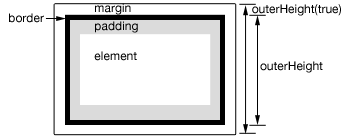
.outerHeight(), may be fractional in some cases. Code should not assume it is an integer. Also, dimensions may be incorrect when the page is zoomed by the user; browsers do not expose an API to detect this condition.
.outerHeight() is not guaranteed to be accurate when the element or its parent is hidden. To get an accurate value, ensure the element is visible before using .outerHeight(). jQuery will attempt to temporarily show and then re-hide an element in order to measure its dimensions, but this is unreliable and (even when accurate) can significantly impact page performance. This show-and-rehide measurement feature may be removed in a future version of jQuery.
var p = $( "p" ).first();
$( "p" ).last().text(
"outerHeight:" + p.outerHeight() +
" , outerHeight( true ):" + p.outerHeight( true ) );
this refers to the current element in the set.When calling .outerHeight(value), the value can be either a string (number and unit) or a number. If only a number is provided for the value, jQuery assumes a pixel unit. If a string is provided, however, any valid CSS measurement may be used (such as 100px, 50%, or auto).
var modHeight = 60;
$( "div" ).one( "click", function() {
$( this ).outerHeight( modHeight ).addClass( "mod" );
modHeight -= 8;
});
Returns the width of the element, including left and right padding, border, and optionally margin, in pixels. If called on an empty set of elements, returns undefined (null before jQuery 3.0).
This method is not applicable to window and document objects; for these, use .width() instead. Although .outerWidth() can be used on table elements, it may give unexpected results on tables using the border-collapse: collapse CSS property.
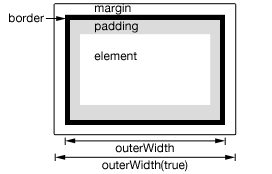
.outerWidth(), may be fractional in some cases. Code should not assume it is an integer. Also, dimensions may be incorrect when the page is zoomed by the user; browsers do not expose an API to detect this condition.
.outerWidth() is not guaranteed to be accurate when the element or its parent is hidden. To get an accurate value, ensure the element is visible before using .outerWidth(). jQuery will attempt to temporarily show and then re-hide an element in order to measure its dimensions, but this is unreliable and (even when accurate) can significantly impact page performance. This show-and-rehide measurement feature may be removed in a future version of jQuery.
var p = $( "p" ).first();
$( "p" ).last().text(
"outerWidth:" + p.outerWidth() +
" , outerWidth( true ):" + p.outerWidth( true ) );
this refers to the current element in the set.When calling .outerWidth(value), the value can be either a string (number and unit) or a number. If only a number is provided for the value, jQuery assumes a pixel unit. If a string is provided, however, any valid CSS measurement may be used (such as 100px, 50%, or auto).
var modWidth = 60;
$( "div" ).one( "click", function() {
$( this ).outerWidth( modWidth ).addClass( "mod" );
modWidth -= 8;
});
This is the inverse of :empty.
One important thing to note regarding the use of :parent (and :empty) is that child nodes include text nodes.
The W3C recommends that the <p> element have at least one child node, even if that child is merely text (see https://www.w3.org/TR/html401/struct/text.html#edef-P). Some other elements, on the other hand, are empty (i.e. have no children) by definition: <input>, <img>, <br>, and <hr>, for example.
To obtain the parents or ancestors of an existing jQuery set, see the .parent() and .parents() methods.
:parent is a jQuery extension and not part of the CSS specification, queries using :parent cannot take advantage of the performance boost provided by the native DOM querySelectorAll() method. To achieve the best performance when using :parent to select elements, first select the elements using a pure CSS selector, then use .filter(":parent").
$( "td:parent" ).fadeTo( 1500, 0.3 );
Given a jQuery object that represents a set of DOM elements, the parent() method traverses to the immediate parent of each of these elements in the DOM tree and constructs a new jQuery object from the matching elements.
This method is similar to .parents(), except .parent() only travels a single level up the DOM tree. Also, $( "html" ).parent() method returns a set containing document whereas $( "html" ).parents() returns an empty set.
The method optionally accepts a selector expression of the same type that we can pass to the $() function. If the selector is supplied, the elements will be filtered by testing whether they match it.
Consider a page with a basic nested list on it:
<ul class="level-1">
<li class="item-i">I</li>
<li class="item-ii">II
<ul class="level-2">
<li class="item-a">A</li>
<li class="item-b">B
<ul class="level-3">
<li class="item-1">1</li>
<li class="item-2">2</li>
<li class="item-3">3</li>
</ul>
</li>
<li class="item-c">C</li>
</ul>
</li>
<li class="item-iii">III</li>
</ul>
If we begin at item A, we can find its parents:
$( "li.item-a" ).parent().css( "background-color", "red" );
The result of this call is a red background for the level-2 list. Since we do not supply a selector expression, the parent element is unequivocally included as part of the object. If we had supplied one, the element would be tested for a match before it was included.
$( "*", document.body ).each(function() {
var parentTag = $( this ).parent().get( 0 ).tagName;
$( this ).prepend( document.createTextNode( parentTag + " > " ) );
});
$( "p" ).parent( ".selected" ).css( "background", "yellow" );
<div><p>Hello</p></div>
<div class="selected"><p>Hello Again</p></div>
Given a jQuery object that represents a set of DOM elements, the .parents() method allows us to search through the ancestors of these elements in the DOM tree and construct a new jQuery object from the matching elements ordered from immediate parent on up; the elements are returned in order from the closest parent to the outer ones. When multiple DOM elements are in the original set, the resulting set will be in reverse order of the original elements as well, with duplicates removed.
The .parents() and .parent() methods are similar, except that the latter only travels a single level up the DOM tree. Also, $( "html" ).parent() method returns a set containing document whereas $( "html" ).parents() returns an empty set.
The method optionally accepts a selector expression of the same type that we can pass to the $() function. If the selector is supplied, the elements will be filtered by testing whether they match it.
Consider a page with a basic nested list on it:
<ul class="level-1">
<li class="item-i">I</li>
<li class="item-ii">II
<ul class="level-2">
<li class="item-a">A</li>
<li class="item-b">B
<ul class="level-3">
<li class="item-1">1</li>
<li class="item-2">2</li>
<li class="item-3">3</li>
</ul>
</li>
<li class="item-c">C</li>
</ul>
</li>
<li class="item-iii">III</li>
</ul>
If we begin at item A, we can find its ancestors:
$( "li.item-a" ).parents().css( "background-color", "red" );
The result of this call is a red background for the level-2 list, item II, and the level-1 list (and on up the DOM tree all the way to the <html> element). Since we do not supply a selector expression, all of the ancestors are part of the returned jQuery object. If we had supplied one, only the matching items among these would be included.
var parentEls = $( "b" ).parents()
.map(function() {
return this.tagName;
})
.get()
.join( ", " );
$( "b" ).append( "<strong>" + parentEls + "</strong>" );
function showParents() {
$( "div" ).css( "border-color", "white" );
var len = $( "span.selected" )
.parents( "div" )
.css( "border", "2px red solid" )
.length;
$( "b" ).text( "Unique div parents: " + len );
}
$( "span" ).on( "click", function() {
$( this ).toggleClass( "selected" );
showParents();
});
Given a selector expression that represents a set of DOM elements, the .parentsUntil() method traverses through the ancestors of these elements until it reaches an element matched by the selector passed in the method's argument. The resulting jQuery object contains all of the ancestors up to but not including the one matched by the .parentsUntil() selector.
If the selector is not matched or is not supplied, all ancestors will be selected; in these cases it selects the same elements as the .parents() method does when no selector is provided.
As of jQuery 1.6, A DOM node or jQuery object, instead of a selector, may be used for the first .parentsUntil() argument.
The method optionally accepts a selector expression for its second argument. If this argument is supplied, the elements will be filtered by testing whether they match it.
$( "li.item-a" )
.parentsUntil( ".level-1" )
.css( "background-color", "red" );
$( "li.item-2" )
.parentsUntil( $( "ul.level-1" ), ".yes" )
.css( "border", "3px solid green" );
<ul class="level-1 yes">
<li class="item-i">I</li>
<li class="item-ii">II
<ul class="level-2 yes">
<li class="item-a">A</li>
<li class="item-b">B
<ul class="level-3">
<li class="item-1">1</li>
<li class="item-2">2</li>
<li class="item-3">3</li>
</ul>
</li>
<li class="item-c">C</li>
</ul>
</li>
<li class="item-iii">III</li>
</ul>
$( ":password" ) is equivalent to $( "[type=password]" ). As with other pseudo-class selectors (those that begin with a ":") it is recommended to precede it with a tag name or some other selector; otherwise, the universal selector ( "*" ) is implied. In other words, the bare $( ":password" ) is equivalent to $( "*:password" ), so $( "input:password" ) should be used instead.
:password is a jQuery extension and not part of the CSS specification, queries using :password cannot take advantage of the performance boost provided by the native DOM querySelectorAll() method. For better performance in modern browsers, use [type="password"] instead.
var input = $( "input:password" ).css( {
background: "yellow",
border: "3px red solid"
} );
$( "div" )
.text( "For this type jQuery found " + input.length + "." )
.css( "color", "red" );
// Prevent form submission
$( "form" ).on( "submit", function() {
return false;
} );
The .position() method allows us to retrieve the current position of an element (specifically its margin box) relative to the offset parent (specifically its padding box, which excludes margins and borders). Contrast this with .offset(), which retrieves the current position relative to the document. When positioning a new element near another one and within the same containing DOM element, .position() is the more useful.
Returns an object containing the properties top and left.
Note: jQuery does not support getting the position coordinates of hidden elements or accounting for margins set on the <html> document element.
.position(), may be fractional in some cases. Code should not assume it is an integer. Also, dimensions may be incorrect when the page is zoomed by the user; browsers do not expose an API to detect this condition.
var p = $( "p" ).first();
var position = p.position();
$( "p" ).last().text( "left: " + position.left + ", top: " + position.top );
this refers to the current element in the set.The .prepend() method inserts the specified content as the first child of each element in the jQuery collection (To insert it as the last child, use .append()).
The .prepend() and .prependTo() methods perform the same task. The major difference is in the syntax—specifically, in the placement of the content and target. With .prepend(), the selector expression preceding the method is the container into which the content is inserted. With .prependTo(), on the other hand, the content precedes the method, either as a selector expression or as markup created on the fly, and it is inserted into the target container.
Consider the following HTML:
<h2>Greetings</h2>
<div class="container">
<div class="inner">Hello</div>
<div class="inner">Goodbye</div>
</div>
You can create content and insert it into several elements at once:
$( ".inner" ).prepend( "<p>Test</p>" );
Each <div class="inner"> element gets this new content:
<h2>Greetings</h2>
<div class="container">
<div class="inner">
<p>Test</p>
Hello
</div>
<div class="inner">
<p>Test</p>
Goodbye
</div>
</div>
You can also select an element on the page and insert it into another:
$( ".container" ).prepend( $( "h2" ) );
If a single element selected this way is inserted into a single location elsewhere in the DOM, it will be moved into the target (not cloned):
<div class="container">
<h2>Greetings</h2>
<div class="inner">Hello</div>
<div class="inner">Goodbye</div>
</div>
Important: If there is more than one target element, however, cloned copies of the inserted element will be created for each target except for the last one.
Additional Arguments
Similar to other content-adding methods such as .append() and .before(), .prepend() also supports passing in multiple arguments as input. Supported input includes DOM elements, jQuery objects, HTML strings, and arrays of DOM elements.
For example, the following will insert two new <div>s and an existing <div> as the first three child nodes of the body:
var $newdiv1 = $( "<div id='object1'></div>"),
newdiv2 = document.createElement( "div" ),
existingdiv1 = document.getElementById( "foo" );
$( "body" ).prepend( $newdiv1, [ newdiv2, existingdiv1 ] );
Since .prepend() can accept any number of additional arguments, the same result can be achieved by passing in the three <div>s as three separate arguments, like so: $( "body" ).prepend( $newdiv1, newdiv2, existingdiv1 ). The type and number of arguments will largely depend on how you collect the elements in your code.
<img onload="">). Do not use these methods to insert strings obtained from untrusted sources such as URL query parameters, cookies, or form inputs. Doing so can introduce cross-site-scripting (XSS) vulnerabilities. Remove or escape any user input before adding content to the document.
addClass and removeClass.
$( "p" ).prepend( "<b>Hello </b>" );
$( "p" ).prepend( document.createTextNode( "Hello " ) );
$( "p" ).prepend( $( "b" ) );
The .prepend() and .prependTo() methods perform the same task. The major difference is in the syntax-specifically, in the placement of the content and target. With .prepend(), the selector expression preceding the method is the container into which the content is inserted. With .prependTo(), on the other hand, the content precedes the method, either as a selector expression or as markup created on the fly, and it is inserted into the target container.
Consider the following HTML:
<h2>Greetings</h2>
<div class="container">
<div class="inner">Hello</div>
<div class="inner">Goodbye</div>
</div>
We can create content and insert it into several elements at once:
$( "<p>Test</p>" ).prependTo( ".inner" );
Each inner <div> element gets this new content:
<h2>Greetings</h2>
<div class="container">
<div class="inner">
<p>Test</p>
Hello
</div>
<div class="inner">
<p>Test</p>
Goodbye
</div>
</div>
We can also select an element on the page and insert it into another:
$( "h2" ).prependTo( $( ".container" ) );
If an element selected this way is inserted into a single location elsewhere in the DOM, it will be moved into the target (not cloned):
<div class="container">
<h2>Greetings</h2>
<div class="inner">Hello</div>
<div class="inner">Goodbye</div>
</div>
If there is more than one target element, however, cloned copies of the inserted element will be created for each target except the last.
<img onload="">). Do not use these methods to insert strings obtained from untrusted sources such as URL query parameters, cookies, or form inputs. Doing so can introduce cross-site-scripting (XSS) vulnerabilities. Remove or escape any user input before adding content to the document.
addClass and removeClass.
$( "span" ).prependTo( "#foo" );
<div id="foo">FOO!</div>
<span>I have something to say... </span>
Given a jQuery object that represents a set of DOM elements, the .prev() method searches for the predecessor of each of these elements in the DOM tree and constructs a new jQuery object from the matching elements.
The method optionally accepts a selector expression of the same type that can be passed to the $() function. If the selector is supplied, the preceding element will be filtered by testing whether it match the selector.
Consider a page with a simple list on it:
<ul>
<li>list item 1</li>
<li>list item 2</li>
<li class="third-item">list item 3</li>
<li>list item 4</li>
<li>list item 5</li>
</ul>
To select the element that comes immediately before item three:
$( "li.third-item" ).prev().css( "background-color", "red" );
The result of this call is a red background behind item 2. Since no selector expression is supplied, this preceding element is unequivocally included as part of the object. If one had been supplied, the element would be tested for a match before it was included.
If no previous sibling exists, or if the previous sibling element does not match a supplied selector, an empty jQuery object is returned.
To select all preceding sibling elements, rather than just the preceding adjacent sibling, use the .prevAll() method.
var $curr = $( "#start" );
$curr.css( "background", "#f99" );
$( "button" ).on( "click", function() {
$curr = $curr.prev();
$( "div" ).css( "background", "" );
$curr.css( "background", "#f99" );
});